Electronics / Headphones Earbuds
JBL Live 100BT Headset User Guide
Quick start guide for the JBL Live 100BT wireless headphones, covering setup, Bluetooth pairing, multi-point connection, button controls, and technical specifications.
Table of contents
Manual images
Jump to the sectionGetting Started
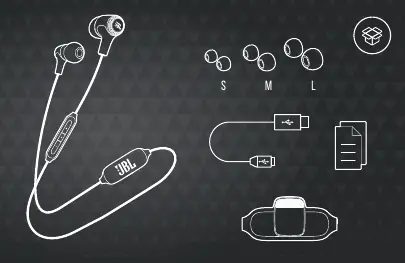
The JBL Live 100BT wireless headphones are designed for high-quality audio performance and convenience. Before using your new headset, ensure you have all the included accessories, which consist of the headphones, different sizes of ear tips (S, M, L), a charging cable, and documentation.
How to Wear
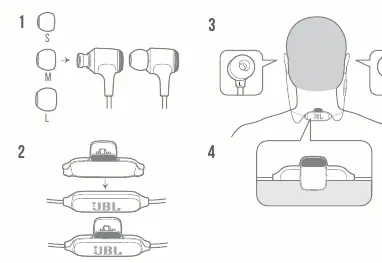
For the best audio experience and comfort, select the ear tips that fit your ears securely. Insert the earbuds into your ears, ensuring the left (L) and right (R) sides are correctly positioned. The neckband should rest comfortably around your neck.
Power On and Bluetooth Pairing
To power on your headphones, press and hold the power button for 2 seconds. The device will automatically enter pairing mode. On your smartphone or other Bluetooth-enabled device, navigate to the Bluetooth settings menu and select "JBL LIVE100BT" from the list of available devices to establish a connection.
Multi-Point Connection
The JBL Live 100BT supports multi-point connection, allowing you to connect to two devices simultaneously. To connect a second device, enter pairing mode again while the first device is connected. You can easily switch between music sources by pausing playback on the current device and starting playback on the second device. Please note that phone calls will always take priority over music playback.
Button Commands
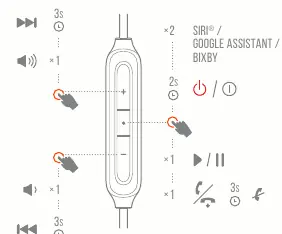
The inline remote control allows you to manage your audio and calls easily. Use the volume buttons to adjust sound levels. A single press of the center button plays or pauses music and answers or ends calls. A double press activates your voice assistant (Siri, Google Assistant, or Bixby). Holding the center button for 3 seconds can reject an incoming call.
Charging and LED Indicators
To charge your headphones, connect the provided USB cable to the charging port. A full charge takes approximately 2 hours, providing up to 9 hours of music playback or talk time. The LED indicator provides status updates: a steady light indicates charging, while the light turns off when the battery is fully charged. Flashing blue indicates the device is in pairing mode, and a solid blue light confirms a successful Bluetooth connection.

Manufacturer information
JBL
Practical help
Common problems
Device not connecting via Bluetooth
Ensure the headphones are in pairing mode and that your device's Bluetooth is turned on. If the issue persists, try forgetting the device in your Bluetooth settings and re-pairing.
Multi-point connection not working
Ensure you have entered pairing mode with the second device while the first is already connected. If you need to reset, select 'Forget this device' on your Bluetooth settings.
One device disconnects
If a device goes out of range or powers off, you may need to manually reconnect the remaining device through your device's Bluetooth menu.
Before use
- Check that all items are in the box
- Select the correct ear tip size (S, M, or L)
- Charge the headphones fully before first use
- Ensure Bluetooth is enabled on your source device
Specs in practice
- Frequency response
- 20 Hz - 20 kHz, the range of audio frequencies the headphones can reproduce.
- Battery type
- Polymer Li-ion (3.7 V, 120 mAh) for portable power.
- Bluetooth version
- V5.0, ensures stable and efficient wireless connectivity.
Images and diagrams
- The inline remote features volume up (+), volume down (-), and a center multi-function button.
- The charging port is located on the side of the control module.
- LED indicator is located on the control module to show connection and battery status.
Model compatibility
- Supports up to 2 devices simultaneously via multi-point connection.
- Compatible with Siri, Google Assistant, and Bixby voice assistants.

Manual page author
David Miller
Documentation analyst
Organizes user manual content into clear summaries, with attention to model details, product context, and everyday usability.