Electronics / Televisions
User Manual for Philips 190V4L Monitor
Quick guide for the Philips 190V4L monitor, covering setup, OSD menu navigation, SmartControl Lite software, and troubleshooting.
Table of contents
Manual images
Jump to the sectionQuick guide from the manual
This document provides essential instructions for setting up and operating your Philips 190V4L monitor. Key tasks include connecting the monitor to your PC, adjusting display settings via the On-Screen Display (OSD) menu, and utilizing the SmartControl Lite software for advanced image calibration.
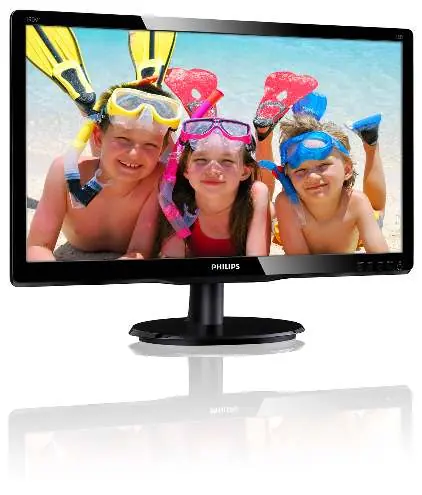
Monitor setup
To assemble the monitor, place the screen face down on a soft surface to avoid scratches. Attach the base stand to the monitor column until it clicks into place. Connect the power cable and the signal cable (VGA or DVI) to the back of the monitor and your computer. Ensure the monitor is powered on after all connections are secure.
OSD menu
The OSD menu allows you to adjust various display settings. Use the buttons on the front bezel to navigate the menu. Key options include:
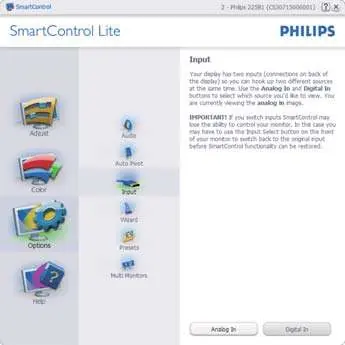
- Input: Select between VGA and DVI sources.
- Picture: Adjust brightness, contrast, and SmartContrast.
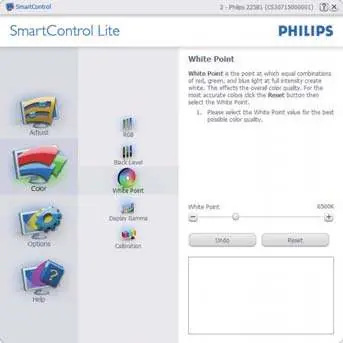
- Color: Configure color temperature (6500K, 9300K) or user-defined RGB values.
- OSD Settings: Adjust horizontal/vertical position, transparency, and OSD timeout.
- Setup: Auto-adjust, phase, clock, and reset options.
SmartControl Lite
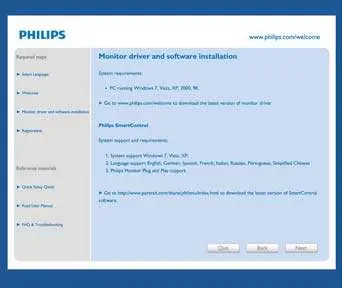
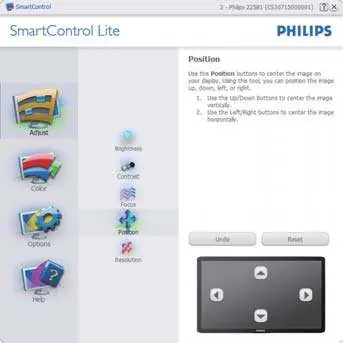
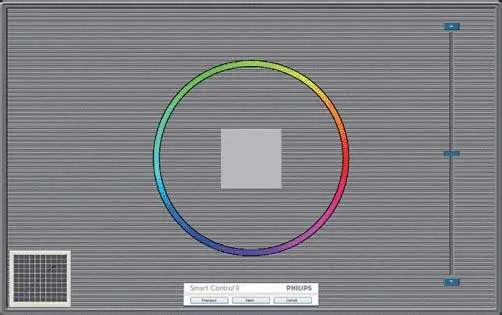
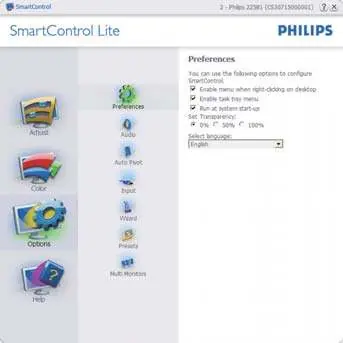
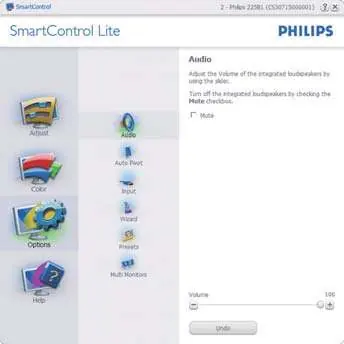
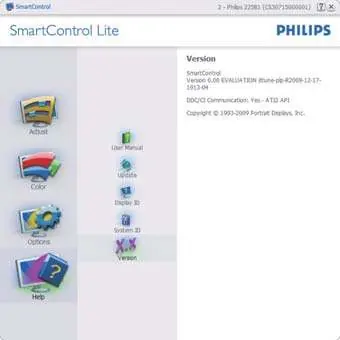
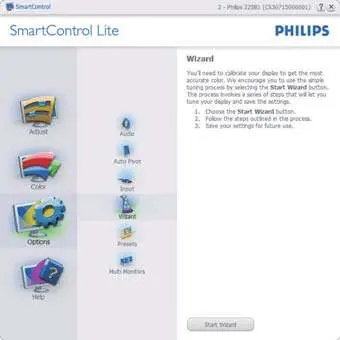
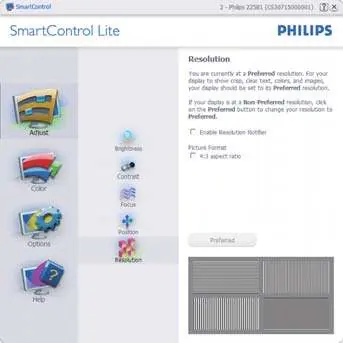
SmartControl Lite is an easy-to-use software interface that allows you to control your monitor settings directly from your PC. It includes a wizard for color calibration, adjustments for brightness, contrast, focus, and position, and provides access to user manuals and technical support.
Troubleshooting
If you encounter issues, check the following:
- No picture (LED off): Ensure the power cable is connected to the outlet and the monitor.
- No picture (LED white): Check if the computer is on and the signal cable is properly connected.
- Image not centered: Use the Auto function in the OSD menu.
- Vertical/Horizontal flicker: Use the Auto function or adjust phase/clock settings in the OSD menu.
Safety and maintenance
To protect your monitor, avoid excessive vibration or impact. Clean the screen with a dry, soft cloth; do not use alcohol or ammonia-based cleaners. Keep the monitor away from direct sunlight, rain, or excessive moisture. Maintain an operating temperature of 0-40°C and humidity of 20-80% RH.
Manufacturer information
Philips
Practical help
Common problems
No picture (LED off)
Ensure the power cable is firmly connected to the outlet and the monitor.
No picture (LED white)
Verify that the computer is powered on and the signal cable is securely connected.
Image not centered or flickering
Use the 'Auto' function in the OSD menu to automatically adjust the image.
Before use
- Ensure the monitor is placed on a flat, stable surface.
- Check that the power cable is connected to a grounded outlet.
- Verify that the signal cable (VGA or DVI) is securely connected to both the monitor and the PC.
- Ensure the monitor is kept away from heat sources and direct sunlight.
Specs in practice
- Operating Temperature
- Recommended range is 0°C to 40°C.
Images and diagrams
- The OSD menu buttons are located on the front bezel, allowing for power control, input selection, and menu navigation.
- The rear panel features AC power input, VGA input, DVI-D input, and a Kensington lock slot.
Model compatibility
- Supports Windows 7, Vista, XP, Mac OSX, and Linux.
- Monitor is DDC/CI compatible for software-based control.

Manual page author
David Miller
Documentation analyst
Organizes user manual content into clear summaries, with attention to model details, product context, and everyday usability.