Electronics / Televisions
User Manual for Philips 191TE2L / 221TE2L LED TV Monitor
Quick guide for the Philips 191TE2L and 221TE2L LED TV monitors, covering setup, connection, menu navigation, channel installation, and troubleshooting.
Table of contents
Quick guide from the manual
This document provides essential instructions for the Philips 191TE2L and 221TE2L LED TV monitors. It covers safety precautions, device installation, connection options, and basic operation. For the latest information and support, visit www.philips.com/support.
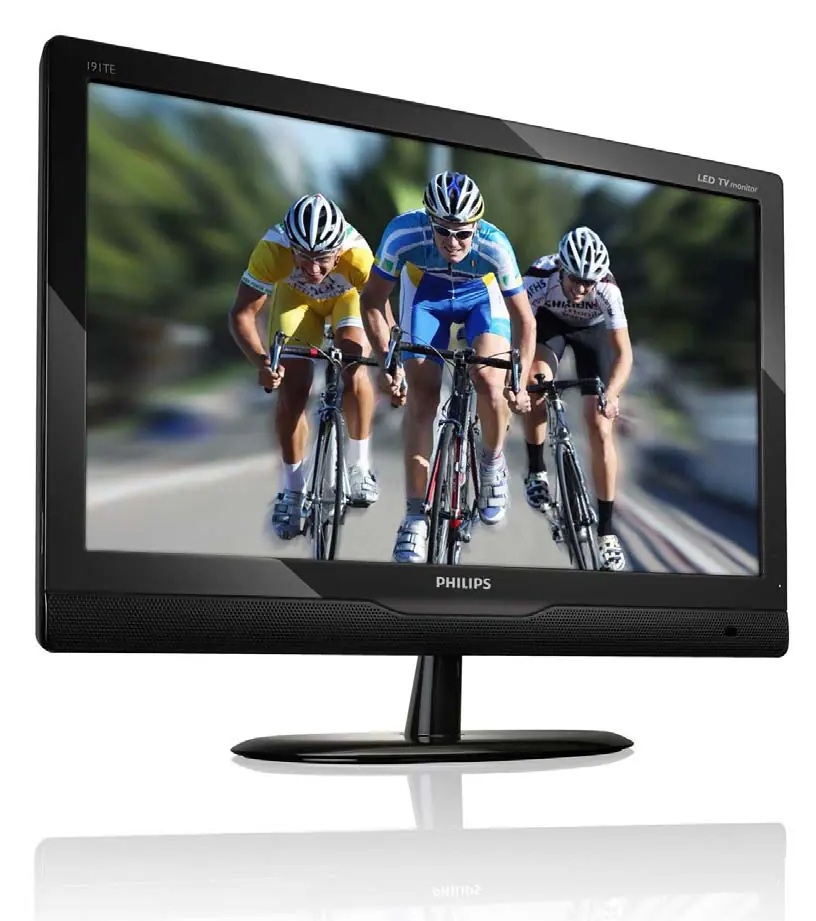
Device Description and Setup
The monitor features touch-sensitive front controls and a remote control. Ensure the monitor is placed on a stable surface or mounted using a VESA-compliant mount (75x75mm). Always leave at least 4 inches (10cm) of space around the monitor for proper ventilation.
Connections
The monitor includes various ports for external devices:
- PC IN: VGA and Audio In for computer connection.
- EXT1 (SCART): Analog audio/video input.
- EXT2 (Y Pb Pr): Analog component input for DVD players or game consoles.
- EXT3 (AV): Composite audio/video input.
- HDMI: Digital input for high-definition devices.
- SPDIF OUT: Digital audio output.
- TV ANTENNA: Input for antenna, cable, or satellite signals.
- Side Ports: Common Interface (CAM) slot, headphone jack, and service port.
Operation and Settings
Use the SOURCE button to select the input device. The MENU button allows access to settings such as:
- Channel Installation: Automatic or manual programming, channel editing, and parental control.
- Configuration: Wide screen mode, HDMI capacity, menu language, auto-off timer, and factory reset.
Maintenance and Safety
Clean the screen with a soft, damp cloth. Do not use alcohol or chemicals. Avoid displaying static images for long periods to prevent screen damage. If the monitor is transported in temperatures below 5°C, allow it to reach room temperature before connecting to power.
Troubleshooting
If the monitor does not turn on, check the power cable connection. If the remote control fails, check the batteries. For signal issues, ensure the antenna is connected correctly and the correct source is selected. If the screen image is unstable, verify the resolution and refresh rate settings on your computer.
Official resources from the manual
Manufacturer information
Philips
Practical help
Common problems
Monitor does not turn on
Unplug the power cable, wait one minute, and reconnect it firmly.
Remote control not working
Check battery polarity (+/-), replace if weak, and clean the remote and monitor sensor.
No image, but sound is present
Check if the antenna is connected properly and the correct input source is selected.
Image does not fit the screen
Try changing the picture format settings.
Before use
- Ensure the power voltage matches the value on the monitor back.
- Place the monitor on a flat, stable surface.
- Leave at least 4 inches (10cm) of space for ventilation.
- If transported in cold temperatures, wait for it to reach room temperature.
- Register your product at www.philips.com/welcome.
Specs in practice
- VESA standard
- 75x75mm mount pattern required for wall or stand mounting.
- Power consumption
- ≤ 0.5W in standby mode.
- Operating temperature
- 5 to 40 degrees Celsius.
Images and diagrams
- The front panel features touch controls for Power, Source, Menu/OK, Channel +/- and Volume +/-.
- The rear panel contains all primary input/output ports including HDMI, VGA, SCART, and Antenna.
- The side panel provides easy access to the Common Interface slot and headphone jack.
Model compatibility
- Supports DVB-T and DVB-C (check local availability).
- HDMI-to-DVI adapters may require an additional audio cable connected to the AUDIO IN port.

Manual page author
David Miller
Documentation analyst
Organizes user manual content into clear summaries, with attention to model details, product context, and everyday usability.