Electronics / Monitors
User Guide for Ricoh Portable Monitor 150/150BW
Quick setup guide for the Ricoh Portable Monitor 150 and 150BW. Learn how to connect, adjust the stand, charge the battery (150BW), and configure wireless settings.
Table of contents
Manual images
Click an image to enlargeQuick Start Guide
This guide provides essential instructions for setting up and using the Ricoh Portable Monitor 150 and 150BW. Please note that the 150BW model includes wireless capabilities and a built-in battery, while the 150 model is a wired-only version.
Package Contents and Setup
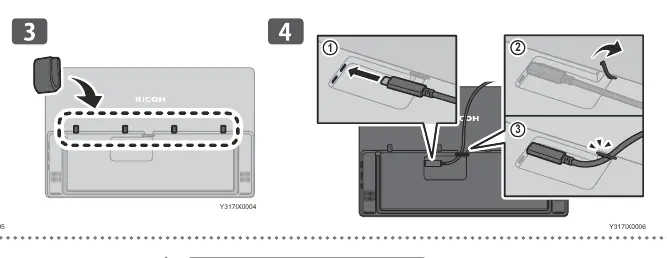
Ensure you have all components included in the box. Use the provided cable clips to secure cables to the back of the monitor for a clean setup. Connect the monitor to your computer using the appropriate USB cable provided.
Stand Adjustment
The monitor stand supports multiple viewing angles to suit your needs:
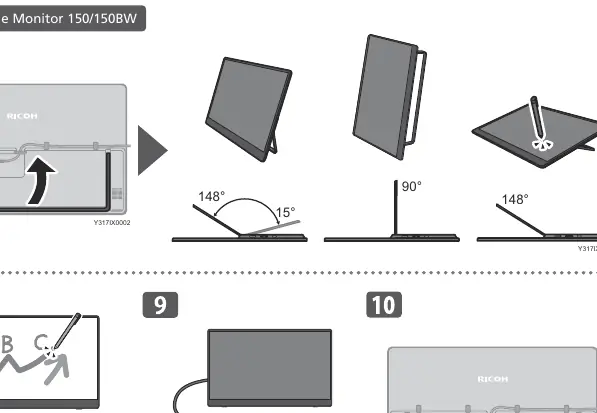
- 15°: Low angle for drawing or close-up work.
- 90°: Vertical orientation.
- 148°: Standard viewing angle.
Do not apply excessive pressure to the screen when adjusting the stand.
Connecting to a Device
Connect the monitor to your laptop or PC using the USB cable. Ensure the cable is securely inserted into the port on the back of the monitor. For the 150BW model, ensure the device is charged or connected to a power source.
Charging (150BW Model)
The 150BW model features a built-in battery. To charge the device:
- Use a power adapter that provides at least 20W of power.
- Connect the power adapter to the monitor's power port.
- The battery indicator will show the charging status.
- If the battery level is between 0-15%, it is recommended to charge the device immediately.
Wireless Connection (150BW Model)
To establish a wireless connection:
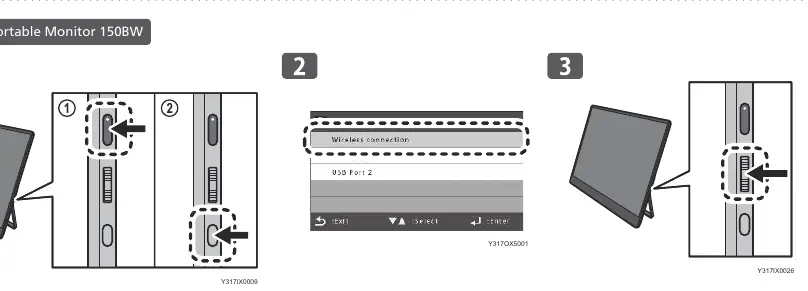
- Access the monitor's settings menu using the control buttons on the side.
- Navigate to the wireless connection settings.
- Select the wireless connection option to pair with your source device.
- Follow the on-screen prompts to complete the pairing process.
Settings
Use the buttons located on the side of the monitor to navigate the on-screen display (OSD) menu. This allows you to adjust brightness, contrast, wireless settings, and other display parameters.
Manufacturer information
Ricoh Company, Ltd.
Practical help
Common problems
Monitor not charging
Ensure the power adapter used provides at least 20W of power.
Wireless connection fails
Check the wireless settings menu on the monitor and ensure the source device is compatible and within range.
Before use
- Unpack all components including cables.
- Ensure the power source is at least 20W for charging.
- Check the battery level (for 150BW) before starting wireless operations.
- Secure cables using the provided clips.
Images and diagrams
- Stand angles: 15°, 90°, and 148°.
- Cable routing: Use the provided clips to secure cables to the back of the monitor.
Model compatibility
- 150BW supports wireless connection; 150 does not.

Manual page author
Emily Carter
User documentation editor
Prepares concise manual descriptions and highlights the most useful setup, operation, and maintenance information for readers.