Power / Power Inverters
User Manual for Streetwize 1000W Modified Sine Wave Inverter SWINV1000
Quick guide for the Streetwize 1000W Modified Sine Wave Inverter (SWINV1000). Learn how to safely connect to a 12V battery, operate appliances, replace fuses, and troubleshoot common issues.
Table of contents
Manual images
Click an image to enlargeQuick guide from the manual
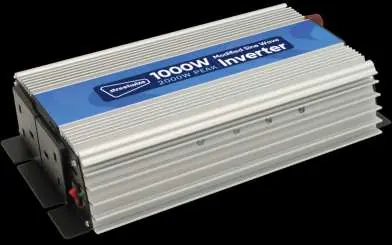
The Streetwize 1000W Modified Sine Wave Inverter (SWINV1000) converts 12V DC battery power into 230V AC power. It is designed for use in caravans, campervans, and by tradespeople. Important: This device is not suitable for appliances with AC motors (e.g., refrigerators, washing machines, heavy-duty power tools), medical equipment, laser printers, photocopiers, or fluorescent lights.
Safety Guidelines
- Voltage: Only suitable for use with 12V batteries.
- Ventilation: Ensure at least 5cm (2 inches) of space on all sides during operation to prevent overheating.
- Environment: Keep away from water, rain, snow, spray, and flammable substances. Do not expose to temperatures over 40°C.
- Connection: Never connect the inverter to an AC power source.
Installation and Connection
Ensure your vehicle is fully switched off before making connections.
12V Socket Connection
Connect the O-rings of the 12V connection cable to the inverter terminals (black to negative, red to positive). Plug the 12V plug into the vehicle's 12V socket. Warning: Only use this method for appliances requiring less than 150W to avoid damaging the vehicle's fuse.
Direct Battery Connection
Connect the black (negative) cable to the inverter's negative terminal, then to the battery's negative terminal. Connect the red (positive) cable to the inverter's positive terminal, then to the battery's positive terminal. Important: Disconnect the inverter before starting the vehicle's engine.
Operating Appliances
Once connected, plug your appliance into the 3-pin socket or USB port and turn on the power switch. The inverter provides 1000W continuous power and 2000W peak power. If the load exceeds the continuous wattage, the unit will operate for a limited time before automatically shutting down.
Maintenance and Troubleshooting
Fuse Replacement
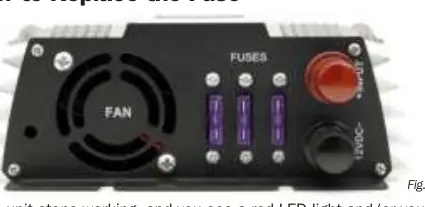
If the unit stops working and you see a red LED or hear an audible beeping, check the fuses. There are 3 x 35amp fuses located on the unit. Use tweezers to remove and check them.
Troubleshooting
- No AC output (Green LED off): DC input is below 10V. Recharge or replace the battery.
- No AC output (Cold unit): Poor battery connection. Check and reconnect.
- Shutdown after long use: Overheat. Allow 15 minutes to cool.
- Shutdown after short use: Overload. Appliance wattage may be too high.
Technical Specifications
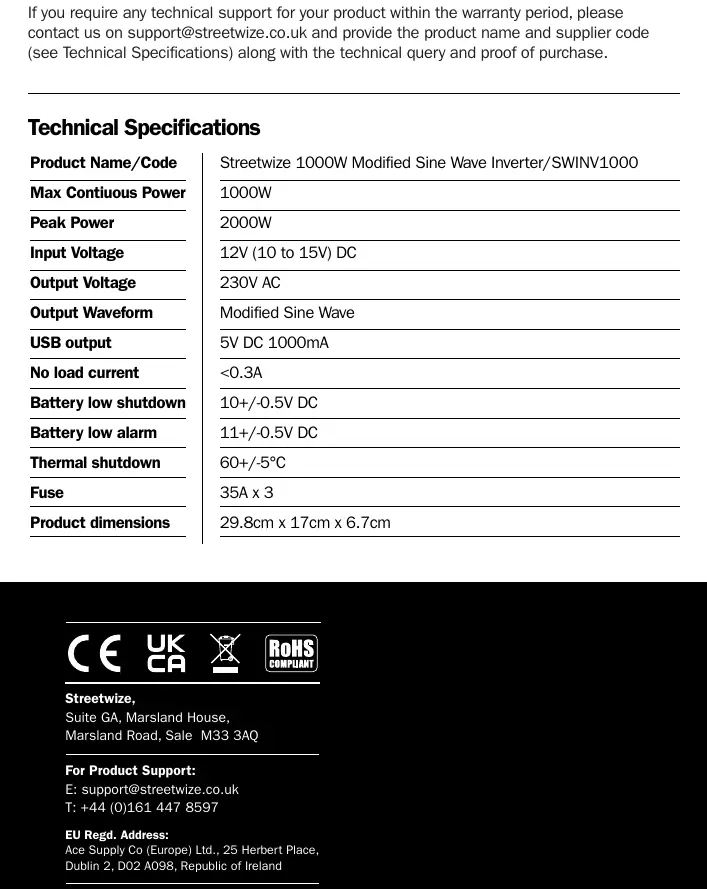
- Continuous Power: 1000W
- Peak Power: 2000W
- Input Voltage: 12V DC (10-15V)
- Output Voltage: 230V AC
- USB Output: 5V DC 1000mA
- Fuse: 35A x 3
Practical help
Common problems
No AC output (Green LED off)
DC input is below 10V. Recharge or replace the battery.
No AC output (Unit is cold)
Poor connection with the battery. Switch off vehicle, disconnect, and reconnect securely.
Inverter shuts down after long use
Overheat. Switch off, disconnect, and allow to cool for 15 minutes.
Inverter shuts down after short use
Overload. The appliance wattage may be too high.
Red LED light or audible beeping
Fuse may be blown. Check and replace the 35A fuses.
Before use
- Ensure the battery is 12V.
- Verify the appliance wattage is within the 1000W continuous limit.
- Ensure at least 5cm of ventilation space around the unit.
- Confirm the appliance does not have an AC motor (e.g., fridge, power tool).
- Ensure the vehicle is switched off before connecting the inverter.
Specs in practice
- Continuous Power
- 1000W - The maximum power the inverter can supply for extended periods.
- Input Voltage
- 12V DC (10-15V) - The required battery voltage range.
Images and diagrams
- Fig 1 shows the location of the three 35A fuses on the inverter unit.
Model compatibility
- Not suitable for appliances with AC motors (fridges, washing machines, heavy-duty power tools).
- Not suitable for devices with thyristors (laser printers, photocopiers).
- Not suitable for fluorescent lights.
- 12V socket connection is limited to appliances under 150W.

Manual page author
Emily Carter
User documentation editor
Prepares concise manual descriptions and highlights the most useful setup, operation, and maintenance information for readers.