Health / Laboratory Equipment
User Manual for Thermo Fisher Scientific Nicolet Apex Spectrometer
Quick start guide for the Thermo Fisher Scientific Nicolet Apex spectrometer. This manual covers system features, rear panel connections, sample collection procedures, maintenance, and warranty information.
Table of contents
Manual images
Click an image to enlargeQuick guide from the manual
The Nicolet Apex spectrometer is designed for data collection using the OMNIC software suite. Before using the instrument, ensure it has reached room temperature after unpacking to avoid damage to optical components. The system uses a humidity indicator to monitor internal conditions; if the indicator is pink or white, the desiccant must be replaced. Data collection involves measuring a background spectrum first, followed by the sample spectrum.
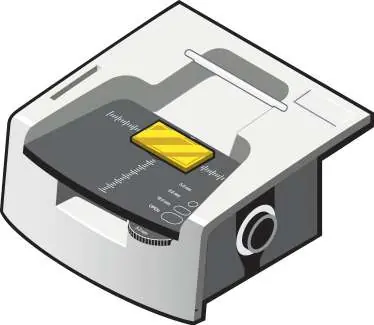
Features of the spectrometer
The spectrometer includes several key components for operation:
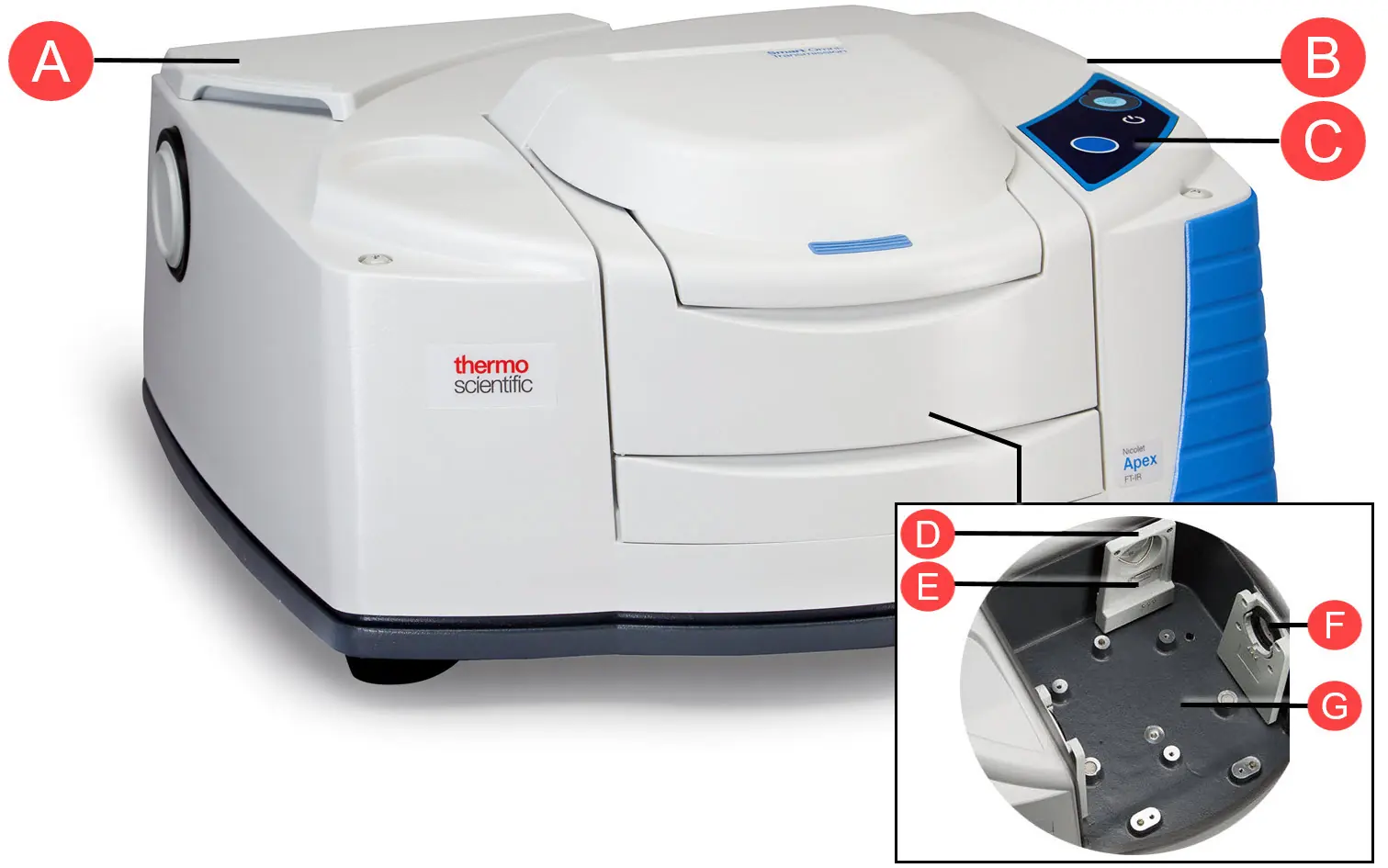
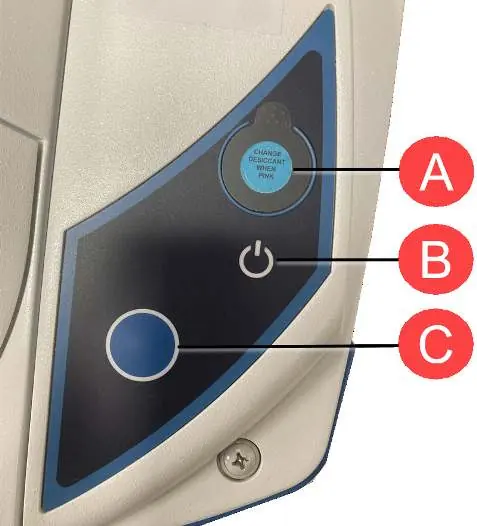
- Desiccant canister cover: Protects the internal desiccant canisters.
- External beam port: Located on the right side for connecting external accessories.
- Integrated touch panel: Features a power indicator, humidity indicator, and a blue Touch Point button for streamlining data analysis.
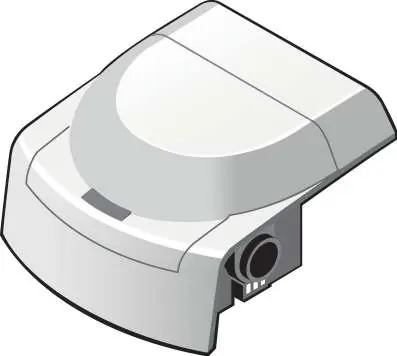
- Sample compartment: Area for installing various accessories like ATR, transmission cells, or DRIFTS.
Rear panel connections
The rear panel contains the following connectors:
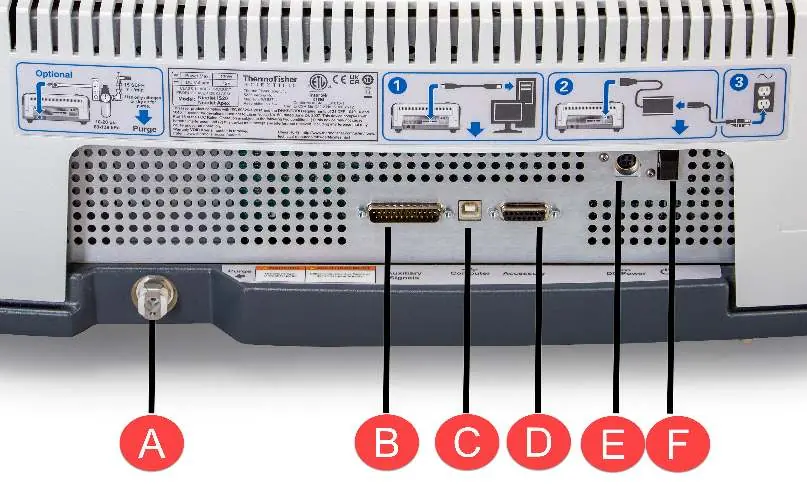
- Purge connector: For connecting a purge gas supply (optional).
- Auxiliary connector: Used for remote data collection and service diagnostics.
- USB 2.0 port: Connects the system computer.
- Accessory connector: Used to connect the instrument to various accessories.
- Power supply port: Connection for the instrument power supply.
- Power switch: Turns the instrument on or off.
Collecting a spectrum
To collect a sample spectrum, follow these steps:
- Start the OMNIC software.
- Ensure the appropriate sampling accessory is installed in the sample compartment.
- Press the blue Touch Point button on the integrated touch panel to measure a background spectrum.
- Install your sample into the accessory.
- Press the blue Touch Point button again to measure the sample spectrum.
The software will display the spectrum once the measurement is complete. You can use tools like OMNIC QCheck or TQ Analyst for further data verification and quantification.
Maintenance and care
To keep the spectrometer in good working order:
- Check the desiccant indicator frequently. If it is pink or white, replace the desiccant canisters.
- Wipe the exterior of the main cover with a soft cloth.
- Do not allow moisture to come into contact with the windows.
- Refer to the OMNIC software Help menu for detailed cleaning instructions.
Warranty information
The system comes with a 12-month warranty (14 months from shipment date). The warranty does not cover damage to hygroscopic parts (purge windows and beamsplitter) caused by excessive moisture or unauthorized removal of the cover.
Practical help
Common problems
Humidity indicator is pink or white
The humidity is too high. Replace the desiccant canisters and consider storing the instrument in a lower humidity environment.
Sample spectrum not collecting
Ensure the sampling accessory is properly installed and that the sample is correctly positioned in the beam path.
Before use
- Ensure the shipping box has reached room temperature before unpacking.
- Check that the humidity indicator is blue.
- Ensure the sampling accessory is properly installed in the sample compartment.
- Start the OMNIC software on the connected computer.
- Verify that the power switch is in the correct position.
Specs in practice
- Humidity Indicator (Blue)
- Indicates humidity is lower than 60% RH (Normal operating condition).
- Humidity Indicator (Pink/White)
- Indicates humidity is too high; desiccant needs replacement.
Images and diagrams
- The rear panel diagram identifies the purge gas, auxiliary, USB, accessory, power supply, and power switch ports.
- The touch panel diagram shows the location of the humidity indicator, power indicator, and the blue Touch Point button.
- Accessory diagrams illustrate the correct placement of samples for ATR, DRIFTS, and transmission accessories.
Model compatibility
- Compatible with various Smart Accessories including ATR, DRIFTS, specular reflectance, and transmission cells.
- Near-IR integrating sphere requires the auxiliary signals port.
- Optional sample compartment extension allows for TGA interface and long pathlength gas cells.

Manual page author
Michael Turner
Technical manual editor
Reviews PDF manuals for structure, safety notes, and practical product details so readers can find the right information quickly.