Electronics / Televisions
Thomson Streaming Stick 140G User Guide
Quick guide for the Thomson Streaming Stick 140G. Learn how to set up your device, pair the remote, install apps, and configure display and sound settings.
Table of contents
Manual images
Click an image to enlargeQuick guide from the manual
The Thomson Streaming Stick 140G is a device that upgrades your TV to a Smart TV, providing access to Android-based apps, streaming services, and Google Assistant. This guide covers the essential setup, operation, and configuration steps required to get started.
Product Overview
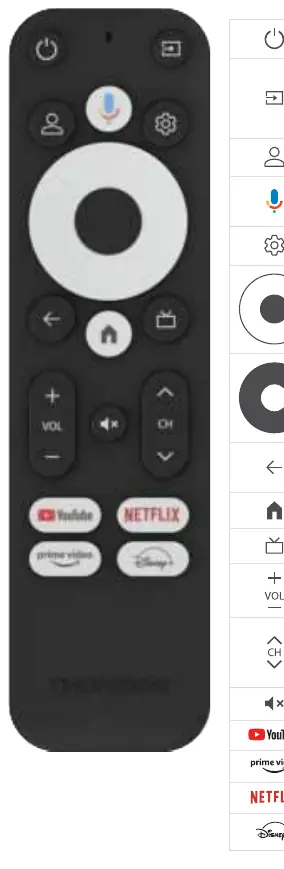
The device consists of the streaming stick itself and a voice remote control. The stick features a power supply connector and a reset button located inside the housing. The remote control includes dedicated buttons for power, volume, channel navigation, and direct access to popular streaming services like Netflix, YouTube, Prime Video, and Disney+.
Installation and Setup
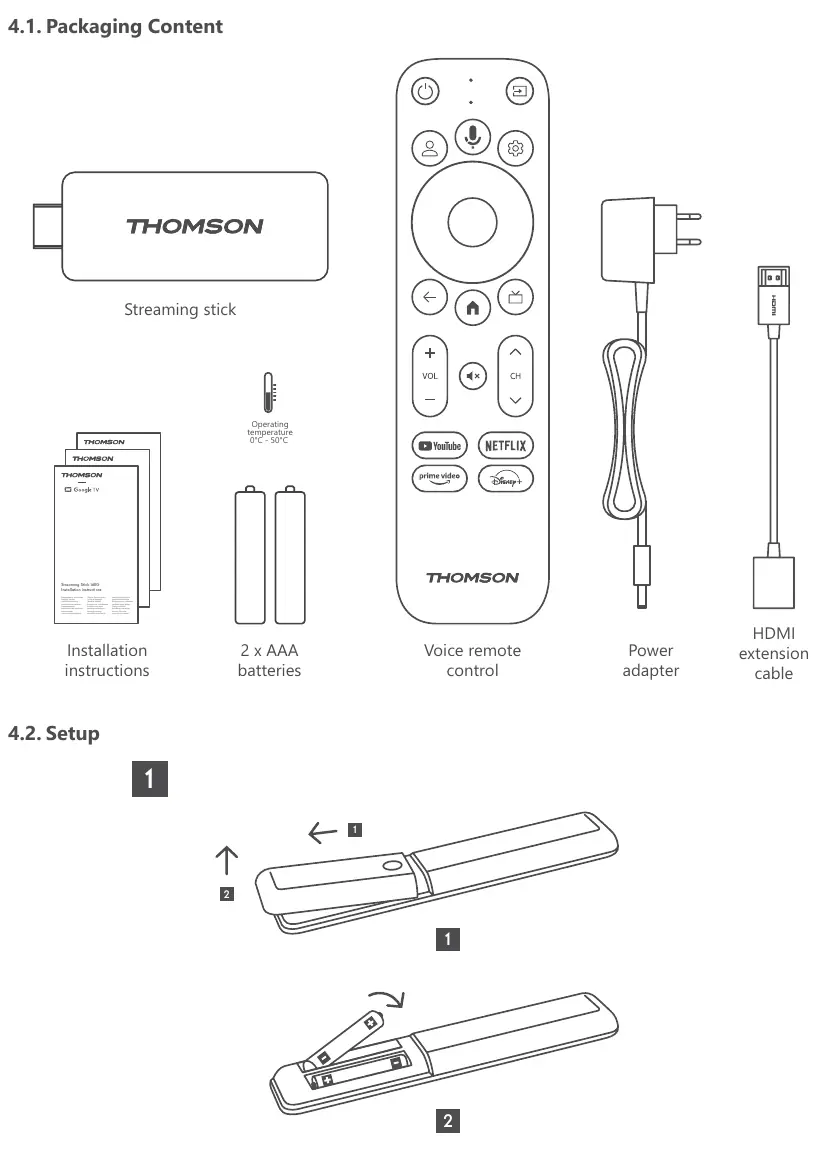
Packaging Content: Ensure you have the streaming stick, voice remote control, power adapter, HDMI extension cable, and 2x AAA batteries.
Setup Steps:
- Connect the streaming stick to the HDMI port of your TV, either directly or using the supplied HDMI extension cable.
- Connect the power adapter to the streaming stick and plug it into a power outlet.
- Ensure your TV is set to the correct HDMI input.
- The device will prompt you to connect to the internet via WLAN if a LAN connection is not available.
Remote Control Pairing
To pair the remote control:
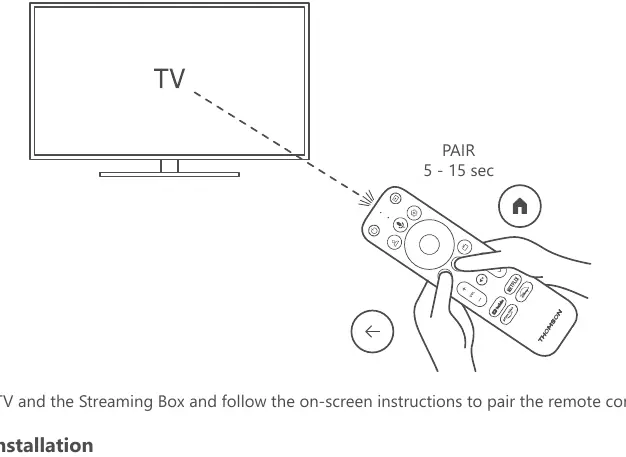
- Turn on the TV and the Streaming Stick.
- Follow the on-screen instructions.
- Hold the pairing buttons as indicated on the screen for 5-15 seconds until the remote is successfully paired.
First Installation
After pairing the remote, select your language and region. You can set up the device using the Google Home app on your mobile phone or manually by selecting "Set up on TV instead". A Google account is required to access the Google Play Store, Hey Google, and streaming applications.
Apps and Connectivity
Installing Apps: Navigate to the Apps menu on the Home Screen, search for the desired application, and select it to download.
Bluetooth Devices: You can connect audio devices (headphones, speakers) or input devices (gamepads, mouse, keyboard) via the Settings menu under Bluetooth.
Chromecast: To cast content, ensure your phone, tablet, or computer is on the same network as the streaming stick. Open a casting-enabled app, select the cast icon, and choose the Streaming Stick 140G.
Settings
Display Format: Access via Settings > Display & Sound > Advanced display settings. You can choose between Automatic (recommended) or Manual to adjust HDR formats.
Sound Format: Access via Settings > Display & Sound > Advanced Sound Settings. Automatic is recommended for optimal sound playback via HDMI or Optical Toslink.
Updates
Software updates occur automatically. If an update is available, you will receive a notification on the Home Screen.
Practical help
Common problems
Cannot find a specific app
Some apps are geo-location dependent or restricted to mobile devices for legal reasons and may not be available on Google TV.
Remote control not responding
Ensure the remote is paired correctly (hold pairing buttons for 5-15 seconds) and check that the batteries are fresh.
No surround sound
Check Sound Format Settings and ensure 'Automatic' is selected to allow the device to detect the best format supported by your TV or AV receiver.
Google account issues
A Google account is mandatory for setup. If you do not have one, create it on a computer or smartphone before starting the installation.
Before use
- Ensure your TV has an available HDMI port.
- Have a Google account ready for setup.
- Ensure a stable Wi-Fi connection is available.
- Insert 2x AAA batteries into the remote control.
- Keep the packaging away from children.
Specs in practice
- Connectivity
- Wi-Fi 802.11 b/g/n/a/ac (2.4GHz/5GHz) and Bluetooth 5.0.
- Power Supply
- Requires 5V 1A input.
Images and diagrams
- The reset button is located inside the housing of the streaming stick.
- The remote control features dedicated buttons for YouTube, Netflix, Prime Video, and Disney+.
- The HDMI extension cable should be used if the stick does not fit directly into the TV's HDMI port.
Model compatibility
- Compatible with HD, FHD, and UHD TVs with an HDMI port.
- Supports Bluetooth keyboards and gamepads.
- Requires a Google account for full functionality.

Manual page author
David Miller
Documentation analyst
Organizes user manual content into clear summaries, with attention to model details, product context, and everyday usability.