Electronics / Collaboration Devices
User Manual for WyreStorm Focus 100, 200, and 210 Webcam
Quick guide for the WyreStorm Focus 100, 200, and 210 webcams. Includes setup instructions for monitor and tripod, software configuration for Zoom and Teams, technical specifications, and troubleshooting tips.
Table of contents
Manual images
Click an image to enlargeQuick guide from the manual
This guide covers the installation and setup of the WyreStorm Focus 100, 200, and 210 webcams. Key requirements include installing the camera at a height no greater than 2m (6.5ft). For the best video quality on Focus 200 and 210 models, a USB 3.0 connection is recommended.
Setting up the webcam
For placement on a monitor:
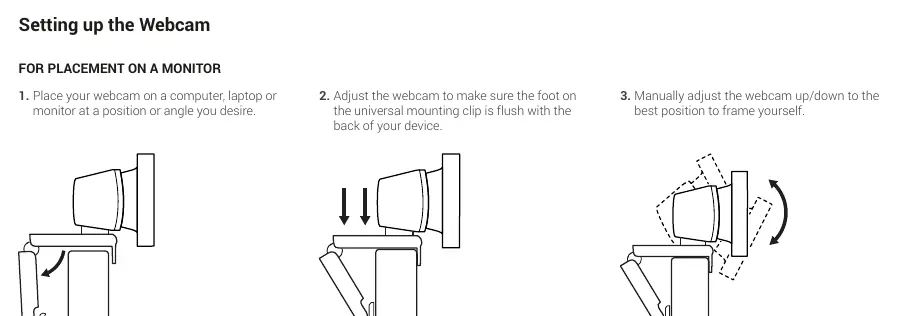
- Place the webcam on your computer, laptop, or monitor at the desired angle.
- Adjust the webcam to ensure the foot on the universal mounting clip is flush with the back of your device.
- Manually adjust the webcam up or down to frame yourself correctly.
For placement on a tripod:
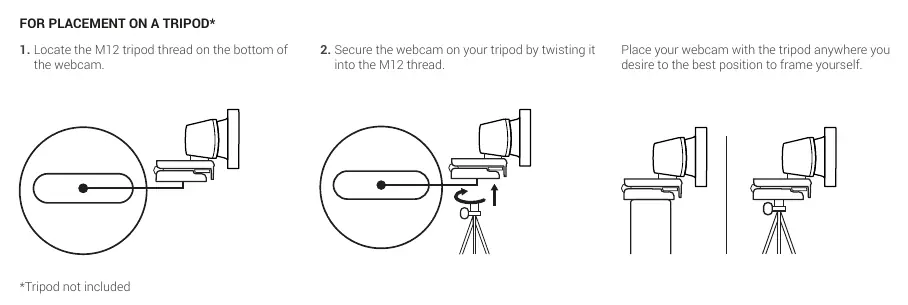
- Locate the M12 tripod thread on the bottom of the webcam.
- Secure the webcam onto your tripod by twisting it into the M12 thread.
Connecting the webcam
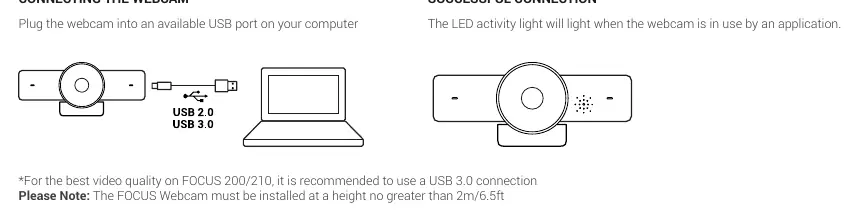
Plug the webcam into an available USB port on your computer. The LED activity light will illuminate when the webcam is in use by an application. For Focus 200/210 models, use a USB 3.0 port for optimal performance.
Software device setup
Focus 200 and 210 models have dedicated control software for ePTZ and other functions, available at wyrestorm.com.
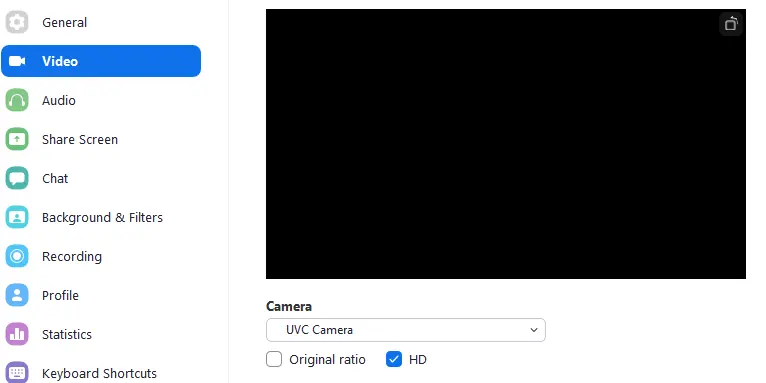

Connecting to Zoom: Navigate to the settings pane by clicking the gear icon in the top right corner, then select the Video tab. Use the dropdown menus to select the WyreStorm Focus Webcam.
Connecting to Microsoft Teams: Navigate to the settings pane by clicking your display image in the top right corner, then select the Devices tab. Use the dropdown menus to select the WyreStorm Focus Webcam.
Troubleshooting
If you experience no or poor quality picture (snow or noisy image):
- Verify the WyreStorm Focus webcam is selected in your meeting software's device settings.
- Ensure all connections are secure and functioning properly.
- Try using a different USB port on your computer (Focus 200 requires a USB 3.0 port for 4K capture).
- Remove any intermediate devices such as USB hubs, extension cables, or switchers.
Official resources from the manual
Practical help
Common problems
No or poor quality picture (snow/noise)
Verify the webcam is selected in meeting software settings, check physical connections, try a different USB port, and remove USB hubs or extension cables.
4K resolution not available on Focus 200
Ensure the webcam is connected to a USB 3.0 port on your computer.
Before use
- Ensure the webcam is installed at a height no greater than 2m/6.5ft.
- For Focus 200/210, use a USB 3.0 connection for best video quality.
- Download the latest control software from wyrestorm.com (Focus 200/210 only).
- Attach the privacy cover if desired.
Specs in practice
- Video Resolution (Max)
- Focus 100: 1080p@30Hz; Focus 200/210: up to 4K@30Hz.
- Power Supply
- USB 5V for all models.
- Viewing Angle
- 100° (Focus 100), 106° (Focus 200), 120° (Focus 210).
Images and diagrams
- Monitor Mounting: Shows how to adjust the mounting clip to sit flush against the back of a monitor.
- Tripod Mounting: Illustrates using the M12 thread on the bottom of the camera.
- Connection: Shows plugging the USB cable into a computer port.
Model compatibility
- Focus 200/210 requires USB 3.0 for 4K capture.
- Presenter Tracking feature is supported on Focus 210 via future firmware update.

Manual page author
Emily Carter
User documentation editor
Prepares concise manual descriptions and highlights the most useful setup, operation, and maintenance information for readers.