Electronics / Collaboration Devices
WyreStorm FOCUS 180A 4K AI Webcam Quick Start Guide
Quick start guide for the WyreStorm FOCUS 180A 4K UHD AI webcam. Includes installation instructions for monitor and tripod, connection steps, and full technical specifications.
Quick answers from the manual
Quick answer
- The WyreStorm FOCUS 180A is a 4K AI-powered USB webcam. It is installed by clipping it onto a monitor or mounting it on a tripod via the 1/4-inch thread. It connects via USB 2.0 and is compatible with Windows, macOS, Chrome OS, and Linux. p. 2, 3, 4, 5
Key actions
- Mounting on a monitor p. 4
- Mounting on a tripod p. 4
First start
- Connect the USB-A cable to your computer. p. 5
Problems and fixes
AI features not performing correctly
Download the WyreStorm FOCUS App and latest firmware from the official website.
p. 3Technical specifications
| Parameter | Value | Meaning | Pages |
|---|---|---|---|
| Resolution | 4K @ 30fps | Maximum video output quality. | p. 5, 6 |
| Field of View | 95° | Diagonal field of view. | p. 5 |
Where to find it in the PDF
- Introduction and Features p. 2, 3
- Installation p. 4
- Specifications p. 5, 6
Table of contents
Manual images
Click an image to enlargeQuick guide from the manual
The WyreStorm FOCUS 180A is a 4K Ultra HD USB webcam designed for video conferencing and streaming. It features AI-powered auto-framing and presenter tracking, a 95° field of view, and a built-in noise-reducing microphone. The device is plug-and-play compatible with major operating systems including Windows, macOS, Chrome OS, and Linux. For optimal performance and access to all AI features, it is recommended to download the WyreStorm FOCUS App and the latest firmware from the official WyreStorm website.
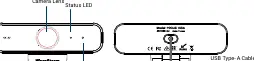
In the Box
- 1 x FOCUS 180A Camera
- 1 x Quick Start Guide
- 1 x Privacy Cover
- 1 x Screw Driver
Installation

Placement on a Monitor
- Place the webcam on your computer, laptop, or monitor at the desired angle.
- Adjust the webcam so the foot of the universal mounting clip is flush against the back of your device.
- Manually tilt the camera up or down to achieve the best framing.
Placement on a Tripod
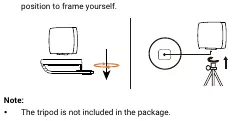
- Use the provided screwdriver to remove the mounting clip from the bottom of the webcam.
- Locate the 1/4-inch tripod thread on the bottom of the camera.
- Secure the webcam onto your tripod by twisting it into the thread.
- Position the tripod as needed to frame yourself.
Connecting the Webcam
Connect the integrated USB-A cable directly to a USB-A port on your computer. Once connected, the system will automatically detect the camera and microphone as "FOCUS 180A".

Specifications
- Resolution: Up to 4K at 30fps (downward compatible with 1080p/720p at 60fps).
- Field of View: 95° (DFOV).
- Focus Distance: 5cm to 300cm.
- Digital Zoom: Up to 5x (ePTZ).
- Microphone: Built-in, 3m pick-up distance.
- Interface: USB 2.0 Type-A.
- Operating Temperature: 0°C to 40°C.
Practical help
Common problems
Camera or microphone not detected
Ensure the USB-A cable is securely connected to a functional USB port on your computer.
AI features (auto-framing/tracking) not working as expected
Download and install the WyreStorm FOCUS App and update the camera firmware via the WyreStorm website.
Before use
- Verify all items are present: Camera, Privacy Cover, Screwdriver.
- Ensure your computer has an available USB-A port.
- Check that your operating system is supported (Windows 7/8/10/11, macOS 10.10+, Chrome OS, or Linux).
- Download the latest firmware from the WyreStorm website for full AI functionality.
Specs in practice
- Focus Distance
- The camera can focus on subjects between 5cm and 300cm away.
Images and diagrams
- The mounting clip is removable using the included screwdriver to reveal a standard 1/4-inch tripod thread.
- The camera features a status LED to indicate operation and a built-in microphone.
Model compatibility
- Compatible with major conferencing platforms like Zoom, Teams, Skype, and WebEx.
- Works with streaming software such as OBS and XSplit.

Manual page author
David Miller
Documentation analyst
Organizes user manual content into clear summaries, with attention to model details, product context, and everyday usability.