Home / Security
Xiaomi Mijia IMILAB Home Security Camera 1080P 360° Setup Guide
A comprehensive guide for connecting, configuring, and using your Xiaomi Mijia IMILAB 1080P 360° security camera with the Mi Home app.
Table of contents
Getting Started with Your Camera
The Xiaomi Mijia IMILAB Home Security Camera 1080P 360° is designed to provide comprehensive home monitoring. To begin, ensure you have the Mi Home application installed on your smartphone, which is available via the Play Market or App Store. Before starting the connection process, verify that your smartphone is connected to a 2.4 GHz Wi-Fi network, as 5 GHz networks are not supported for the initial setup.
Connecting to the Mi Home App
Open the Mi Home app and tap the plus icon in the top right corner to add a new device. The app will prompt you to enable Bluetooth to automatically discover nearby devices. If the camera is detected, simply tap its icon to proceed. If automatic discovery fails, you can manually add the device by selecting the camera category and choosing the Mi Basic 1080P camera from the list.
During the setup, you may be required to reset the camera. Use a SIM card ejector tool or a paperclip to press and hold the reset button until the indicator light flashes yellow. Once reset, confirm the action in the app. You will then be prompted to scan a QR code displayed on your phone screen with the camera lens. Keep the phone approximately 15 centimeters away from the camera until you hear a confirmation sound.
Camera Features and Controls
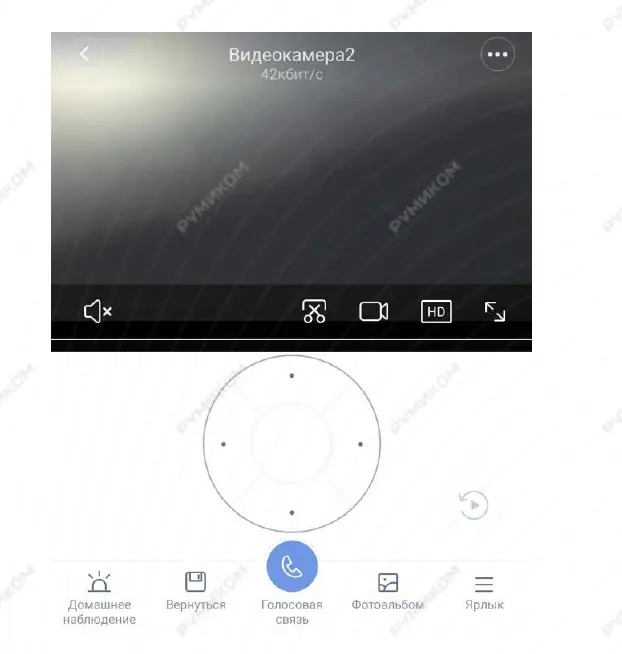
The main interface of the camera in the app allows for real-time monitoring and control. You can use two fingers to zoom in or out and drag to pan the view. The interface provides quick access to essential functions such as muting audio, taking screenshots, recording video clips, adjusting video quality, and switching to full-screen mode. The bottom menu includes options for Home Surveillance (motion detection settings), playback of recorded footage, two-way voice communication, a photo gallery for saved screenshots, and shortcuts for additional features.
Automation and Smart Scenarios
The camera supports advanced automation within the Mi Home ecosystem. You can create scenarios where the camera acts as a trigger or an action. For example, you can set the camera to wake up and start recording if a smart hub detects an alarm, or have it enter sleep mode automatically when you return home. These settings are managed under the Automation tab in the device settings, allowing you to define specific conditions and time periods for the camera's behavior.
Manufacturer information
Xiaomi Corporation
Practical help
Common problems
Device not connecting to the app
Set Mi Home location to 'China', use a simple alphanumeric Wi-Fi password, assign a static IP, or try a different phone/network.
Camera not recognized automatically
Use the 'Add manually' button and select 'Mi Basic 1080P' from the camera list.
Before use
- Ensure smartphone is connected to a 2.4 GHz Wi-Fi network
- Download and install the Mi Home app
- Enable Bluetooth on your smartphone
- Have a paperclip or SIM tool ready for resetting
- Grant location permissions to the Mi Home app
Specs in practice
- 2.4 GHz Wi-Fi
- The required frequency band for the camera's wireless connection.
- 15 cm distance
- The optimal distance between the phone screen and camera lens for QR code scanning.
Images and diagrams
- The app interface shows a live feed with controls for audio, recording, and quality.
- The reset button is located on the device and requires a pin-type tool to activate.
- The QR code setup requires holding the phone screen directly in front of the camera lens.
Model compatibility
- Requires Mi Home app for operation.
- Supports integration with other Mi ecosystem devices via automation scenarios.

Manual page author
David Miller
Documentation analyst
Organizes user manual content into clear summaries, with attention to model details, product context, and everyday usability.