Mobile / Smartphones
User Manual for ZTE Blade A3 2020-T
Comprehensive user manual for the ZTE Blade A3 2020-T smartphone. Includes setup instructions, basic operation, connectivity guides, camera usage, and safety information.
Quick answers from the manual
Quick answer
- The ZTE Blade A3 2020-T is an Android smartphone. This manual provides instructions for initial setup, using the interface, managing connectivity, and safety guidelines. p. 1, 11, 14
Key actions
- Insert SIM and Battery p. 11, 12, 13
- Power On/Off p. 14
- Connect to Wi-Fi p. 27
First start
- Charge the phone, insert SIM/battery, power on, and follow the on-screen setup wizard. p. 11, 13, 14
Problems and fixes
Cannot power on
Charge for at least 20 minutes.
p. 14Maintenance and reset
- Reset to factory settings via Settings > System > Reset options. p. 64
Technical specifications
| Parameter | Value | Meaning | Pages |
|---|---|---|---|
| Display | 5.5 inch | 720 x 1440p, Capacitive touch | p. 79 |
| Battery | 2600mAh | Li-ion user replaceable | p. 79 |
| Storage | 16GB ROM | Expandable up to 128GB | p. 79 |
Where to find it in the PDF
- Getting Started p. 9, 10, 11, 12
- Settings p. 55, 56, 57, 58
Table of contents
Manual images
Click an image to enlargeQuick Guide from the Manual
This guide provides essential information for setting up and using your ZTE Blade A3 2020-T smartphone. For detailed instructions on advanced features, please refer to the full manual sections below.
Getting Started
Before using your phone, ensure you have installed the SIM card and battery correctly.
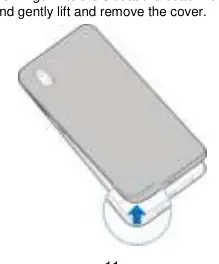
- Removing the back cover: Place your finger into the slot at the bottom of the back cover and gently lift.
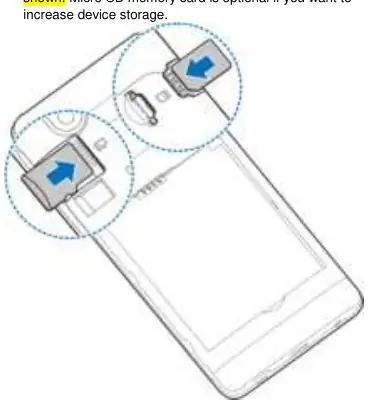
- Installing cards: Insert the nano-SIM card and the optional microSDXC card into their respective slots as shown in the device diagram.
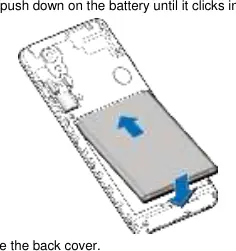
- Inserting the battery: Align the battery connectors and push down until it clicks into place.
- Charging: Use only ZTE-approved chargers and USB cables. Charge the battery fully as soon as possible. If the phone does not turn on, charge for at least 20 minutes.
Knowing the Keys
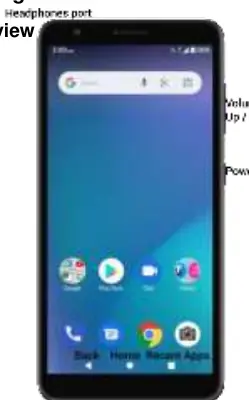
- Power key: Press and hold to restart or power off. Press to turn the screen on or off.
- Volume key: Adjusts volume levels.
- Home key: Returns to the home screen. Touch and hold for Google Assistant.
- Back key: Returns to the previous screen.
- Recent apps key: Shows recently used apps.
Connectivity
The device supports various connection methods:
- Mobile Network: Configure APN settings via Settings > Network & Internet > Mobile network.
- Wi-Fi: Connect via Settings > Network & Internet > Wi-Fi.
- Bluetooth: Pair devices via Settings > Connected devices > Bluetooth.
- Hotspot & Tethering: Share your mobile data connection via USB, Bluetooth, or Wi-Fi hotspot in the Network & Internet settings.
Camera and Media
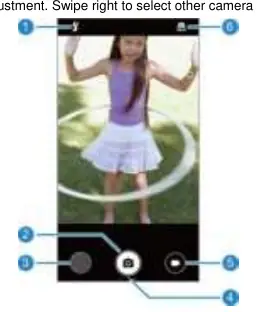
The Camera app allows for taking pictures and recording videos. Swipe right to access different camera modes like Manual or Scene. Use the Gallery app to view, share, and retouch your photos and videos. Play Music supports various audio formats and allows for playlist management.
Security
Protect your device using:
- Screen Lock: Set up Swipe, Pattern, PIN, or Password via Settings > Security & location > Screen lock.
- Screen Pinning: Keep an app in view to prevent switching to other apps.
Safety Information
Important: Do not use the phone while driving. Keep the phone at least 5 mm away from your body during calls. Avoid extreme temperatures (0°C to 35°C for operation) and do not expose the battery to fire or excessive heat. If the battery is damaged, stop using it immediately.
Manufacturer information
ZTE Corporation
Practical help
Common problems
Phone will not power on
Charge the device for at least 20 minutes. If it still fails, contact customer service.
SIM card not recognized
Ensure the nano-SIM is installed correctly in the slot.
Forgotten screen lock
Use Android Recovery mode by holding the Volume Down key while powering on the device.
Before use
- Charge the battery fully
- Insert nano-SIM card
- Insert microSDXC card (optional)
- Power on the device
- Follow on-screen setup prompts
Images and diagrams
- Overview of physical keys (Power, Volume, Home, Back, Recent apps)
- Step-by-step guide for removing the back cover
- Correct orientation for SIM and microSDXC card installation
- Battery insertion alignment
Model compatibility
- Requires nano-SIM card
- Supports microSDXC cards up to 128GB
- Compatible with USB 2.0 interfaces

Manual page author
David Miller
Documentation analyst
Organizes user manual content into clear summaries, with attention to model details, product context, and everyday usability.