Mobile / Mobile Phones
User Manual for Alcatel One Touch 2010D Mobile Phone
Quick guide for the Alcatel One Touch 2010D mobile phone. Learn how to set up your device, manage calls, contacts, messages, and troubleshoot common issues.
Quick answers from the manual
Quick answer
- The Alcatel 2010D is a mobile phone. This manual covers setup, basic operations, messaging, multimedia features, and troubleshooting. p. 1, 15
Key actions
- Power on/off: Hold the end call key. p. 10
- Insert SIM: Slide into housing, chip facing down. p. 9
- Charge battery: Connect charger to phone and mains. p. 9
First start
- Charge for 3 hours, insert SIM, power on using the end call key. p. 9, 10
Show 4 more answers Show less
Problems and fixes
Phone won't switch on
Check battery contacts, charge for at least 20 minutes.
p. 37Maintenance and reset
- Use User Data Format or ONE TOUCH Upgrade tool. p. 37
Technical specifications
| Parameter | Value | Meaning | Pages |
|---|---|---|---|
| Operating Temperature | -10°C to +55°C | Recommended operating range. | p. 4 |
Where to find it in the PDF
- Getting started p. 9
- Troubleshooting p. 37
Table of contents
Manual images
Click an image to enlargeQuick guide from the manual
This guide provides essential information for operating your Alcatel One Touch 2010D mobile phone. Before first use, ensure the battery is fully charged for at least 3 hours. The device supports dual SIM functionality (depending on the model) and requires 3V or 1.8V compatible SIM cards.
Getting started
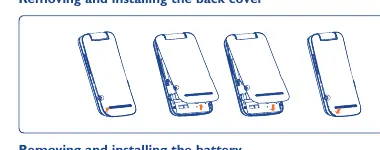
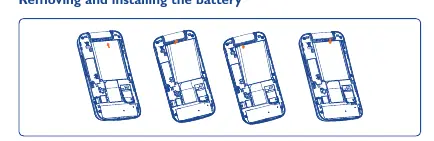
To set up your phone, remove the back cover and insert the battery. Insert your SIM card(s) into the housing with the chip facing downwards. Connect the battery charger to the phone and a mains socket. Note that charging may take about 20 minutes to start if the battery is completely flat.
Your mobile
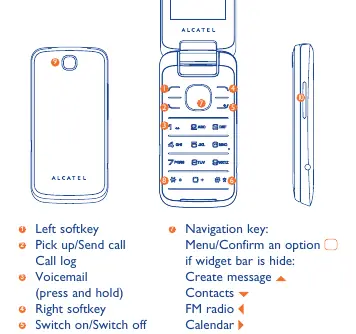
The phone features a navigation key for menu access, softkeys for call control, and a dedicated volume key. The main screen displays status icons such as network reception, battery level, and Bluetooth status. You can customize the widget bar for quick access to frequently used applications.
Calls and contacts
To make a call, dial the number and press the call key. You can manage contacts by adding them to the phone or SIM memory. The phone supports call waiting, call forwarding, and conference calls. Voicemail can be accessed by holding down the 1 key.
Messages
The phone supports SMS and MMS. You can switch between conversational and conventional view modes. MMS functionality requires operator support and correct configuration of parameters.
Multimedia
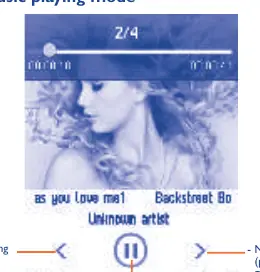
The device includes a camera for photos and videos, a music player, and an FM radio. To use the FM radio, you must plug in your headset, which acts as an antenna. Files can be managed via the File manager, and you can use a microSD card for additional storage.
Settings and connectivity
Access the settings menu to customize display, sound profiles, security (PIN/password), and network settings. Bluetooth 3.0 is supported for hands-free communication and data transfer. You can also use the phone as a webcam when connected to a PC via USB.
Troubleshooting
If you encounter issues, try restarting the phone or removing/reinserting the battery. For software issues, use the User Data Format or the ONE TOUCH Upgrade tool. Ensure your SIM card is valid and correctly inserted if you experience network or service problems.
Manufacturer information
Alcatel
Practical help
Common problems
Phone will not switch on
Check battery contacts, remove and reinstall the battery, or charge for at least 20 minutes.
Phone is frozen or unresponsive
Restart by holding the end call key or remove and re-insert the battery.
Cannot connect to network
Verify network coverage, check if SIM card is valid, or try manual network selection.
Cannot charge properly
Ensure you are using the original battery and charger, clean battery contacts, and charge within 0°C to +40°C.
Before use
- Insert SIM card with chip facing downwards.
- Insert battery correctly.
- Charge the battery fully for at least 3 hours before first use.
- Ensure the mains socket is easily accessible.
Show more Show less
Specs in practice
- Operating Temperature
- -10°C to +55°C
- Charger Temperature
- 0°C to +40°C
Images and diagrams
- Back cover removal: Slide the back cover off the device.
- SIM insertion: Slide the SIM card into the housing with the chip facing down.
- Key layout: Navigation key is in the center, with softkeys and call/end keys surrounding it.
Model compatibility
- SIM cards: 3V or 1.8V compatible (5V cards are not supported).
- Bluetooth: Supports A2DP profiles.
- PC Suite: Compatible with Windows XP, Vista, and Windows 7.

Manual page author
Emily Carter
User documentation editor