Electronics / USB Hubs & Docking
ALOGIC USB-C to HDMI Adapter with 100W Charging Passthrough
Quick guide for the ALOGIC USB-C to HDMI Adapter (ULCHDPD-SGR). Learn how to connect your device, use the 100W power passthrough, and troubleshoot common video or charging issues.
Table of contents
Quick guide from the manual
The ALOGIC USB-C to HDMI Adapter is a plug-and-play device designed to connect a USB-C enabled computer to an HDMI display. It supports video output and 100W power delivery passthrough. Ensure your computer's USB-C port supports DisplayPort Alt Mode for video output.
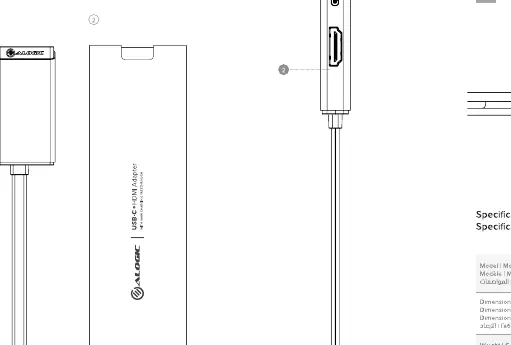
Connecting the adapter
To use the adapter, simply connect the built-in USB-C cable to your computer's USB-C port. The device will be automatically detected and configured by your computer. Connect your HDMI cable from the adapter to your display device.
Power delivery and charging
If you need to charge your laptop while using the adapter, connect your original USB-C power adapter to the USB-C port on the adapter. The adapter will then pass power through to your laptop.
Compatibility requirements
Not all USB-C ports support video output or charging. Your computer must support DisplayPort Alt Mode to output video via the USB-C port. Check your computer's manual or manufacturer's website if you are unsure about your port's capabilities.
Troubleshooting
- Video doesn't show: Check that the HDMI cable is connected securely to both the adapter and the display. Ensure the computer is set to output video to the external display.
- Video drops intermittently: Ensure the HDMI cable is of good quality and is connected securely.
- Laptop doesn't charge: Verify that the power adapter is connected to the adapter's USB-C port and that the power adapter is plugged into a wall outlet. Ensure the laptop supports USB-C Power Delivery.
Specifications
- HDMI: 2.0, supports up to 4K at 60Hz.
- Power Delivery: Up to 100W pass-through.
- Interface: USB-C (Host), HDMI (Output), USB-C (Power Input).
Manufacturer information
ALOGIC
Practical help
Common problems
Video does not show on the external display
Check that the HDMI cable is connected securely to both the adapter and the display. Ensure the computer is set to output video to the external display and that the USB-C port supports DisplayPort Alt Mode.
Video drops intermittently
Ensure the HDMI cable is of good quality and is connected securely to the adapter and the monitor.
Laptop does not charge
Verify that the power adapter is connected to the adapter's USB-C port and that the power adapter is plugged into a wall outlet. Ensure the laptop supports USB-C Power Delivery.
Before use
- Verify your computer's USB-C port supports DisplayPort Alt Mode.
- Ensure you have a compatible HDMI cable.
- If using power passthrough, ensure your power adapter is connected to the adapter's USB-C port.
Specs in practice
- DisplayPort Alt Mode
- Required for video output via the USB-C port.
Images and diagrams
- The adapter features a built-in USB-C cable for host connection, an HDMI port for display output, and a USB-C port for power delivery input.
Model compatibility
- Requires a USB-C port that supports DisplayPort Alt Mode.
- Not all USB-C ports support video output or charging.

Manual page author
Emily Carter
User documentation editor
Prepares concise manual descriptions and highlights the most useful setup, operation, and maintenance information for readers.