Electronics / Cameras
User Manual for Amcrest AWC205-B 1080P ProStream HD Webcam
Quick setup guide and user manual for the Amcrest AWC205-B 1080P ProStream HD Webcam. Learn how to mount, connect, and optimize your webcam for video calls.
Table of contents
Manual images
Click an image to enlargeQuick guide from the manual
This guide provides instructions for setting up and using the Amcrest AWC205-B webcam. It covers physical installation, USB connection, and basic troubleshooting for audio. The device is a plug-and-play webcam compatible with Windows, Linux, and Mac operating systems.
Product Overview
The webcam consists of the following components:
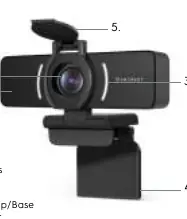
- 1080P HD Lens: The main camera lens.
- Microphone: Built-in high-sensitivity microphone.
- Activity LEDs: Indicators for camera status.
- Adjustable Clip/Base: Used for mounting on monitors, desktops, or tripods.
- Privacy Cover: A physical cover for the lens.
Setting Up Your Webcam
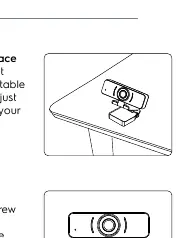
The webcam features an adjustable clip base that allows for multiple mounting options:
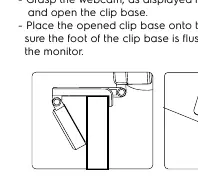
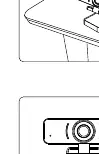
- Placement on a Monitor: Grasp the webcam and open the clip base. Place it onto the monitor, ensuring the foot of the clip base is flush with the back of the monitor.
- Placement on a Flat Surface: Simply place the camera on a flat surface and use the adjustable clip base to position the camera to your preference.
- Placement on a Tripod: The bottom of the clip base features a 1/4"-20 tripod screw hole. Twist the base onto the male end of a standard tripod.
Connecting the Webcam
The webcam is a plug-and-play device. Follow these steps to connect:
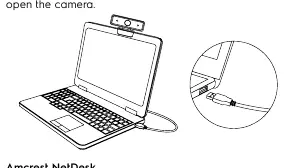
- Connect the webcam's USB cable to an available USB port on your computer.
- The status indicator on the camera will illuminate to confirm a proper connection.
- Allow your computer to load the necessary drivers automatically.
- Open your preferred video chat or recording software to begin using the camera.
Audio Optimization
If you experience issues with audio quality, you can optimize the microphone using third-party software. The manual recommends using Equalizer APO, which can be further enhanced with the Peace GUI equalizer extension. For more information, visit amcrest.com/audio.
Technical Specifications
- Model: AWC205-B
- Image Sensor: 1/3" CMOS Imaging Sensor
- Video Resolution: 1920x1080, 1280x720, 640x480
- Lens: 3.6mm
- Angle of View: 70 degrees
- Tripod Attachment: 1/4" diameter, 20 threads per inch
- USB: USB 2.0 Plug and Play
- Cable Length: 5.90ft (1.8m)
- Compatibility: Windows XP, 7, 8, 10, Mac, and Linux
Official resources from the manual
Manufacturer information
Amcrest
Practical help
Common problems
Poor audio quality
Use third-party software like Equalizer APO with the Peace GUI equalizer extension to optimize microphone settings.
Webcam not detected
Ensure the USB cable is securely connected to a USB port on your computer and wait for the status indicator to illuminate.
Before use
- Ensure your computer has an available USB port
- Verify your operating system is Windows, Linux, or Mac
- Have a tripod ready if you do not intend to mount the camera on a monitor
- Remove the privacy cover from the lens before use
Specs in practice
- Video Resolution
- Supports multiple resolutions up to 1920x1080 (1080P).
- Tripod Attachment
- Standard 1/4-20 thread for universal tripod mounting.
Images and diagrams
- The webcam features an adjustable clip base that functions as a stand or a monitor mount.
- The privacy cover is located at the top of the lens housing.
Model compatibility
- Compatible with Windows XP, 7, 8, 10, Mac, and Linux.

Manual page author
Emily Carter
User documentation editor
Prepares concise manual descriptions and highlights the most useful setup, operation, and maintenance information for readers.