Electronics / Monitors
Recycler Guide for iPad Pro 12.9-inch (5th Generation)
Professional disassembly guide for the iPad Pro 12.9-inch (5th generation), detailing safe recycling procedures, component removal steps, and material categorization for electronics recyclers.
Table of contents
Manual images
Jump to the sectionQuick guide from the manual
This document provides professional guidance for electronics recyclers on the safe disassembly of the iPad Pro 12.9-inch (5th generation). It outlines the necessary safety precautions, required tools, and a step-by-step procedure to maximize resource recovery. This guide is intended for trained professionals only.
Safety Considerations
Recyclers must ensure compliance with all local health, safety, and environmental laws. Key safety measures include:
- Personal Protective Equipment: Wear eye protection, hand protection, protective clothing, foot protection, and a mask throughout the process.
- Battery Safety: The device contains a lithium-ion polymer battery. Do not puncture, strike, crush, throw, drop, or bend the battery. Keep the workspace clear of sharp objects and combustible materials.
- Thermal Runaway: If the battery smokes, sparks, or emits hissing sounds, do not use water or fire extinguishers. Smother the device immediately with clean, dry sand.
- Workspace: Maintain a sand dispenser (1.9–2.4 L) within arm's reach. Work in a well-ventilated area.
Recommended Tools
The following tools are required for disassembly:
- Miniature pry bar
- Nail-pulling screwdriver
- Plastic pry bar
- Screwdriver-handle pry bar
Disassembly Instructions
The disassembly process involves 33 steps to remove all components for material recovery. Key steps include:
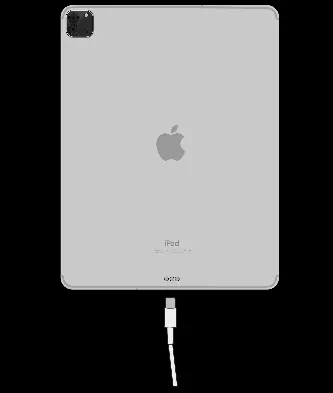
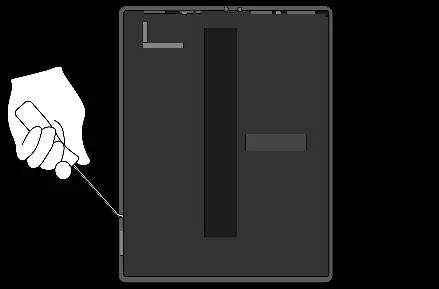
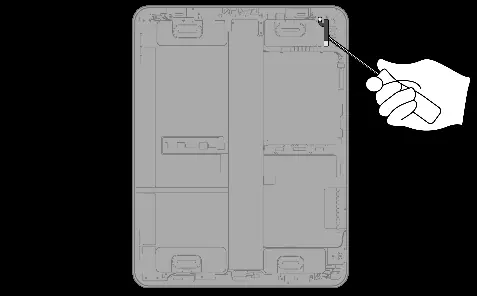
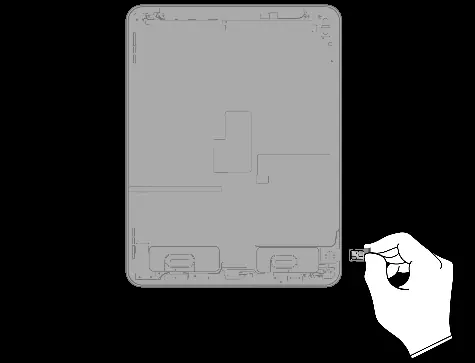
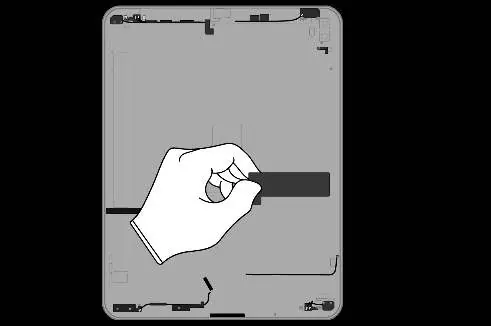
- Power off the device and disconnect the power adapter and charge cable.
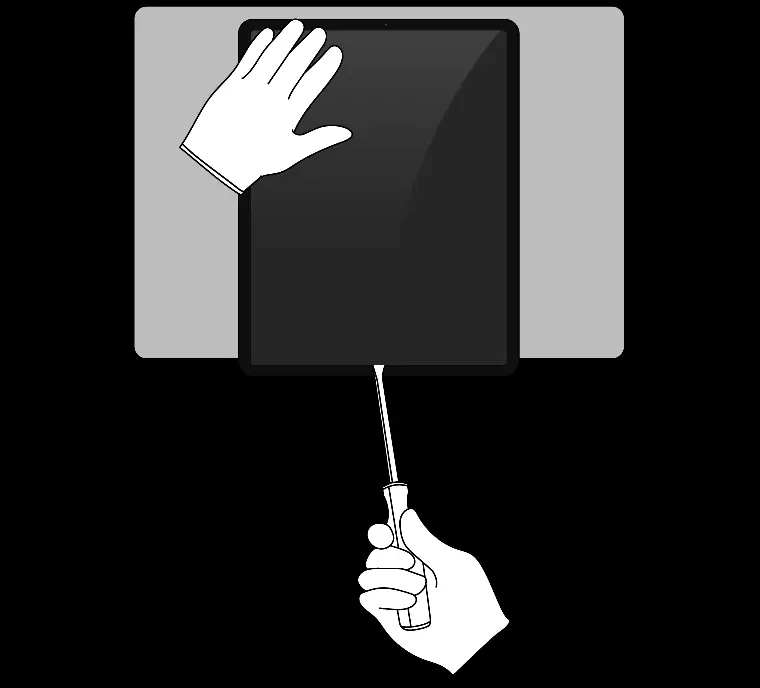
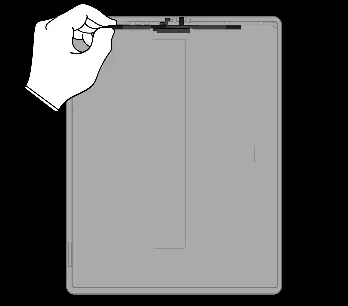
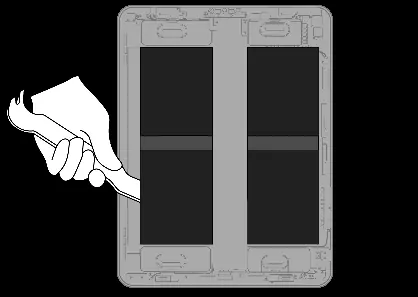
- Remove the display by prying it from the enclosure.
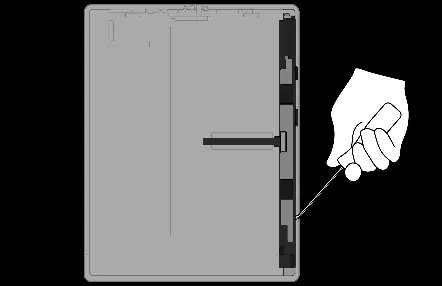
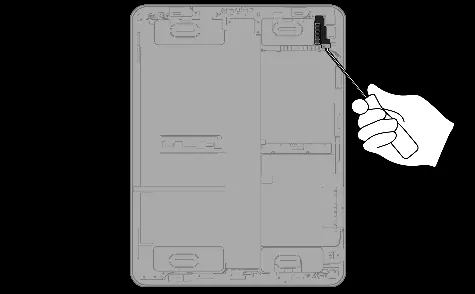
- Remove internal components including the display logic board, light sensors, LED array, and the four lithium-ion polymer batteries.
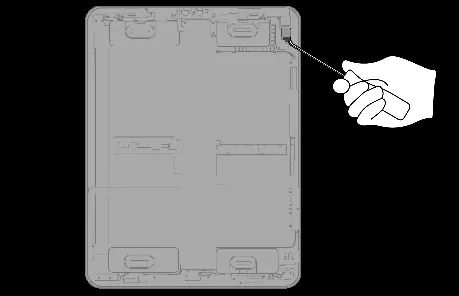
- Continue by prying off the rear camera cover, cameras, strobe, LiDAR scanner, tweeters, woofers, main logic board, and power supply logic board.
- Remove connectivity components such as the antenna, Apple Pencil magnetic connector, ribbon cables, SIM reader (cellular models), Smart Connector, and USB-C port.
- Finally, remove the microphones and the 127 magnets from the enclosure.
Material Categorization
All output fractions must be managed according to local waste regulations. Materials are categorized into:
- Aluminum: SIM tray, enclosure.
- Batteries: Lithium-ion polymer batteries.
- Ferrous: Rear camera cover.
- Glass: LCD cell.
- Logic Boards: Various boards and sensors containing precious metals.
- Mixed Electronics: Cables, connectors, and other small components.
- Rare Earth Magnets: Various speakers and magnets.
Manufacturer information
Apple Inc.
Practical help
Common problems
Thermal runaway (smoke, sparks, hissing)
Do not use water or fire extinguishers. Immediately smother the device with plenty of clean, dry sand.
Battery removal difficulty
Use tweezers to peel black adhesive tabs and twist until the adhesive strip is removed. Use a plastic pry bar if necessary.
Before use
- Ensure the device is powered off.
- Wear required PPE (eye, hand, foot protection, mask).
- Have a sand dispenser (1.9–2.4 L) within arm's reach.
- Remove jewelry and watches to prevent electrical shorts.
- Ensure the workspace is well-ventilated and free of combustible materials.
Specs in practice
- Model Numbers
- Wi-Fi: A2378; Cellular: A2379, A2461, A2462.
- Battery Type
- Lithium-ion polymer battery.
Images and diagrams
- The guide uses numbered steps with corresponding diagrams showing the specific tool placement and prying motion for each component.
- Each component removal step includes a 'Fraction' label indicating the material type (e.g., Cu for Copper, PMs for Precious Metals, REE for Rare Earth Elements).
Model compatibility
- This guide applies to the iPad Pro 12.9-inch (5th generation) Wi-Fi and Cellular models.
- Procedures may be similar for other models, but this guide is specific to the 5th generation.

Manual page author
Emily Carter
User documentation editor
Prepares concise manual descriptions and highlights the most useful setup, operation, and maintenance information for readers.