Lighting / Fixtures
Aputure amaran 100x S LED Light
Quick guide for the Aputure amaran 100x S bi-color LED light. Learn how to set up the fixture, adjust brightness and color temperature, use the Sidus Link app, and operate the light safely.
Table of contents
Manual images
Click an image to enlargeQuick guide from the manual
Important: Always remove the protective cover before turning on the light. Do not block the ventilation or look directly at the LED light source when it is powered on. Use only the original Aputure cable accessories. If the light malfunctions, contact [email protected] or authorized service personnel.
Components List
The standard kit includes:
- amaran 100x S fixture
- Protection cover
- Hyper-Reflector
- Power Adapter
- Power Cable
- Cable Tie
Installation
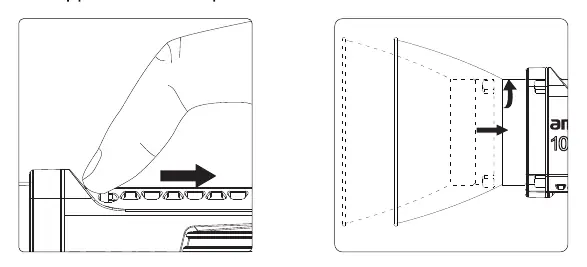
Detaching/Attaching the Protection Cover
Push the handle of the lever in the direction of the arrow shown on the fixture, and rotate the cover to pull it out. Reverse the rotation to attach the cover.
Attaching/Detaching the Reflector
Push the lever handle according to the arrow direction and rotate the reflector into the mount. Rotate in the opposite direction to pull out the reflector.
Setting up the light
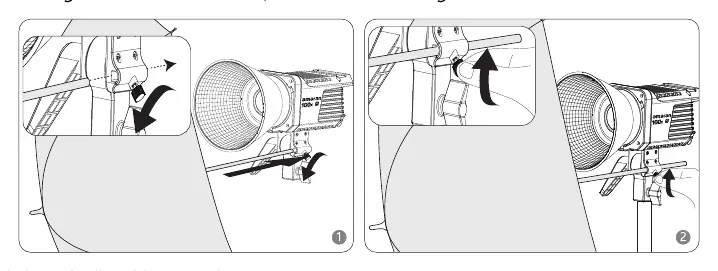
Adjust the lamp body to the desired height, rotate the tie-down to fix the lamp body on the tripod, adjust the angle, and tighten the lock handle.
Soft light umbrella installation
Insert the soft light handle into the umbrella hole, then lock the locking knob.
Operations
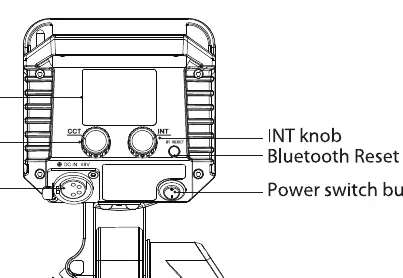
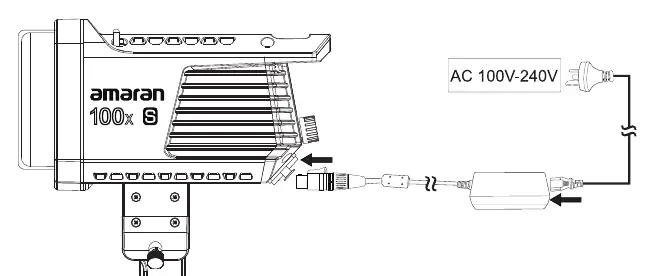
Power ON/OFF
Press the power button on the rear panel to turn the light on and off.
Manual Control
The rear panel features an OLED display and two main knobs:
- INT knob: Rotate to adjust brightness (0-100%). Click to cycle through preset levels: 20%, 40%, 60%, 80%, 100%.
- CCT knob: Rotate to adjust color temperature (2700K-6500K). Click to cycle through presets: 2700K, 3200K, 4300K, 5600K, 6500K.
Bluetooth Settings
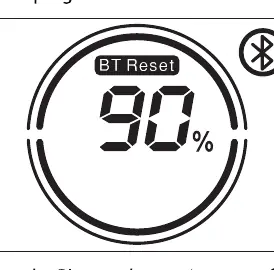
To reset Bluetooth, long press the Bluetooth reset button. The LCD will display the progress. If successful, it will show "Success".
Sidus Link App
Download the Sidus Link app from the iOS App Store or Google Play Store. The app allows for enhanced functionality, firmware updates, and control of lighting effects (Paparazzi, Fireworks, Faulty Bulb, Lightning, TV, Pulsing, Strobe, Explosion, Fire).
Specifications
- Output Power: 100 W
- CCT Range: 2700 K - 6500 K
- CRI: 95
- TLCI: 99
- Beam Angle: 110° (Naked), 18° (Hyper reflector)
- Power Supply: DC 48V / 2.5A; AC 100V-240V / 2.7A
- Operating Temperature: -10°C to +40°C
- Cooling Method: Active
Manufacturer information
Aputure
Practical help
Common problems
Light does not turn on
Ensure the power cable is securely connected to the DC input and the AC outlet. Press the power button.
Bluetooth connection failed
Perform a Bluetooth reset by long-pressing the Bluetooth reset button on the rear panel until the process completes.
Reflector or cover stuck
Ensure you are pushing the lever handle in the correct direction indicated by the arrow on the fixture before rotating.
Before use
- Remove the protective cover before turning on the light.
- Remove the protection cover before using the reflector.
- Ensure the light is mounted on a stable tripod.
- Check that the power cable is connected to a grounded outlet.
- Ensure ventilation is not blocked.
Images and diagrams
- The rear panel contains the OLED display, CCT knob, INT knob, Bluetooth reset key, and power switch.
- The Bowens mount release latch is located on the top of the fixture.
Model compatibility
- Compatible with Sidus Link app for wireless control and firmware updates.
- Supports soft light umbrellas via the integrated umbrella hole.

Manual page author
David Miller
Documentation analyst
Organizes user manual content into clear summaries, with attention to model details, product context, and everyday usability.