Electronics / Routers
Cisco Business 142AC Mesh Extender Quick Start Guide
Quick start guide for the Cisco Business 142AC Mesh Extender, covering setup, configuration via app or web interface, and mounting instructions.
Table of contents
Product Overview
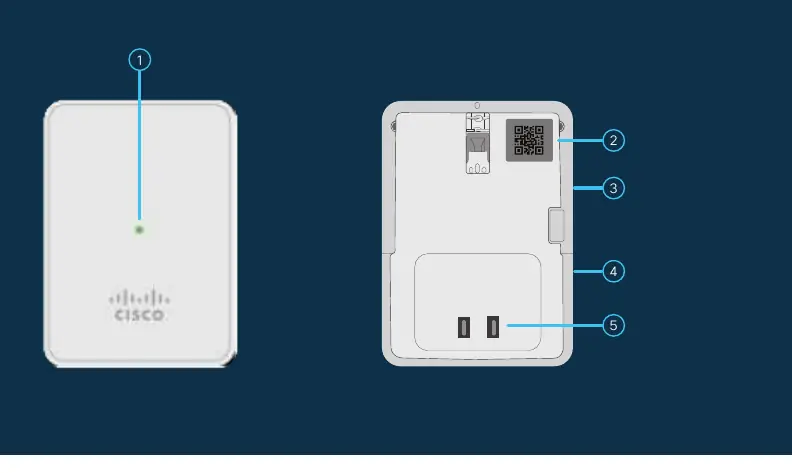
The Cisco Business 142AC Mesh Extender is designed to expand the coverage of your existing Cisco Business Wireless Network. It features a status LED, a QR code for easy identification, a mode button, and a Kensington lock slot.
Requirements
Before starting, ensure you have:
- An active Internet connection.
- An operational and configured CBW Master AP (140AC, 145AC, or 240AC) with Mesh enabled.
- A router acting as a DHCP server.
- A QR code reader (if not using the Cisco Business app).
Preparing Your Product
If using the Cisco Business app, connect to the Master AP's SSID and follow the in-app instructions. If not using the app, scan the QR code on the back of the device to obtain its MAC address. Plug the mesh extender into a power outlet; the LED will cycle through red, amber, and green during the initial boot process.
Configuration
You can configure the device via the Cisco Business app or the Web UI:
- Via App: Open the app, select your Master AP, choose Add a device, and follow the prompts.
- Via Web UI: Access the Master AP via a web browser at https://ciscobusiness.cisco. Log in, navigate to Wireless Settings, ensure Mesh is enabled, and add the mesh extender's MAC address under Local MAC Addresses. Set the type to Whitelist and save the configuration.
The mesh extender will take several minutes to join the network. A solid or blinking green LED indicates a successful connection.
Mounting and Support
The device can be mounted in various configurations. For detailed mounting instructions and advanced LED indicator information, please refer to the Cisco Business Wireless Access Point Administration Guide. For further support, visit cisco.com/go/cbw142ac.
Related manuals
Related manuals from the same brand or category.
Electronics / Routers
Cisco Business 143AC Mesh Extender
CiscoElectronics / Routers
Cisco Business 141AC Mesh Extender User Guide
CiscoElectronics / Routers
Cisco Business 140AC Access Point User Guide
CiscoSoftware / Apps Services
Cisco Unity Connection 12.x Server Maintenance Guide
CiscoDocuments / Warranty Safety