Computers / Laptops
Setup and Specifications for Dell Precision 7780 Laptop
Quick setup guide and technical specifications for the Dell Precision 7780 laptop, including port descriptions, hardware configuration, battery status indicators, and keyboard shortcuts.
Table of contents
Manual images
Jump to the sectionQuick guide from the manual
This document provides essential setup instructions and detailed technical specifications for the Dell Precision 7780. To begin, connect the power adapter and press the power button. Follow the on-screen instructions to complete the operating system setup for Windows or Ubuntu. Ensure air vents are not blocked during operation to prevent overheating.
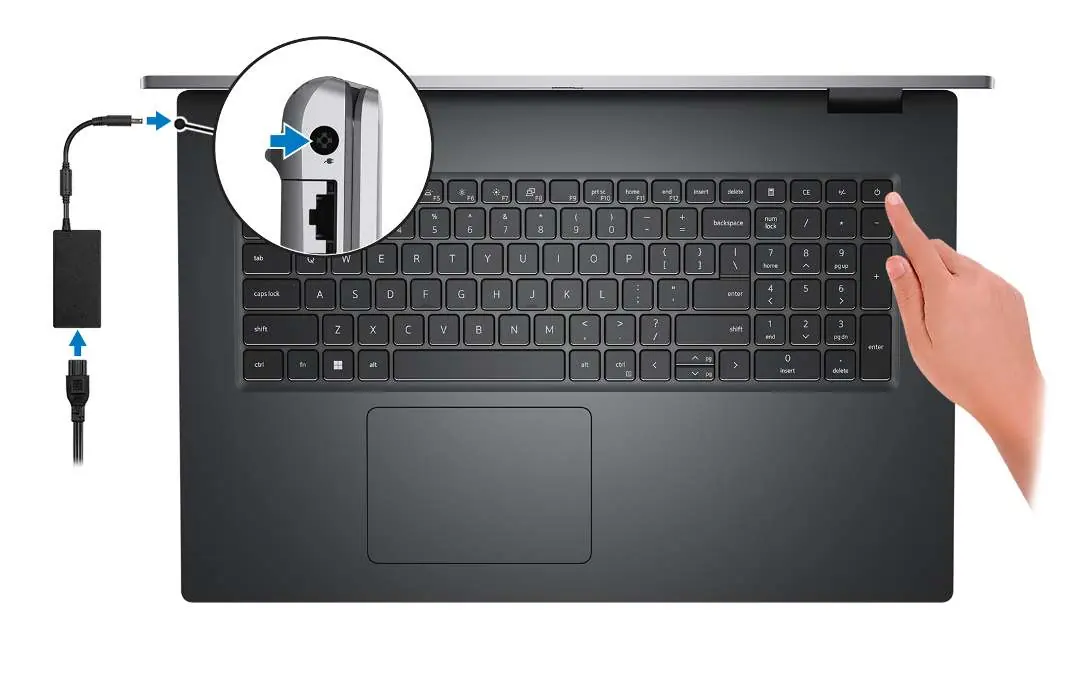
Views of Precision 7780
The laptop features various ports and components for connectivity:
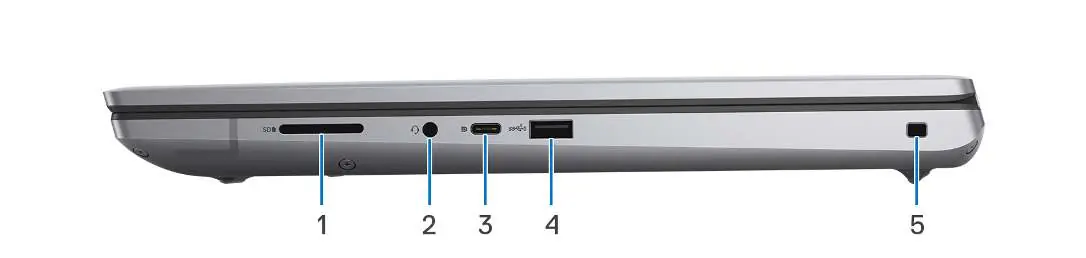
- Right side: SD-card slot, universal audio jack, USB 3.2 Gen 2 Type-C port (with DisplayPort alt mode), USB 3.2 Gen 1 port (with PowerShare), and security-cable slot.
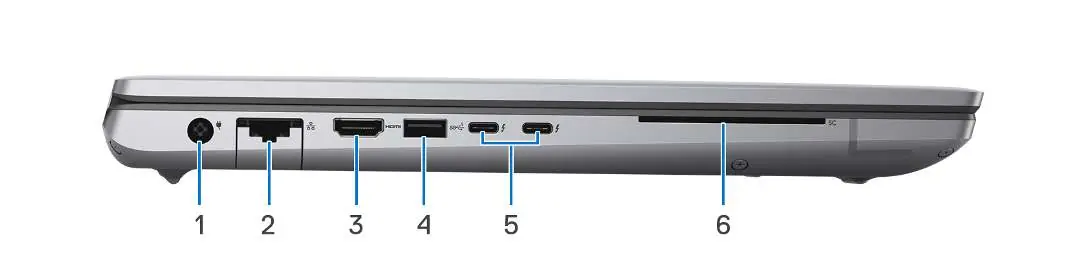
- Left side: Power-adapter port, network port (RJ45), HDMI 2.0a/2.1 port, USB 3.2 Gen 1 port, Thunderbolt 4 ports (USB Type-C), and smart card reader.
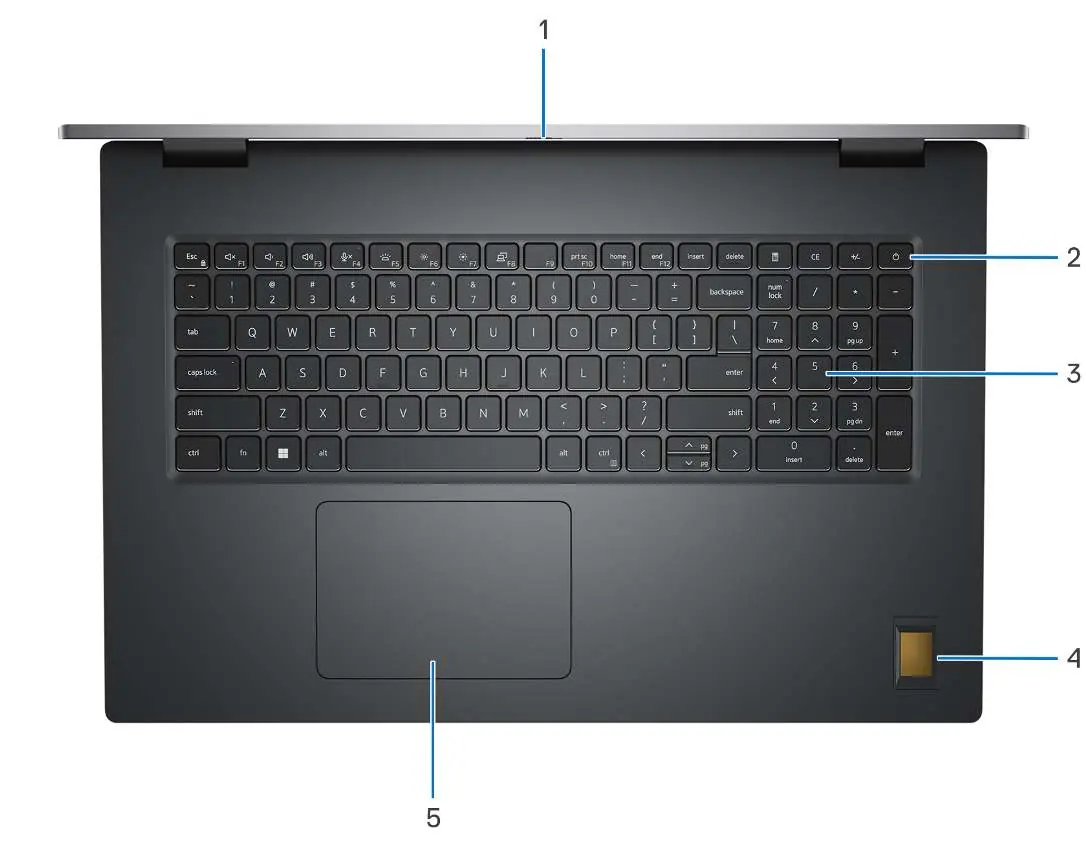
- Top: Camera-cover latch, power button (with optional fingerprint reader), keyboard, and precision touchpad (with optional NFC/contactless smart-card reader).
- Display: Microphones, RGB-infrared camera, camera-status light, LCD panel, power/diagnostic-status light, and speakers.
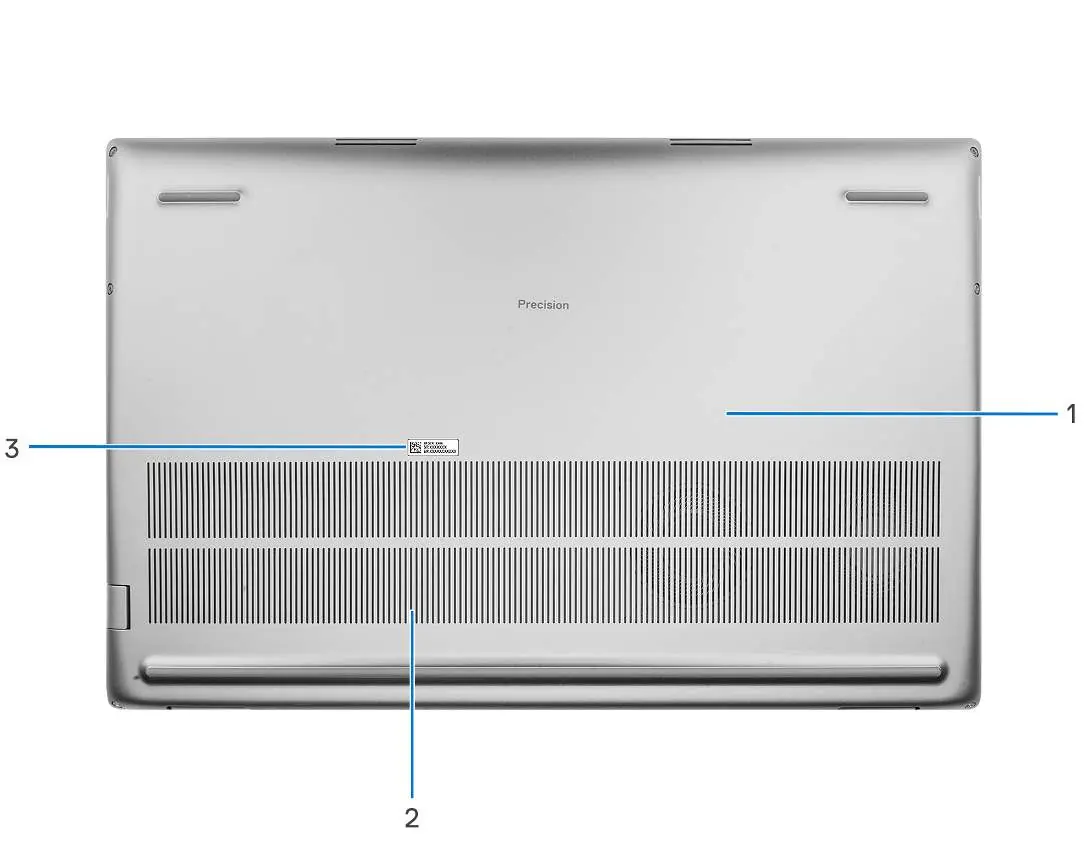
- Bottom: Base cover, air vents, and Service Tag/regulatory labels.
Battery charge and status light
The power-status light indicates the battery charge level:
- Off: AC adapter connected and battery fully charged (S0-S5) or battery operating (S4-S5).
- Solid White: AC adapter connected and battery charging (< Fully Charged).
- Solid Amber: Battery charge is below 10%.
Keyboard shortcuts
Function keys (F1–F12) provide multi-media control. Press Fn + Esc to toggle multi-media functionality. Key shortcuts include:
- F1: Mute audio
- F2: Decrease volume
- F3: Increase volume
- F4: Microphone mute
- F5: Keyboard backlight toggle
- F6/F7: Brightness control
- F10: Print screen
Technical specifications
The Precision 7780 supports various configurations, including 13th Gen Intel Core i5/i7/i9 processors, DDR5 memory (CAMM or SODIMM), and multiple storage options (M.2 PCIe NVMe Gen4 SSDs). The device supports RAID 0, 1, 5, and 10 configurations.
Manufacturer information
Dell Technologies Inc.
Practical help
Common problems
Computer does not turn on
Ensure the power adapter is connected. If the battery is in power-saving mode, connect the adapter and press the power button.
USB devices not charging via PowerShare
If the computer is off or in hibernate, ensure the power adapter is connected. Enable the PowerShare feature in the BIOS setup program.
Overheating
Ensure that the air vents on the bottom of the computer are not blocked while the system is running.
Function keys not performing media tasks
Press Fn + Esc to toggle the function key behavior, or adjust the primary behavior in the BIOS setup program.
Before use
- Connect the power adapter to the power-adapter port.
- Press the power button to turn on the computer.
- Follow on-screen instructions for OS setup (Windows or Ubuntu).
- If using a secured wireless network, have the password ready.
- Register your product using the Dell apps in the Start menu.
Specs in practice
- Thunderbolt 4
- High-speed port supporting USB4, DisplayPort 1.4, and external displays (up to two 4K or one 8K).
Images and diagrams
- The right side features an SD-card slot, audio jack, and USB-C/USB-A ports.
- The left side includes the power port, Ethernet, HDMI, and Thunderbolt 4 ports.
- The power button is located on the top right of the keyboard area.
- The bottom panel provides access to air vents and the Service Tag label.
Model compatibility
- 6 GHz Wi-Fi frequency is supported only on Windows 11.
- RAID is not supported on Intel Optane configurations.
- 125 kHz proximity cards are not supported by the contactless smart-card reader.

Manual page author
Michael Turner
Technical manual editor
Reviews PDF manuals for structure, safety notes, and practical product details so readers can find the right information quickly.