Electronics / Routers
Quick Start Guide for DrayTek Vigor Router 11ax Series
A comprehensive quick start guide for the DrayTek Vigor Router 11ax series, including models Vigor2135ax, Vigor2765ax, and Vigor2766ax. This guide covers hardware installation, wall mounting, LED status indicators, and initial software...
Table of contents
Manual images
Click an image to enlargeQuick guide from the manual
This guide provides essential instructions for setting up and configuring the DrayTek Vigor Router 11ax series (including Vigor2135ax, Vigor2765ax, and Vigor2766ax models). Before starting, ensure you have all components and that the router is placed in a sheltered area with adequate ventilation (0-40°C). Do not stack routers or expose them to direct heat or humidity.
Package Content
Verify that your package includes the following items:
- Router
- Quick Start Guide
- RJ-45 Cable (Ethernet)
- RJ-11 to RJ-11 Cable (Annex A) or RJ45/RJ11 cables (Annex B)
- Power adapter (type depends on the country)
Panel Explanation
The router features several LED indicators to monitor system status:
- ACT: Indicates system readiness and WPS activity.
- WAN/DSL: Shows internet connection status and data transmission.
- WLAN: Indicates wireless function status and WPS activity.
- USB: Shows USB device connection status.
- Phone (V models): Indicates VoIP phone status.
The interface includes a WLAN ON/OFF/WPS button, power switch, power port, LAN ports, WAN/DSL port, USB port, and a Factory Reset button. To restore factory defaults, turn on the router, press the Factory Reset button, and hold for more than 10 seconds.
Hardware Installation
Follow these steps to install your router:
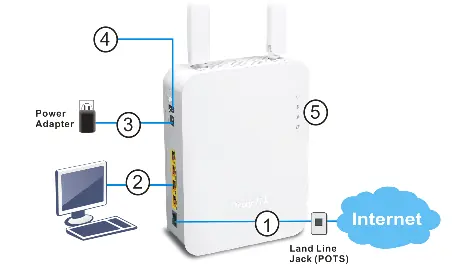
- Connect the DSL interface to the landline jack using the appropriate cable.
- Connect your computer to one of the 4-port switch LAN ports using an RJ-45 cable.
- Connect the power adapter to the router and plug it into a wall outlet.
- Power on the router.
- Check the ACT and WAN/DSL LEDs to confirm a successful network connection.
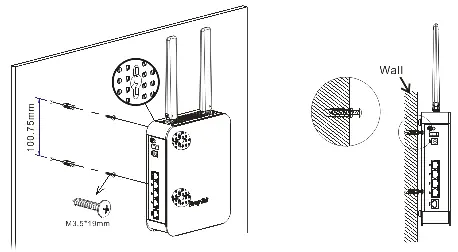
For wall-mounted installation, drill two holes 100.75mm apart with a 6.5mm drill diameter, insert screw plugs, and hang the router onto the screws.
Software Configuration
To configure the router:
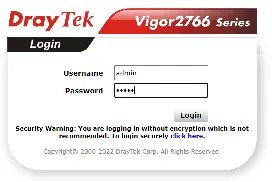
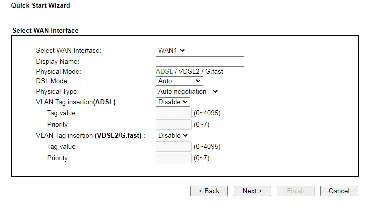
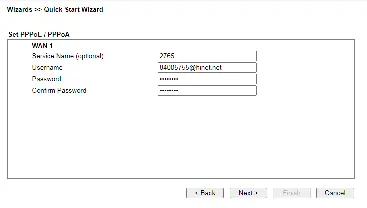
- Ensure your PC is connected to the router.
- Open a web browser and navigate to https://192.168.1.1.
- Log in using the default credentials: admin / admin.
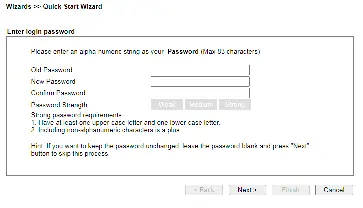
- The Quick Start Wizard will launch. Follow the on-screen prompts to configure your WAN interface (DSL, Ethernet, or 3G USB modem) and ISP settings (PPPoE/PPPoA or MPoA/Static/Dynamic IP).
- Click Finish to save settings and begin using the internet.
Customer Service
If you encounter issues, contact your dealer or DrayTek support via email at [email protected]. You can register your router at https://myvigor.draytek.com and check for firmware updates at https://www.draytek.com.
Official resources from the manual
Manufacturer information
DrayTek Corporation
Practical help
Common problems
Router not working correctly
Contact your dealer or DrayTek support immediately.
Forgot password or need to reset settings
Perform a factory reset by holding the Factory Reset button for more than 10 seconds while the router is on.
Internet connection not established
Check the ACT and WAN/DSL LEDs. Ensure cables are connected correctly and verify ISP settings in the Quick Start Wizard.
Before use
- Verify all package contents (router, cables, power adapter).
- Ensure the router is placed in a sheltered area (0-40°C).
- Do not stack routers.
- Ensure the power adapter matches your country's standard.
- Keep the package out of reach of children.
Specs in practice
- Max Power Consumption
- 27.6 Watt.
- Default IP Address
- 192.168.1.1
- Default Login
- admin / admin
- Wall Mount Hole Distance
- 100.75mm
Images and diagrams
- LED indicators show system status, internet connection, and wireless activity.
- WPS button allows wireless client connection.
- Factory Reset button restores default settings.
Model compatibility
- Supports DSL and 2.4GHz/5GHz WLAN networks.
- V-models include VoIP phone ports.
- Compatible with 3G/4G USB modems.

Manual page author
Michael Turner
Technical manual editor
Reviews PDF manuals for structure, safety notes, and practical product details so readers can find the right information quickly.