Electronics / Networking
User Manual for DrayTek VigorAP 1000C Wireless Access Point
Quick start guide for the DrayTek VigorAP 1000C. Learn how to install the ceiling-mount access point, configure network settings, and set up as a mesh node or standard AP.
Table of contents
Manual images
Click an image to enlargeQuick guide from the manual
This document provides essential instructions for setting up the DrayTek VigorAP 1000C. Before beginning, ensure you have inspected the package contents, which include the Vigor device, mounting bracket, Ethernet cable, and the appropriate power adapter for your region. Remove the protective film from the device to ensure proper ventilation.
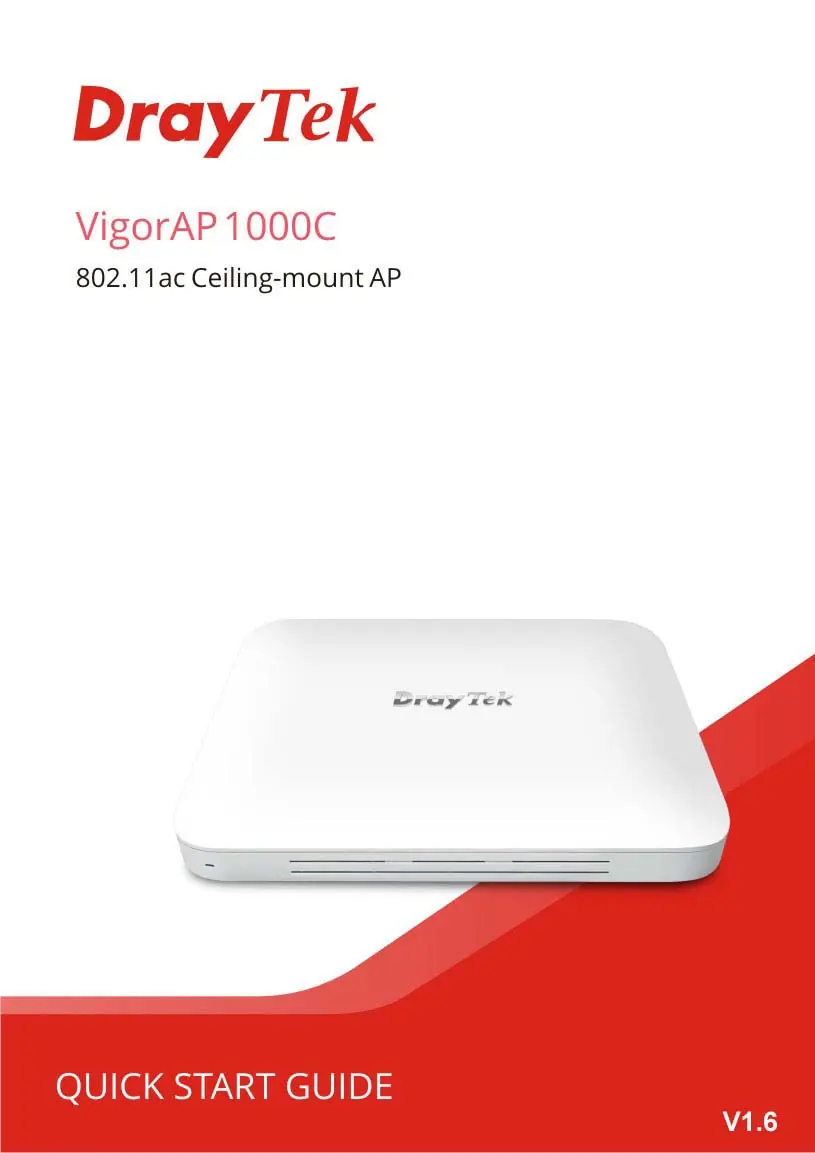
Device Overview
The device features several LED indicators and ports:
- LEDs: 5G-2, 5G-1, and 2.4G indicators show wireless status. P1(PoE) and P2 indicators show LAN connection status and transmission rates.
- Interfaces: Includes a Reset button (RST) to restore factory defaults, two Ethernet ports (P2 and P1/PoE), a USB port, and a security hole for an anti-theft lock.
- Power: The PWR connector is located next to the P1(PoE) port.
Installation
The VigorAP 1000C is designed for ceiling mounting on a calcium silicate board. Follow these steps:
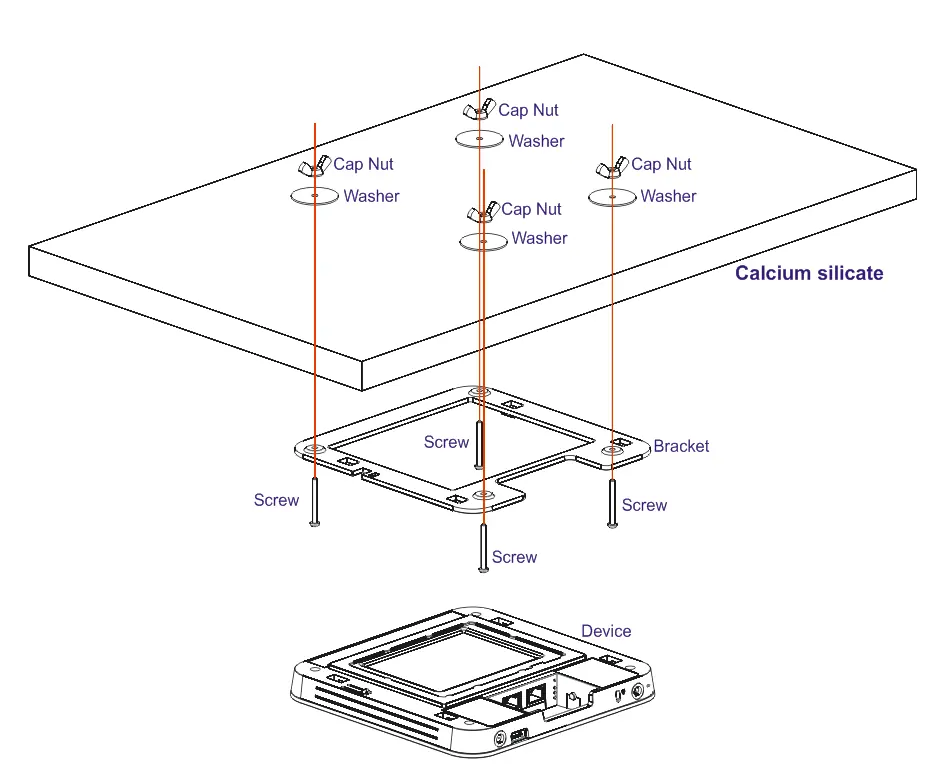
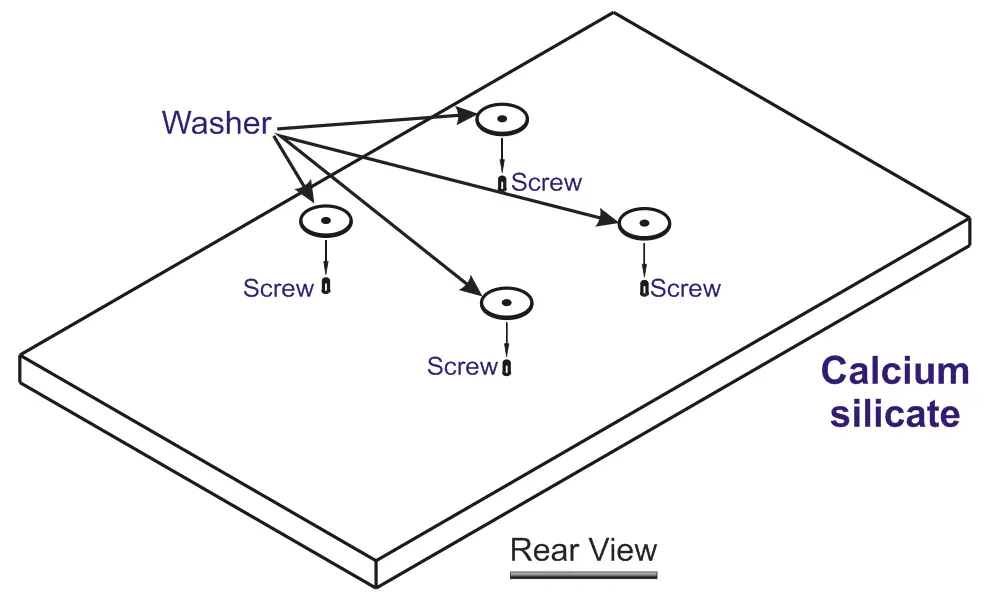
- Place the mounting bracket on the front side of the board and fasten it with four screws.
- Reverse the board and place washers on the screws.
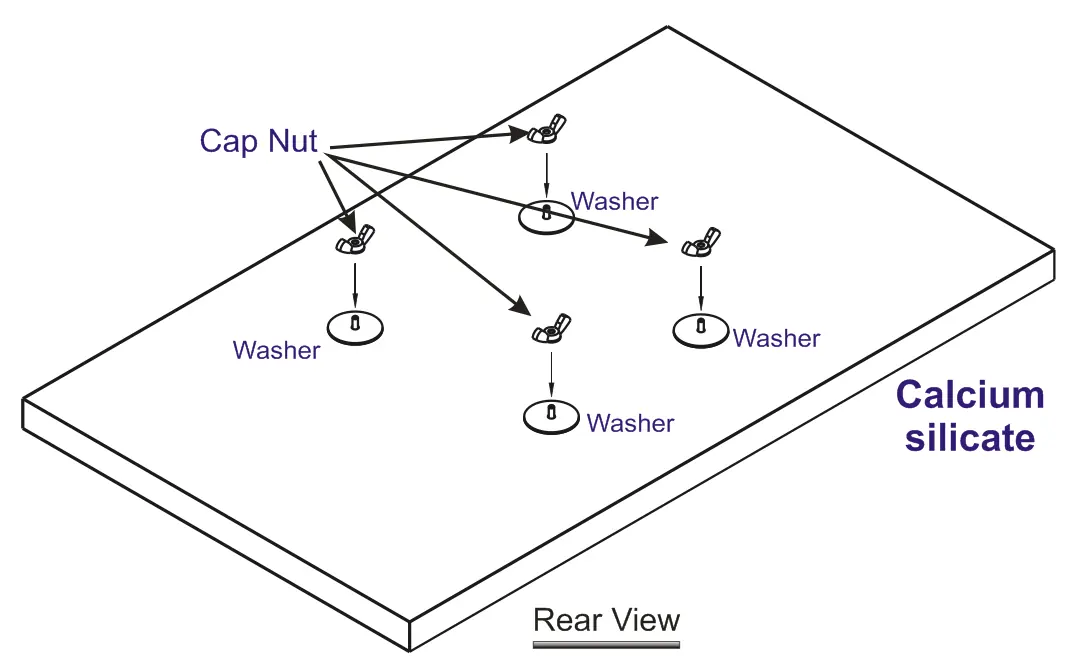
- Insert cap nuts onto the screws and rotate until they lock firmly on the washers.
- Align the device with the four latches on the bracket and secure it in place.
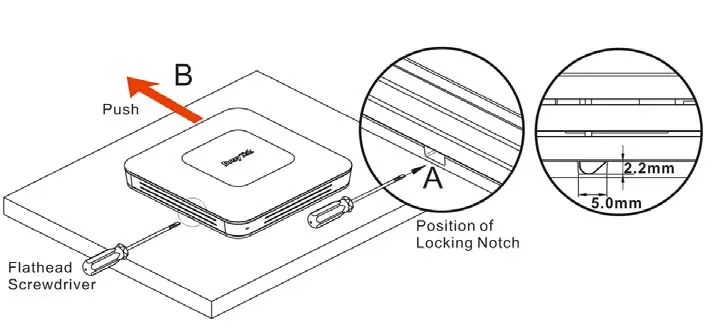
To remove the device, insert a small flathead screwdriver into the locking notch and push to separate the device from the latches.
Software Configuration
You can configure the device via a web browser:
- Connect your PC to the access point.
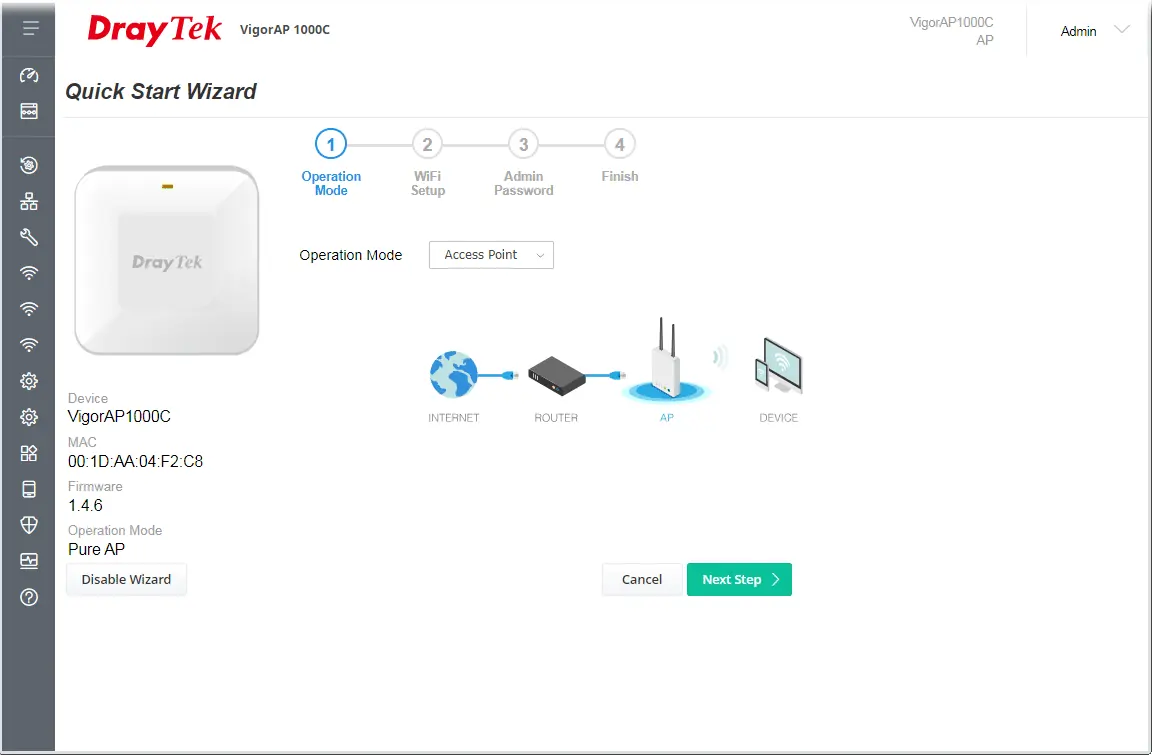
- Open a web browser and navigate to https://192.168.1.2.
- Log in using the default credentials: admin/admin.
The device can be configured as a Mesh Node or as a standard Access Point. If no DHCP server is present on the network, the device defaults to 192.168.1.2. If a DHCP server is available, it will receive an IP address automatically.
Customer Support
If you encounter issues, contact your dealer or email [email protected]. For firmware updates and documentation, visit the official DrayTek website.
Manufacturer information
DrayTek Corporation
Practical help
Common problems
Device not accessible via web browser
Ensure your PC is in the same subnet as the device. If no DHCP server is present, the default IP is 192.168.1.2.
Wireless function not working
Check the LED indicators. If 5G-2, 5G-1, or 2.4G LEDs are off, the wireless function is not ready.
Forgotten password or misconfiguration
Press and hold the reset button (RST) for at least 5 seconds to restore factory default settings.
Before use
- Inspect package contents for the device, bracket, and cables.
- Remove the protective film from the device to ensure ventilation.
- Verify the power adapter type matches your country's requirements.
- Ensure you have a flathead screwdriver for installation or removal.
- Confirm the mounting surface is a calcium silicate board.
Specs in practice
- Maximum Power Consumption
- 20 Watt.
- Default IP Address
- 192.168.1.2 (if no DHCP server is present).
- Default Login
- Username: admin, Password: admin.
Images and diagrams
- The installation diagram illustrates mounting the bracket to a ceiling board using screws, washers, and cap nuts.
- The panel diagram identifies the locations of the P1(PoE), P2, USB, and Reset button interfaces.
Model compatibility
- P1(PoE) port is for indoor use only.
- Compatible with Mesh network or standard Access Point mode.

Manual page author
Michael Turner
Technical manual editor
Reviews PDF manuals for structure, safety notes, and practical product details so readers can find the right information quickly.