Electronics / Cameras
User Manual for Fujifilm FinePix Real 3D W1 Digital Camera
Quick guide and user manual for the Fujifilm FinePix Real 3D W1 digital camera. Learn how to set up, take 3D and 2D photos, record movies, and manage your files.
Table of contents
Manual images
Click an image to enlargeQuick guide from the manual
This manual provides instructions for the Fujifilm FinePix Real 3D W1 digital camera. Before using the camera, ensure you have read the safety notes on pages iii–v. The camera supports both 3D and 2D photography, movie recording, and various connection options for viewing and printing.
Getting Started
To begin using your camera, follow these steps:
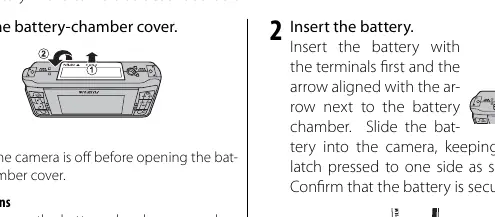
- Battery: Open the battery-chamber cover, insert the NP-95 battery with the terminals first, and ensure it is securely latched.
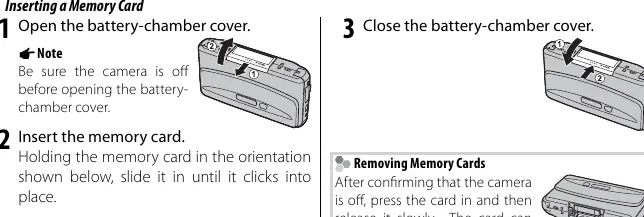
- Memory Card: Insert an SD or SDHC memory card into the slot until it clicks. Ensure the write-protect switch is in the unlocked position.
- Setup: Upon turning the camera on for the first time, follow the on-screen prompts to select your language and set the date and time.
Taking Pictures
The camera offers several shooting modes:
- Auto Mode: Ideal for most situations; the camera automatically adjusts settings.
- 3D Photography: Press the 3D button to enable 3D mode. Use the parallax buttons to adjust the 3D effect.
- 2D Photography: Press the 2D button to switch to 2D mode.
- Manual/Scene Modes: Access advanced settings like Aperture Priority (A), Manual (M), and various Scene Positions (SP) via the mode selection menu.
Playback and Management
View your pictures by pressing the playback button. You can delete pictures, protect them from accidental deletion, or copy them between internal memory and a memory card. Use the playback menu to rotate, crop, or resize images.
Movies
The camera can record movies in 3D or 2D. Press the movie button to start recording. Note that zoom cannot be adjusted once recording begins. Movies are recorded in AVI format.
Connections
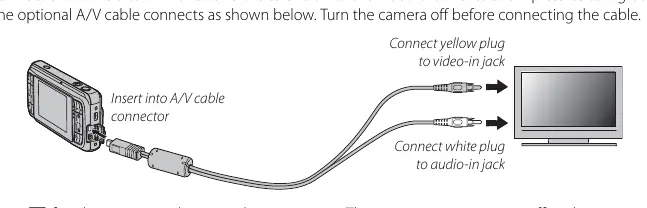
You can connect the camera to a TV using an A/V cable for viewing, or to a computer via USB to transfer files using the supplied FinePixViewer software. The camera also supports IR communication for sharing pictures with compatible devices.
Troubleshooting
If you encounter issues, consult the troubleshooting section. Common solutions include checking battery charge, ensuring the memory card is formatted, or resetting the camera settings. If the camera does not turn on, verify the battery orientation and that the battery chamber cover is fully closed.
Manufacturer information
Fujifilm Corporation
Practical help
Common problems
Camera does not turn on
Check if the battery is exhausted, inserted incorrectly, or if the battery-chamber cover is not latched.
Pictures are blurred
Use a tripod, ensure the lens is clean, or use the flash if lighting is poor.
No face detected
Ensure the subject is well-lit, facing the camera, and occupies a significant portion of the frame.
Memory card error
Format the memory card or clean the contacts with a soft, dry cloth.
Before use
- Charge the battery using the supplied AC power adapter
- Insert a compatible SD or SDHC memory card
- Set the camera clock and language
- Ensure the lens cover is open for shooting
Images and diagrams
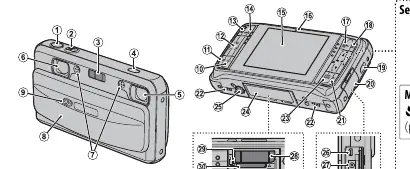
- Battery insertion: Terminals first, arrow aligned with the chamber.
- Memory card insertion: Slide in until it clicks.
- Selector button: Used for menu navigation and quick access to flash, macro, and self-timer.
Model compatibility
- Requires SD or SDHC memory cards.
- Not compatible with xD-Picture Cards or MultiMediaCard (MMC) devices.
- FinePixViewer software is required for computer connectivity.

Manual page author
Emily Carter
User documentation editor
Prepares concise manual descriptions and highlights the most useful setup, operation, and maintenance information for readers.