Automotive / Navigation
Garmin Dash Cam Mini 2 Owner's Manual
Comprehensive guide for the Garmin Dash Cam Mini 2, covering installation, smartphone pairing, recording features, settings, and troubleshooting.
Table of contents
Manual images
Jump to the sectionProduct Overview
The Garmin Dash Cam Mini 2 is a compact, high-definition dash camera designed for vehicle security and incident recording. It automatically begins recording when powered on and features event detection to save footage during incidents. The device is managed primarily through the Garmin Drive app on your smartphone, which allows for viewing, editing, and saving videos, as well as configuring camera settings.
Getting Started and Installation
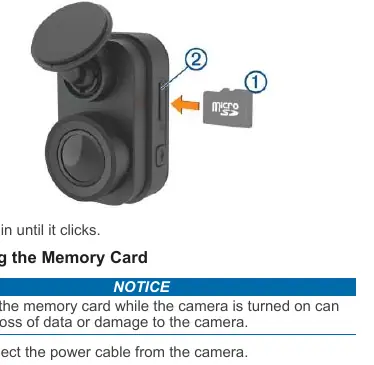
To begin, insert a compatible microSD card (Class 10 or higher) into the slot until it clicks. Clean your windshield thoroughly with water or alcohol before applying the adhesive mount. Ensure the ambient temperature is between 21° and 38°C (70° to 100°F) for optimal adhesion. Once mounted, connect the device to your vehicle's power outlet using the provided USB cable. The camera does not have a power button; it turns on and off automatically with the vehicle's ignition.
Recording and Smartphone Integration
The camera records continuously, overwriting the oldest unsaved footage when the memory card is full. You can manually save clips or photos by pressing the designated button on the device. By pairing the camera with the Garmin Drive app via Bluetooth and Wi-Fi, you can access advanced features such as a multiple-camera network, which allows you to combine footage from front and rear cameras into a single picture-in-picture video. The app also facilitates software updates and provides a live feed for adjusting the camera's position.
Maintenance and Troubleshooting
Regular maintenance includes formatting the memory card at least every six months to ensure longevity and performance. Keep the camera lens clean using a non-scratch cloth. If you experience issues such as blurry recordings, ensure the lens and the windshield area in front of the camera are clean. If recordings are choppy, verify that you are using a high-quality Class 10 memory card. The device may feel warm during operation, which is normal, especially when recording high-resolution video or transmitting data.
Manufacturer information
Garmin Ltd.
Practical help
Common problems
Camera feels warm during operation
This is normal during high-resolution recording or Wi-Fi transmission.
Blurry video recordings
Clean the camera lens and the windshield area in front of the camera.
Choppy or incomplete recordings
Use a high-quality Class 10 or higher memory card and ensure it is formatted correctly.
Memory card error
Format the memory card using the device or replace it if the error persists.
Before use
- Insert a compatible microSD card (Class 10 or higher).
- Clean the windshield with water or alcohol.
- Ensure ambient temperature is between 21° and 38°C for mounting.
- Route the power cable behind vehicle trim for a clean look.
- Install the Garmin Drive app on your smartphone.
- Pair the camera with the app for full functionality.
Specs in practice
- Operating Temperature
- -20° to 60°C (-4° to 140°F)
- Wireless Frequency
- Wi-Fi 2.4 GHz @ 18 dBm
- Memory Card Type
- microSDHC or microSDXC, 8 GB or greater
Images and diagrams
- The device features two main buttons: one for audio recording control and formatting, and one for saving media and pairing.
- Status LEDs indicate recording status, formatting, booting, and connectivity.
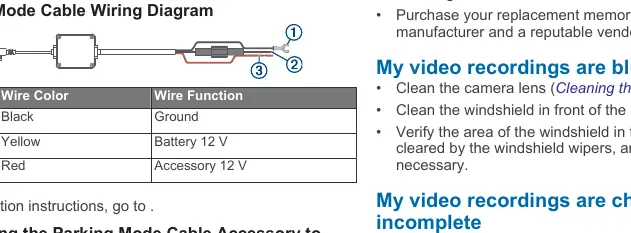
- The parking mode cable requires connection to constant power, switched power, and ground.
Model compatibility
- Requires Garmin Drive app for full configuration.
- Supports multiple camera networks for composite video.
- Compatible with microSDHC or microSDXC cards.

Manual page author
Emily Carter
User documentation editor
Prepares concise manual descriptions and highlights the most useful setup, operation, and maintenance information for readers.