Electronics / Projectors
1080P Projector User Guide
Comprehensive user guide for the 1080P Projector, covering hardware setup, wired and wireless connectivity, multimedia playback, and firmware updates.
Table of contents
Product Overview
The 1080P Projector is a versatile multimedia device designed for high-definition projection. It features multiple input options, including dual HDMI ports and dual USB ports, allowing for seamless connectivity with various devices such as laptops, smartphones, tablets, and streaming sticks. The projector also includes an audio input for external sound systems and an integrated IR receiver for remote control operation.
Hardware Setup and Controls
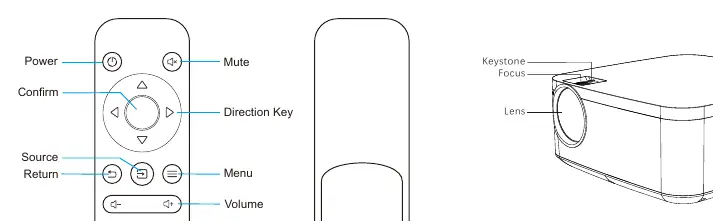
The projector is equipped with physical controls for power, source selection, and volume adjustment located on the top panel. Users can also adjust the image quality using the manual Keystone and Focus dials located near the lens. The included remote control provides convenient access to all primary functions, including menu navigation, source switching, and volume control. Ensure the remote is powered by AAA batteries before use.
Wired Connectivity
To connect external devices, use the appropriate HDMI cable. For mobile devices like iPhones, iPads, or Android phones, you may require specific adapters such as the Apple Digital AV Adapter or a USB-C to HDMI adapter. Streaming sticks can be plugged directly into the HDMI port, and the projector can provide 5V/1A power to these devices, though some may require their own external power source.
Wireless Connectivity and Networking
The projector supports wireless screen mirroring for both Android and Apple devices. For Android, use the Smart View or Miracast feature. For Apple devices, use Screen Mirroring or Airplay. To enable these features, navigate to the wireless page on the projector to find the device name and password. You can also connect the projector to your local Wi-Fi network by accessing the projector's internal web interface at 192.168.49.1 via a browser on your mobile device.
Multimedia Playback and Maintenance
The projector supports direct playback of videos and images from USB drives or Micro SD cards. Supported video formats include mp4, avi, mov, wmv, mkv, rm, rmvb, mpg, and mpeg. For images, it supports JPG and PNG formats. To keep the device updated, the projector supports OTA (Over-the-Air) firmware upgrades. Simply check the URL displayed on the projected screen, log in via your mobile device, and select the upgrade option to ensure your projector has the latest features and improvements.
Practical help
Common problems
Streaming stick not powering on
Some streaming sticks require more power than the 5V/1A provided by the projector; connect the stick to its own external power source.
No video output from mobile device
Verify that your mobile device supports video output via its USB-C or Lightning port.
Screen mirroring not working
Ensure the projector and your mobile device are connected to the same Wi-Fi network, or connect directly to the projector's wireless signal.
Before use
- Insert AAA batteries into the remote control.
- Ensure the projector is placed on a stable surface.
- Check that you have the necessary HDMI adapters for your specific mobile device.
- Verify the projector is connected to a power source.
- Ensure the lens cap is removed before operation.
Specs in practice
- Video Formats
- Supported files include mp4, avi, mov, wmv, mkv, rm, rmvb, mpg, and mpeg.
- Power Output
- The USB port provides 5V/1A, suitable for powering many streaming sticks.
- Image Resolution
- Supports up to 1080P at 30fps or 720P at 60fps.
Images and diagrams
- The rear panel contains the IR receiver, two HDMI inputs, two USB ports, and an audio input.
- The top panel houses the Keystone and Focus adjustment dials.
- The remote control layout includes dedicated buttons for Power, Source, Menu, and Volume.
Model compatibility
- Some streaming apps (e.g., Netflix) may restrict video output via screen mirroring.
- Android devices must support video output for wired HDMI connections.
- OTA upgrades require a stable Wi-Fi connection.

Manual page author
Michael Turner
Technical manual editor
Reviews PDF manuals for structure, safety notes, and practical product details so readers can find the right information quickly.