Computers / Printers
Honeywell Granit XP 199xi Series Scanner User Guide
Quick guide for the Honeywell Granit XP 199xi series industrial area-imaging scanners, covering installation, interface programming, cordless system operation, and troubleshooting.
Table of contents
Manual images
Jump to the sectionQuick guide from the manual
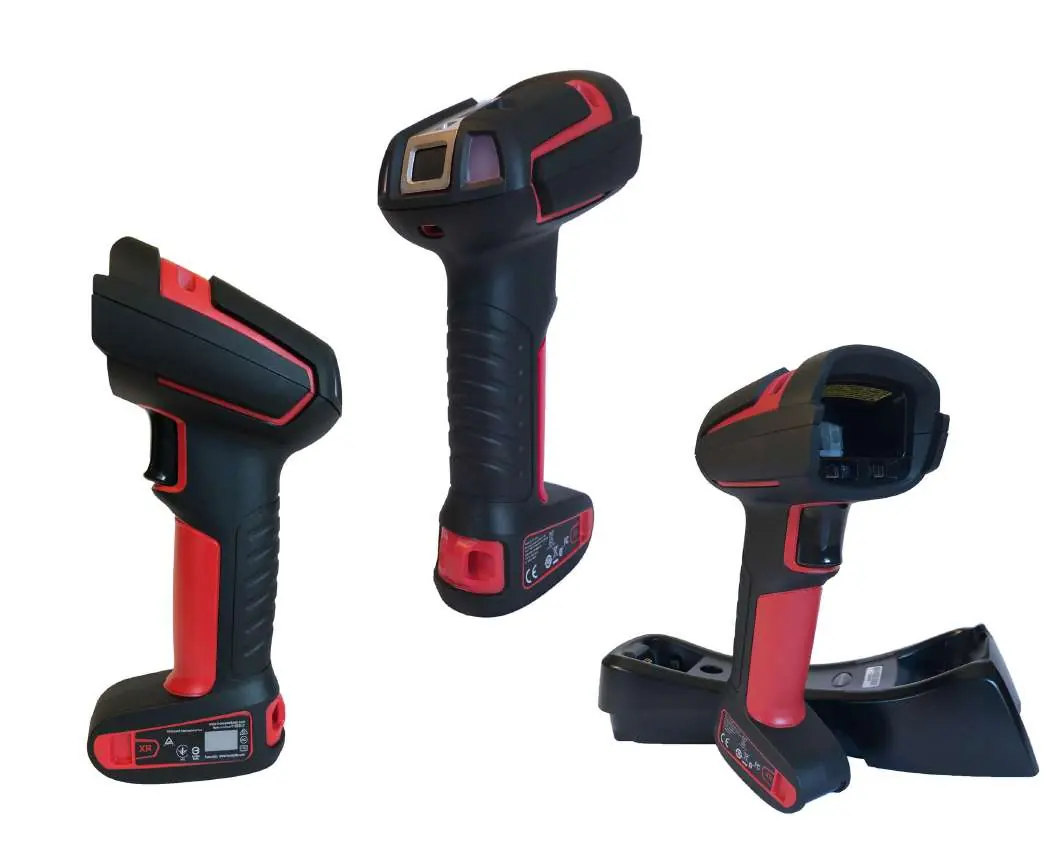
This guide provides essential information for the Honeywell Granit XP 199xi series industrial area-imaging scanners. It covers both corded (1990i) and cordless (1991i) models. Key operations include connecting the device to a host, configuring interface settings via barcodes, and managing cordless system operations.
Device Overview
The Granit XP series is designed for harsh environments, offering high durability and resistance to drops and extreme temperatures. Models include SR (Standard Range), XR (Extended Range), and XLR (Extra Long Range) versions.
Installation and Connection
To connect a corded scanner, ensure the cable is pushed tightly into the scanner, secure the locking plate, and tighten the screw. For cordless bases (CCB22-100BT-03N), ensure cables are secured in the wireways. The scanner supports various interfaces including USB, Keyboard Wedge, RS232, and RS485. After connection, verify operation by scanning a sample barcode.





Cordless System Operation
Cordless scanners link to a base or Access Point. The link process is automatic when the scanner is placed in the base. If a scanner is out of range, it can store approximately 500 U.P.C. symbols in Batch Mode. The Page button on the base helps locate associated scanners.
Programming and Settings
Programming is performed by scanning specific barcodes provided in this guide. You can set custom defaults, configure interface types (Plug and Play), and adjust input/output settings like beeper volume, trigger modes, and presentation settings.
Maintenance and Troubleshooting
Keep the scanner window clean using a soft cloth and water. Do not use solvents. If the scanner is not functioning, check cable connections, host power, and ensure the correct symbology is enabled. For cordless systems, verify the base has power and the scanner is correctly placed for charging.
Technical Support
For technical assistance, visit honeywell.com/PSStechnicalsupport. For product service, repair, or warranty information, visit sps.honeywell.com.
Official resources from the manual
Manufacturer information
Honeywell International Inc.
Practical help
Common problems
Scanner not reading symbols
Check if symbols are smeared or damaged, ensure the barcode symbology is enabled in the scanner, and verify the cable connection.
Barcode displayed but not entered into application
Program a suffix (e.g., CR or Tab) to automatically enter the data into your application.
Cordless scanner out of range
Move the scanner closer to the base or Access Point. If in Batch Mode, data will be stored and transmitted once back in range.
Base red LED not illuminated
Check that the power cable is connected properly and the host system has power.
Before use
- Check for shipping damage.
- Verify items in the carton match your order.
- Charge the battery for a minimum of 4 hours before initial use.
- Ensure the red O-ring is inserted on the communication cable for IP65/67 compliance.
- Connect the interface cable to the device and then to the host.
Specs in practice
- Operating Temperature
- -22°F to 122°F (-30°C to 50°C) for corded models.
- Communication Range
- Up to 328 feet (100m) for cordless base depending on environment.
Images and diagrams
- The manual includes diagrams for cable connection, including the use of the locking plate and red O-ring for environmental sealing.
- Mounting diagrams for the CCB22-100BT-03N charge base are provided.
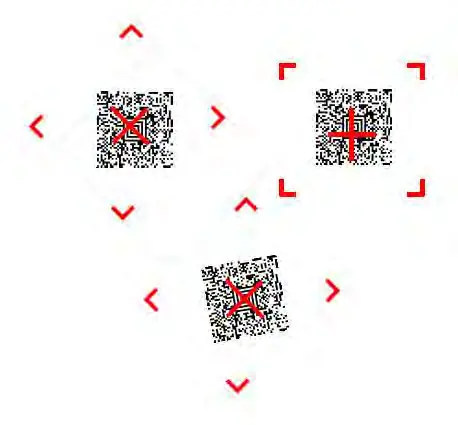
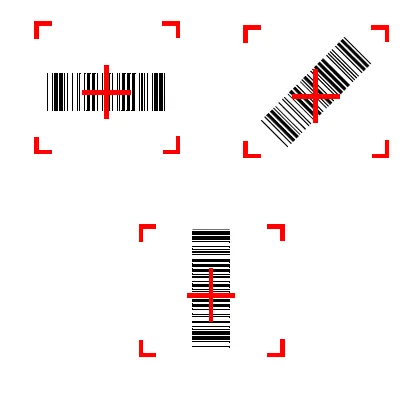
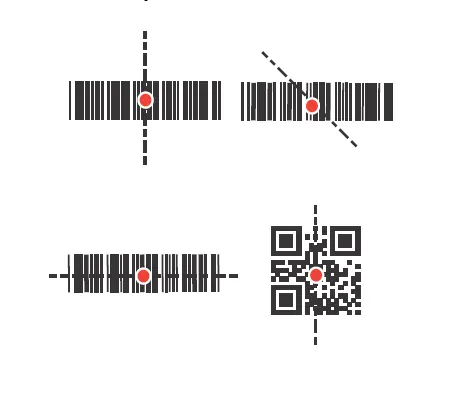
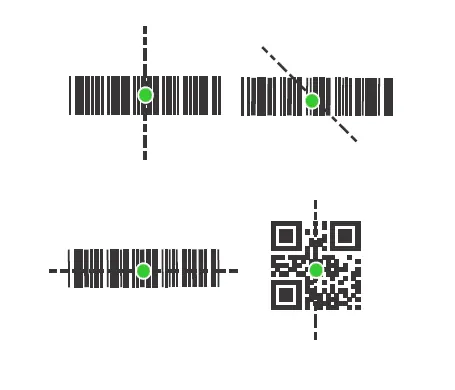
- Visual guides for reading techniques show the aimer spot/cross positioning for different models.
Model compatibility
- Use only Honeywell Li-ion battery packs (model BAT-SCN05).
- Cordless Granit XP scanners can only be used in presentation mode when powered by the battery; this mode is not available while docked.
- Host ACK functionality requires RS232 or USB COM Emulation.

Manual page author
David Miller
Documentation analyst
Organizes user manual content into clear summaries, with attention to model details, product context, and everyday usability.