Computers / Printers
User Guide for Honeywell Xenon XP 195X Series Area-Imaging Scanners and Bases
Comprehensive user guide for the Honeywell Xenon XP 195X series area-imaging scanners and bases, covering installation, interface programming, cordless system operation, and maintenance.
Table of contents
Quick guide from the manual
This guide provides essential instructions for installing and configuring the Honeywell Xenon XP 195X series area-imaging scanners and their corresponding bases. It covers both corded and cordless models, including setup for USB, keyboard wedge, RS232, and RS485 interfaces. Users can customize scanner behavior, such as trigger modes, data formatting, and symbology settings, by scanning specific barcodes provided in the manual.
Device Overview
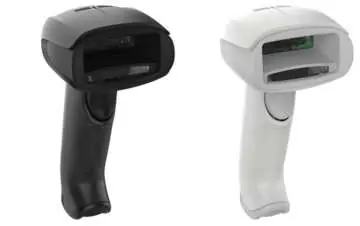
The Xenon XP 195X series includes corded (1950g/h) and cordless (1952g/h, 1952g/h-BF) scanners. Cordless models utilize a charge base or access point for communication and charging. The devices are factory-programmed for common settings, but can be fully customized using the programming barcodes found throughout the document.
Installation and Connection
To connect the scanner, plug the appropriate interface cable into the device and then into the host computer. For cordless models, ensure the base is properly mounted (horizontally or vertically) and that cables are secured in the wireways. After connection, verify operation by scanning a sample barcode. For cordless systems, the scanner must be linked to the base or access point by placing it in the cradle or scanning a linking barcode.
Cordless System Operation
Cordless scanners use Bluetooth for two-way communication. The system supports features like batch mode for data storage when out of range, page buttons for locating scanners, and flexible power management to optimize battery life and reduce interference. Battery information and safety precautions for lithium-ion batteries are provided to ensure proper handling and disposal.
Programming and Settings
The scanner can be programmed by scanning menu barcodes or sending serial commands. Key settings include:
- Interface Programming: Plug-and-play barcodes for common interfaces like USB, keyboard wedge, and RS232.
- Data Editing: Configure prefixes, suffixes, and data formatting to customize output.
- Symbology Settings: Enable or disable specific barcode types and adjust message length requirements.
- Imaging Commands: Advanced settings for image capture, including exposure, gain, and cropping.
Maintenance and Troubleshooting
Regular maintenance involves cleaning the scanner window with a soft cloth and water. Do not use abrasive materials or solvents. If the scanner is not functioning correctly, check cable connections, host power, and ensure the correct symbologies are enabled. For further assistance, visit the Honeywell website at www.honeywellaidc.com.
Official resources from the manual
Manufacturer information
Honeywell International Inc.
Practical help
Common problems
Scanner does not link to the base
Ensure the base is powered and the scanner is correctly placed in the cradle. If it is the first time linking, wait for the chirp. If it fails, check the troubleshooting section on page 297.
Scanner is out of range
Move the scanner closer to the base or access point. If the alarm sounds, it will stop once the connection is re-established.
Barcode is displayed but not entered into the application
You likely need to program a suffix (such as a Carriage Return) to simulate the Enter key. Refer to the Prefix/Suffix Overview section.
Aimer is not illuminated
Check that the interface cable is connected properly and the host system is powered on.
Before use
- Check for damage during shipment.
- Verify all items in the carton match your order.
- Save the shipping container for future storage.
- For cordless models, charge the battery for at least 4 hours before initial use.
- Ensure the base is connected to an appropriate power supply.
Specs in practice
- Voltage Requirements
- 4.4 to 5.5 VDC at the input connector.
- Operating Temperature
- 32°F to 122°F (0°C to 50°C).
- Sealant Rating
- IP52 (dust and water spray protection).
Images and diagrams
- The manual includes diagrams for connecting the scanner via USB, keyboard wedge, and RS232.
- Mounting diagrams show how to route cables for horizontal and vertical base installations.
- The manual provides a visual guide for the 10-pin modular connector pinouts.
Model compatibility
- Linking to an Access Point is only supported by Xenon XP 1952 models.
- Low Power Alerts are only supported by battery-free scanners (1952g-BF/1952h-BF).
- The In-Stand Sensor feature does not apply to 1952-BF models.

Manual page author
Emily Carter
User documentation editor
Prepares concise manual descriptions and highlights the most useful setup, operation, and maintenance information for readers.