Power / Car Chargers
User Manual for Porodo 4G LTE WIFI 6 Pocket Router 10000mAh Power Bank
Quick guide for the Porodo 4G LTE WIFI 6 Pocket Router 10000mAh Power Bank (PB087). Learn how to connect to the internet, manage Wi-Fi settings, configure APN, and use the power bank features.
Table of contents
Manual images
Click an image to enlargeQuick guide from the manual
The Porodo 4G LTE WIFI 6 Pocket Router is a portable device that functions as both a Wi-Fi hotspot and a 10,000mAh power bank. It supports LTE and WCDMA networks and can connect up to 16 devices simultaneously. To get started, ensure the device is charged, insert a SIM card, and power it on. The default Wi-Fi name and password are displayed on the device's LCD screen.
Device Overview
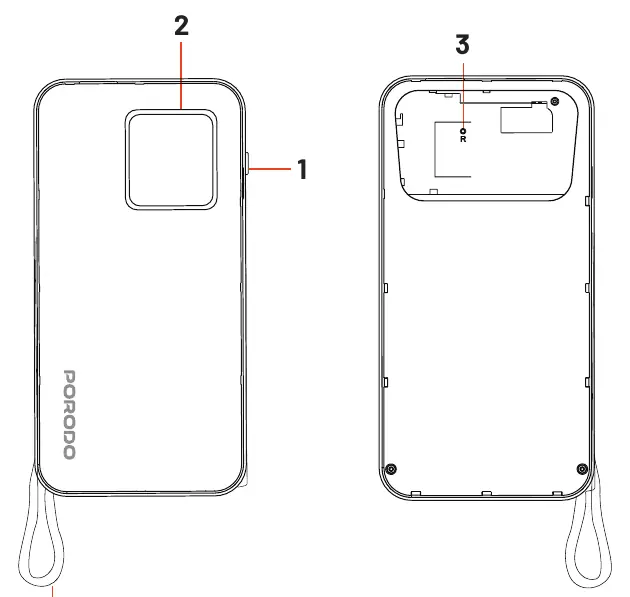
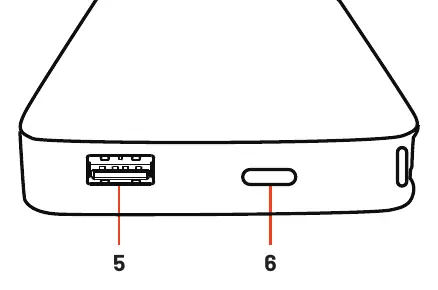
The device features a power button, an LCD screen for status updates, a reset button, and USB-C ports for charging and connectivity. The reset button can be used to restore factory defaults by holding it for 5 seconds while the device is powered on.
Specifications
- Battery Capacity: 10,000mAh
- Max Users: 16
- Operating Time: 26 hours
- Standby Time: 15 days
- Wireless Technology: 4G LTE (TDD-LTE, FDD-LTE, TD-SCDMA, WCDMA)
- WiFi Standards: 802.11 b/g/n/ax
- Input/Output: USB-C (18W Max Input, 20W Max Output)
Connecting to the Internet
The device automatically connects to the network using LTE or WCDMA based on operator settings. If connecting a PC via USB, the device may require driver installation. If automatic installation fails, navigate to the CD-ROM drive in My Computer and run the driver installation manually. Ensure your computer's AutoRun feature is enabled if you encounter issues.
Managing the Web UI
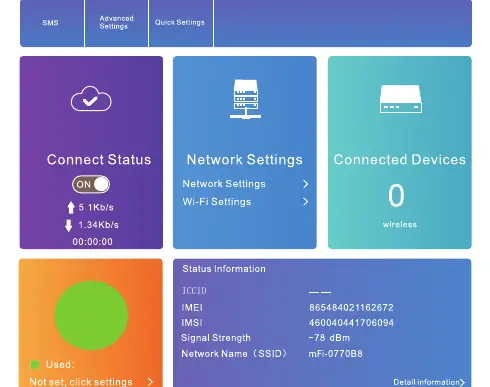
To configure advanced settings, connect to the device's Wi-Fi and open a web browser. Enter 192.168.0.1 in the address bar. The default login password is admin. From the Web UI, you can manage SMS, Wi-Fi settings, data usage, and connection settings.
Wi-Fi and Data Management
You can view or change your Wi-Fi password and SSID under the Wi-Fi Settings menu. The device supports both main and guest SSIDs. The Data Management section allows you to set daily or monthly data plans and monitor usage statistics.
Safety Precautions
- Do not use in dusty, wet, or dirty environments.
- Avoid use during thunderstorms.
- Operate within a temperature range of -10°C to +40°C.
- Keep away from direct sunlight and heat sources.
- Do not cover the device while in use to prevent overheating.
- Keep out of reach of children and pets.
Practical help
Common problems
Device not recognized as a dongle when connected via USB
Ensure the USB connection is properly established and try again. Check if drivers were installed successfully.
Automatic installation fails
Check if any antivirus or security software is running and close it, then try the installation again.
IP address conflict
If 192.168.0.1 conflicts with another device, the system will automatically update to a new IP address.
Before use
- Charge the device using the provided Type-C cable.
- Insert a Nano SIM card.
- Power on the device by pressing and holding the power button.
- Note the default Wi-Fi name and password from the LCD screen.
- Ensure your computer meets the OS requirements (Windows XP/7/8/10/Vista).
Specs in practice
- Battery Capacity
- 10,000mAh capacity for charging devices and powering the router.
- Operating Time
- Up to 26 hours of continuous operation on a full charge.
- WiFi Standards
- Supports 802.11 b/g/n/ax for high-speed wireless connectivity.
Images and diagrams
- 1: Power on/off button
- 2: LCD Screen
- 3: Reset Button
- 4: Type-C Super Fast Charging Cable
- 5: Charging Port
Model compatibility
- Supports Windows XP, 7, 8, 10, and Vista.
- Supports browsers: Microsoft Edge, Internet Explorer 7.0+, Safari 4.0+.
- SIM-locked devices do not support automatic APN configuration.

Manual page author
Michael Turner
Technical manual editor
Reviews PDF manuals for structure, safety notes, and practical product details so readers can find the right information quickly.