Electronics / Speakers & Soundbars
User Manual for Portronics Tune Plus Car Adapter
Quick guide for the Portronics Tune Plus 2-in-1 CarPlay and Android Auto adapter. Learn how to connect your smartphone, set up wireless CarPlay and Android Auto, and stream media safely.
Quick answers from the manual
Quick answer
- The Portronics Tune Plus is a 2-in-1 adapter that enables wireless CarPlay and Android Auto. To use it, plug the device into your car's USB port, wait for the system to load, and pair your smartphone via Bluetooth and WiFi. p. 1
Key actions
- Connect to internet for streaming p. 1
- Pairing iPhone p. 1
First start
- Start your car and wait until the car’s display system is fully ready. Plug the Tune Plus into the USB-A or USB-C port that supports wired Apple CarPlay. p. 1
Problems and fixes
Huawei device compatibility
Huawei devices are not supported.
p. 1Where to find it in the PDF
- User Manual p. 1
Table of contents
Manual images
Click an image to enlargeQuick guide from the manual
The Portronics Tune Plus is a 2-in-1 adapter designed to upgrade your vehicle's wired infotainment system to wireless Apple CarPlay and Android Auto. This guide outlines the setup process, compatibility requirements, and how to enable streaming features.
Package contents

- 1 x Tune Plus adapter
- 1 x USB-A to Type-C Cable
- 1 x USB-A to Type-C Connector
- 1 x User Manual
Compatibility requirements
Before using the device, ensure your vehicle supports wired CarPlay. The adapter is compatible with the following:
- Apple: iPhone 6 or later running iOS 10 or above.
- Android: Smartphones that support Android Auto and run Android 11 or higher.
- Note: Huawei devices are not supported.
Setup and connection
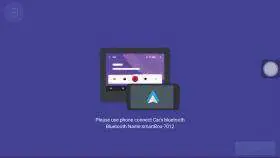
Apple CarPlay connection
- Turn on Bluetooth and WiFi on your iPhone.
- Select the Tune Plus Bluetooth name from your phone's settings.
- Tap Pair when the request appears.
- Tap Allow to sync contacts and favorites.
- Select Connect to CarPlay.
Android Auto connection
- Turn on Bluetooth and WiFi on your Android phone.
- Go to Settings > Connected devices on your phone.
- Tap Pair new device.
- Select Tune Plus-xxxx from the list.
- Tap Pair to complete the connection.
Streaming and internet connection
To stream content from apps like YouTube or Netflix, the Tune Plus must be connected to the internet:
- On your car display, navigate to Settings > WiFi.
- Select your available WiFi network or mobile hotspot.
- Enter the password if required and tap Connect.
Safety warning
Warning: Watching videos while driving is dangerous. Use this feature only when the vehicle is parked. By continuing to use this feature, you accept all risks and responsibility.
Practical help
Common problems
Device not connecting to the car display
Ensure your car supports wired CarPlay and the USB port is active. Start the car and wait for the display system to be fully ready before plugging in the adapter.
Cannot stream videos (YouTube/Netflix)
The adapter requires an active internet connection. Go to Settings > WiFi on the car display and connect to a WiFi network or mobile hotspot.
Huawei phone not connecting
Huawei devices are not supported by this adapter.
Before use
- Verify your car supports wired CarPlay.
- Start the car and wait for the infotainment system to load.
- Ensure Bluetooth and WiFi are enabled on your smartphone.
- Have your WiFi password ready if you intend to stream video.
Images and diagrams
- The main interface displays icons for Rlink/CarPlay, Android Auto, Navigation, Music, and Apps.
- The connection screen guides you to pair via Bluetooth and WiFi.
Model compatibility
- Requires iPhone 6 or later (iOS 10+).
- Requires Android 11+ with Android Auto support.
- Huawei devices are explicitly not supported.

Manual page author
Emily Carter
User documentation editor
Prepares concise manual descriptions and highlights the most useful setup, operation, and maintenance information for readers.