Power / Power Banks
User Manual for Green Lion 2-In-1 Wireless Adapter GL-CP6
Quick guide for the Green Lion 2-In-1 Wireless Adapter (GL-CP6). Learn how to pair your device for wireless CarPlay and Android Auto, perform system updates, and troubleshoot common connection issues.
Quick answers from the manual
Quick answer
- The Green Lion 2-In-1 Wireless Adapter converts wired CarPlay and Android Auto systems to wireless. Connect it to your car's multimedia data port, enable Bluetooth/Wi-Fi on your phone, and pair with 'GL-CP6'. p. 3, 7
Key actions
- Pairing CarPlay: Connect to car USB, enable Wi-Fi/Bluetooth, search for 'GL-CP6' on iPhone. p. 3
- Pairing Android Auto: Connect to car USB, enable Wi-Fi/Bluetooth, search for 'GL-CP6' on phone. p. 7
First start
- Plug the adapter into the car's data port, then pair via Bluetooth on your phone. p. 3, 7
Problems and fixes
Connection drops
Check the data cable connection to the car's port.
p. 6, 9
No sound during calls
Select CarPlay/Android Auto as the audio output on your phone.
p. 6, 9Maintenance and reset
- To update, connect to the adapter's Wi-Fi (password 88888888), access the IP address (192.168.110.1 for CarPlay, 192.168.1.101 for Android Auto) in a browser, and select update. p. 4, 5, 8
Technical specifications
| Parameter | Value | Meaning | Pages |
|---|---|---|---|
| Input Power | 5V/1A | Power requirement | p. 10 |
| Bluetooth | V5.2 | Bluetooth version | p. 10 |
Table of contents
Manual images
Click an image to enlargeQuick guide from the manual
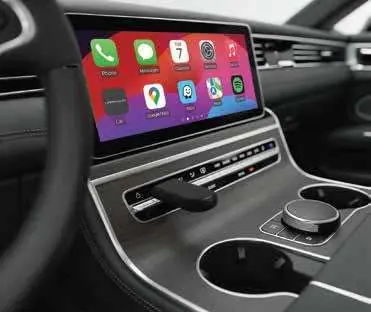
The Green Lion 2-In-1 Wireless Adapter allows you to convert your car's wired CarPlay or Android Auto system into a wireless one. To get started, connect the adapter to your car's multimedia data port, enable Wi-Fi and Bluetooth on your phone, and pair with the device named 'GL-CP6'.
Product Overview
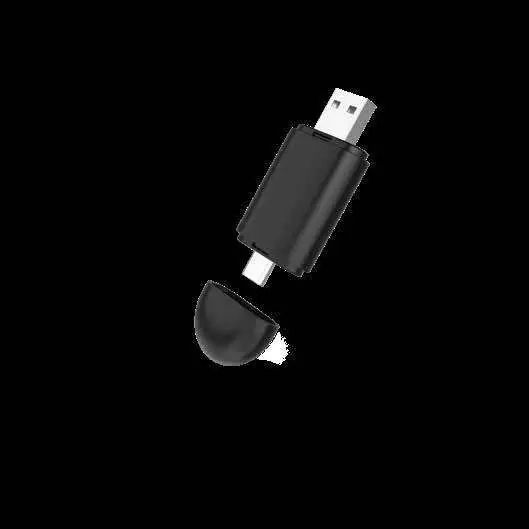
This adapter is a compact device designed to enable wireless connectivity for in-car multimedia systems. It features a USB-C/USB-A interface and does not contain an internal battery, relying on the car's USB port for power.
CarPlay Pairing
To use wireless CarPlay:
- Connect the adapter to the car's multimedia data port using the provided cable.
- Ensure Wi-Fi, Bluetooth, and CarPlay are enabled on your iPhone.
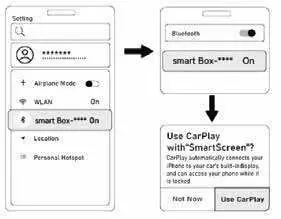
- Open the Bluetooth settings on your iPhone, search for 'GL-CP6', and select it to pair.
- Once paired, the connection will be automatic for subsequent uses.
Android Auto Pairing
To use wireless Android Auto:
- Connect the adapter to the car's multimedia data port.
- Enable Wi-Fi and Bluetooth on your Android phone.
- Search for the Bluetooth device 'GL-CP6' in your phone's settings and pair.
- The system will automatically reconnect on future drives.
System Updates
If you experience connectivity issues, you may need to update the system:
- Connect to the adapter's Wi-Fi network using your phone (password: 88888888).
- Open a web browser (Google Chrome or Safari) and enter the IP address: 192.168.110.1 for CarPlay or 192.168.1.101 for Android Auto.
- Select the update option and wait for the process to complete.
- Unplug the device, ignore the previous Bluetooth connection on your phone, and re-pair.
Troubleshooting
If you encounter issues, try the following:
- Connection drops: Ensure the data cable is securely connected to the car's USB port.
- No sound during calls: Manually select 'CarPlay' or 'Android Auto' as the audio output on your phone's call screen.
- Indicator light stays on: This is normal; the light is powered by the car's USB port and may remain on depending on the vehicle's power management.
- Device not recognized: Unplug the adapter and restart your car's multimedia system.
Specifications
Input Power: 5V/1ABluetooth: V5.2Interface: USB-C, USB-AWeight: 11gDimensions: 11 x 28 x 58.7 mm
Warranty and Support
Products purchased directly from the Green Lion website come with a 24-month warranty, while those from approved sellers have a 12-month warranty. For support, visit https://www.greenlion.net/ or contact [email protected].
Official resources from the manual
Manufacturer information
Green Lion
Practical help
Common problems
Indicator light does not turn off when the car is off
This is normal. The light is powered by the car's USB port, and the duration it stays on depends on the specific car model.
Connection drops suddenly
Check if the data cable is loosely connected to the car's data port or the adapter.
No sound during a call
Go to the call screen on your phone and manually select CarPlay or Android Auto as the audio output mode.
Sound or navigation delay
This is often caused by an unstable mobile data connection on your phone.
Before use
- Ensure your car has a factory-installed wired CarPlay or Android Auto system.
- For CarPlay: Use an iPhone 6 or later with iOS 10 or above.
- For Android Auto: Use an Android phone with Android 11 or above.
- Ensure Wi-Fi and Bluetooth are enabled on your mobile device.
- Ensure the adapter is properly connected to the car's multimedia data interface.
Specs in practice
- Bluetooth V5.2
- The version of Bluetooth used for initial pairing and connection.
Images and diagrams
- The adapter features a USB connector to plug into the car's multimedia port.
- The pairing process involves selecting 'GL-CP6' in your phone's Bluetooth settings.
Model compatibility
- Requires factory-installed wired CarPlay or Android Auto.
- Not all car models are compatible; check compatibility if the device is not recognized.

Manual page author
Michael Turner
Technical manual editor
Reviews PDF manuals for structure, safety notes, and practical product details so readers can find the right information quickly.