Electronics / Monitors
Sandberg USB-C 10-in-1 Docking Station User Guide
Comprehensive user guide for the Sandberg USB-C 10-in-1 Docking Station, covering setup, connectivity, and device management.
Table of contents
Product Overview
The Sandberg USB-C 10-in-1 Docking Station is a versatile connectivity solution designed to expand the capabilities of your laptop. By utilizing a single USB-C connection, this docking station allows you to transform your portable computer into a fully functional workstation. It is engineered to provide a wide array of ports, ensuring that you can connect all your essential peripherals, displays, and network cables without the need for multiple individual adapters.
Setup and Connectivity
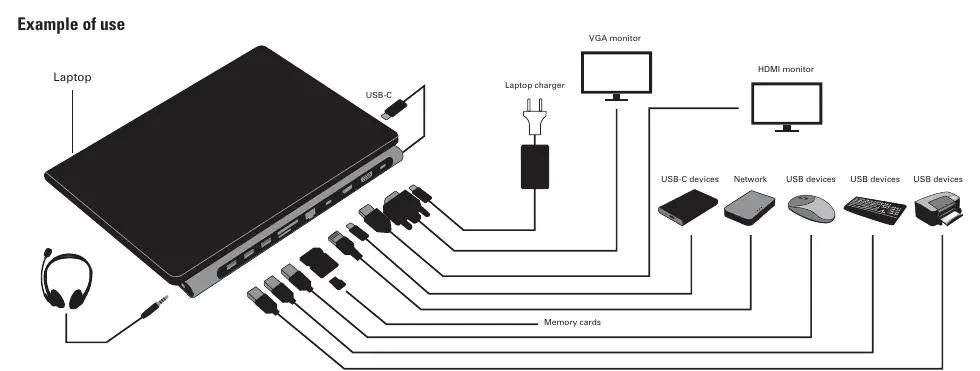
Setting up the docking station is straightforward. Simply connect the integrated USB-C cable from the docking station to the USB-C port on your laptop. Once connected, the device acts as a central hub for your workspace. You can connect various devices simultaneously, including external monitors via HDMI or VGA, wired network connections, and multiple USB peripherals such as keyboards, mice, and external storage drives. The station also supports memory card reading and audio output, making it an ideal choice for professionals who require a clean and organized desk setup.
Power and Performance
The docking station supports power delivery, allowing you to connect your laptop charger directly to the dock. This feature enables the station to pass power through to your laptop, keeping it charged while you work. This single-cable solution reduces cable clutter significantly. For optimal performance, ensure that your laptop supports USB-C power delivery and that you are using a compatible power adapter. The device is built to high standards, ensuring reliable data transfer speeds and stable video output for your monitors.
Maintenance and Support
To ensure the longevity of your Sandberg docking station, keep the ports free of dust and debris. Avoid exposing the device to extreme temperatures or moisture. If you encounter any issues with connectivity or device recognition, ensure that all cables are securely plugged in and that your laptop drivers are up to date. Sandberg provides a five-year warranty on this product, reflecting their commitment to quality and durability. For further assistance, technical support is available through the official Sandberg helpdesk portal, where you can find additional resources and troubleshooting tips. Always dispose of electronic waste according to local regulations to help protect the environment.
Manufacturer information
Sandberg A/S
Practical help
Common problems
Device not recognized by laptop
Ensure the USB-C cable is firmly connected and check if your laptop's USB-C port supports data and power delivery.
Monitor not displaying image
Verify that the HDMI or VGA cable is securely connected to both the monitor and the docking station, and ensure the correct input source is selected on the monitor.
Before use
- Verify your laptop has a compatible USB-C port.
- Ensure you have the necessary cables for your monitors and peripherals.
- Check that your laptop charger is available for power pass-through.
- Place the docking station on a stable, flat surface.
Images and diagrams
- The diagram illustrates the connection of a laptop to the docking station via the main USB-C cable.
- It shows the integration of a laptop charger for power delivery.
- It highlights the connection points for VGA and HDMI monitors.
- It displays the ports for USB devices, network cables, and memory cards.
- It indicates the audio output port for headphones.
Model compatibility
- Compatible with laptops featuring a USB-C port.
- Supports standard USB peripherals and external storage.
- Supports HDMI and VGA display outputs.

Manual page author
Emily Carter
User documentation editor
Prepares concise manual descriptions and highlights the most useful setup, operation, and maintenance information for readers.