Industrial / Electrical
Schneider Electric Exxact Connected Wireless Switch User Guide
Comprehensive user guide for the Schneider Electric Exxact Connected Wireless Switch (1-gang/2-gang), covering installation, Wiser app pairing, configuration, and maintenance.
Table of contents
Manual images
Jump to the sectionProduct Overview
The Schneider Electric Exxact Connected Wireless Switch (1-gang/2-gang) is a battery-powered wireless device designed to control Zigbee-based networks, including lighting and shutter groups. It allows users to trigger specific moments, such as lighting scenes or shutter positions, directly from the switch. The device is configured and managed through the Wiser app.
Safety Information
Danger: Risk of electric shock, explosion, or arc flash. When installing the device on a wall box or existing switch outlet, you must isolate 230 V AC cables by applying adhesive silver foil to the fixing plate. Failure to follow these instructions can result in death or serious injury.
Installation and Pairing
To begin using the device, insert the battery. Pairing with the Wiser Gateway can be done manually or via auto-scan. For manual pairing, use the Wiser app to add the device, optionally using an Install Code for enhanced security. Once initiated, press the top right push button three times to activate pairing mode. A solid green LED confirms a successful connection to the Gateway.
Configuration and Usage
The Wiser app allows for extensive customization of the switch. You can rename the device, change its location, or update the device icon. The switch supports the creation of lighting groups, shutter groups, and moments. Each push button can be assigned specific functions: single presses for turning lights on/off or controlling shutters, and long presses for dimming or opening/closing shutters. Moments allow for grouping multiple actions together, which can be triggered by a single press of a button.
Maintenance and Troubleshooting
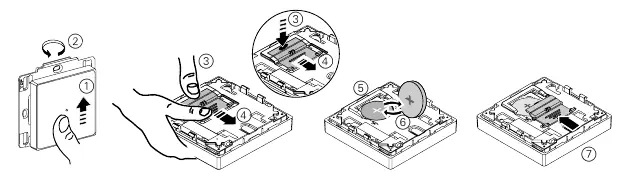
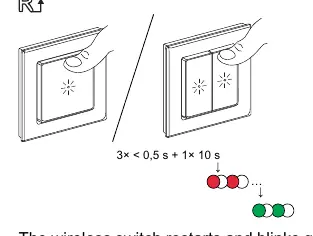
The device features a low battery notification within the app. To replace the battery, slide the device upwards off the fixing plate, rotate it 180 degrees, and remove the battery cover. Ensure the new battery is inserted with the plus (+) symbol facing outward. If the device appears offline, try pressing any button to wake it. If the LED blinks red, the battery is low and requires replacement. Resetting the device to factory defaults is possible by pressing the push button three times, followed by a long press of over 10 seconds.
Manufacturer information
Schneider Electric
Practical help
Common problems
LED blinks red
The battery is low or drained. Replace the battery (CR2032).
Device displays offline in the app
The battery may be drained or the device is disconnected. Press any button to wake it up.
Before use
- Ensure the battery is inserted correctly.
- Download and install the Wiser app.
- Ensure the Wiser Gateway is powered and connected.
- Isolate 230 V AC cables if installing on a wall box.
Specs in practice
- Communication protocol
- Zigbee 3.0 for wireless connectivity.
- Operating temperature
- -5 °C to 45 °C.
Images and diagrams
- The device is mounted on a fixing plate and can be removed by sliding it upwards.
- The battery cover is accessed by rotating the device 180 degrees.
- LED indicators provide feedback: orange for pairing, green for success, and red for low battery or reset mode.
Model compatibility
- Compatible with Zigbee-based networks.
- Requires Wiser Gateway for app-based control.
- Works with lighting and shutter groups.

Manual page author
David Miller
Documentation analyst
Organizes user manual content into clear summaries, with attention to model details, product context, and everyday usability.