Electronics / Headphones Earbuds
User Manual for Shenzhen 2208A Activity Tracker
Comprehensive user guide for the Shenzhen 2208A Activity Tracker. Learn how to set up, pair with the QWatch Pro app, charge, use health monitoring features, and troubleshoot common issues.
Quick answers from the manual
Quick answer
- The Shenzhen 2208A is an activity tracker that monitors health metrics like heart rate, SpO2, and sleep. It pairs with the QWatch Pro app via Bluetooth 5.0. p. 2, 4
Key actions
- Pairing with App p. 4
- Charging p. 5
First start
- Charge the device, download QWatch Pro, enable Bluetooth, and pair within the app. p. 4, 5
Show 4 more answers Show less
Problems and fixes
Pairing failure
Check power, Bluetooth, app permissions, and restart app.
p. 11Maintenance and reset
- Factory reset deletes all data; charge and reactivate after reset. p. 8
Technical specifications
| Parameter | Value | Meaning | Pages |
|---|---|---|---|
| Bluetooth | 5.0 | Connection version | p. 4 |
| Operating Temp | 0°C - 45°C | Safe operating range | p. 13 |
Where to find it in the PDF
- Product Introduction p. 2
- What's in the package p. 3
- User Guide p. 4
- Charging p. 5
- Troubleshooting p. 11
Table of contents
Manual images
Click an image to enlargeQuick guide from the manual
The Shenzhen 2208A Activity Tracker is a wearable device designed to monitor health metrics and track sports activities. To begin using the device, you must charge it, install the QWatch Pro app on your smartphone, and pair the devices via Bluetooth.
What's in the package
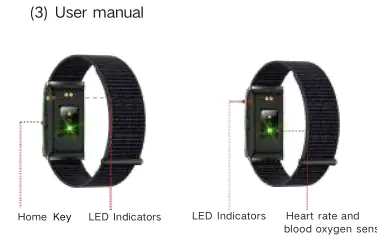
- Smart bracelet
- Magnetic USB charger
- User manual
Charging and activation
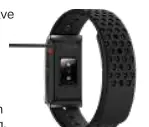
Before first use or after a factory reset, the device must be charged and activated. Place the device on the magnetic USB charger and connect it to a power outlet or a USB 2.0+ port. A red light indicates the device is charging, while a green light indicates it is fully charged.
App and function operation
Download the QWatch Pro app from the Google Play Store or Apple App Store. Ensure Bluetooth is enabled on your mobile device, then select the tracker within the app to complete the pairing process. The app allows you to view health data, including steps, distance, calories, heart rate, SpO2, blood pressure, sleep, and stress levels.
Device settings and features
Through the QWatch Pro app, you can configure:
- Health Monitoring: Set intervals for automatic heart rate, SpO2, blood pressure, and sleep monitoring.
- Goal Setting: Customize daily targets for steps, distance, calories, and sleep.
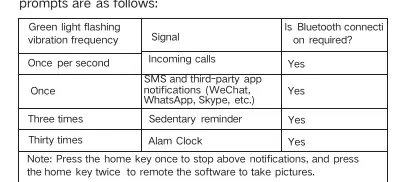
- Smart Notifications: Receive alerts for incoming calls, SMS, and third-party apps.
- Firmware Updates: The app will notify you when updates are available.
Troubleshooting
If the device fails to pair with your phone, ensure the tracker is powered on, Bluetooth is enabled on your phone, and app permissions are granted. Restart the app if necessary. If the battery drains quickly, charge the device for at least three hours to calibrate the battery.
Safety and maintenance
This device is not a medical instrument and should not be used to diagnose or treat medical conditions. Handle the device with care to avoid damage to sensitive electronic components. Do not attempt to replace the battery yourself; it must be recycled or disposed of separately from household waste. The device operates in temperatures between 0°C and 45°C (32°F and 113°F).
Practical help
Common problems
Device will not pair with phone
Ensure the device is powered on, Bluetooth is enabled on your phone, app permissions are granted, and restart the app.
Battery drains quickly
Charge the device for at least three hours to calibrate the battery.
Before use
- Charge the device fully before first use
- Download the QWatch Pro app
- Enable Bluetooth on your smartphone
- Ensure your phone runs Android 5.0+ or iOS 10.0+
Show more Show less
Specs in practice
- Bluetooth 5.0
- Wireless connection standard used for pairing
- Operating Temperature
- Safe operating range is 0°C to 45°C (32°F to 113°F)
Images and diagrams
- Home Key: Used to stop notifications and trigger remote camera control
- LED Indicators: Used for status signals
- Sensors: Heart rate and blood oxygen sensor located on the back of the device
Model compatibility
- Requires Android 5.0 or later
- Requires iOS 10.0 or later

Manual page author
Michael Turner
Technical manual editor