Electronics / Televisions
User Manual for Sylvox 15.6-inch Smart TV
Quick guide for the Sylvox 15.6-inch Smart TV. Includes installation instructions for under-cabinet mounting, remote control setup, TV operation, network configuration, and troubleshooting steps.
Table of contents
Manual images
Click an image to enlargeQuick Start Guide
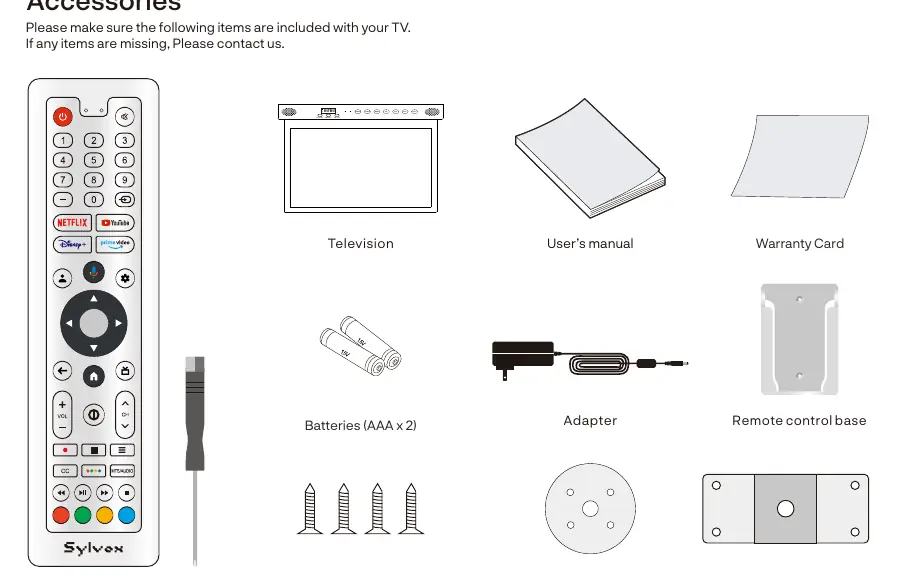
This guide provides essential information for setting up and using your Sylvox 15.6-inch Smart TV. Before beginning, ensure you have all accessories, including the remote control, screwdriver, and mounting brackets. The TV is designed for indoor use, including under-cabinet mounting.
Installation
The TV is designed for under-cabinet installation. Follow these steps for a secure mount:
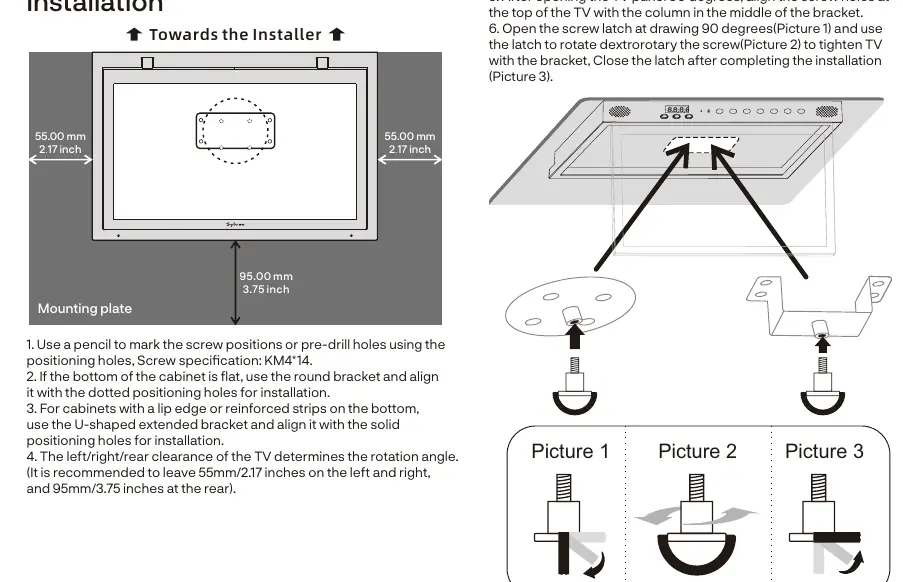
- Use a pencil to mark screw positions using the provided positioning holes.
- Use the round bracket for flat-bottom cabinets.
- Use the U-shaped extended bracket for cabinets with a lip edge or reinforced strips.
- Recommended clearance: 55mm (2.17 inches) on the left and right, and 95mm (3.75 inches) at the rear.
- After mounting, open the TV panel 90 degrees, align the screw holes with the bracket column, and use the latch to tighten the TV securely.
Remote Control
The remote control allows full navigation of the Google TV interface. Key buttons include:
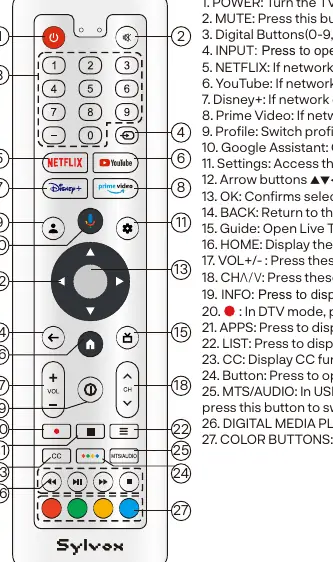
- Power: Turns the TV on or off.
- Input: Opens the input source list.
- Settings: Accesses system settings.
- Google Assistant: Opens the voice assistant.
- Navigation (Arrow buttons): Used to select menu items.
- MTS/AUDIO: Switches audio tracks or languages.
TV Operation
Upon first power-on, follow the on-screen wizard to pair the Bluetooth remote, select your system language, and connect to Wi-Fi. You can choose to set up as a Google TV (requires Google account) or a basic TV.
Settings
Access the settings menu from the Home screen to configure:
- Channels & Inputs: Scan for channels and manage CEC settings.
- Display & Sound: Adjust picture modes (Standard, Movie, Vivid, Sports, Game) and sound output settings.
- Network & Internet: Manage Wi-Fi and Ethernet connections.
- Accounts & Sign-in: Manage Google profiles and kids' profiles.
- Privacy: Manage location, usage diagnostics, and Google Assistant permissions.
Troubleshooting
If you encounter issues, try these common solutions:
- No Power: Check the power cord connection and ensure the outlet is working.
- No Picture: Check antenna connections and ensure the correct input source is selected.
- No Sound: Increase volume, check mute status, and verify sound settings.
- Remote Not Responding: Replace batteries and ensure the remote is within 8 meters of the TV.
- Picture Breaking Up: Keep the TV away from noisy electrical sources and check antenna signal strength.
Practical help
Common problems
No power
Check if the power cord is plugged in and the outlet works. Unplug for 60 seconds and restart.
No picture
Check antenna connection, tune to another station, or adjust contrast and brightness settings.
Good picture but no sound
Increase volume, check if Mute is on, or verify external device volume settings.
No response to remote control
Replace batteries, clean the remote lens, and ensure you are within 8 meters of the TV.
Before use
- Verify all accessories are included (Remote, Screwdriver, Brackets, Screws).
- Ensure the installation location has proper clearance (55mm sides, 95mm rear).
- Install two 1.5V AAA batteries in the remote control.
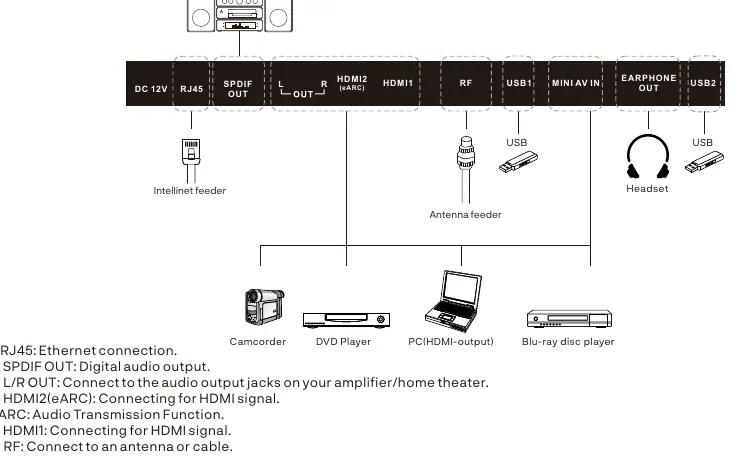
- Connect the antenna or cable to the RF input.
- Ensure the power outlet is easily accessible.
Specs in practice
- Display Size
- 15.6-inch LED screen.
- Sound Output
- 2 x 3W speakers.
Images and diagrams
- Installation: Shows under-cabinet mounting using round or U-shaped brackets.
- Remote Control: Illustrates button layout for power, volume, channels, and smart features.
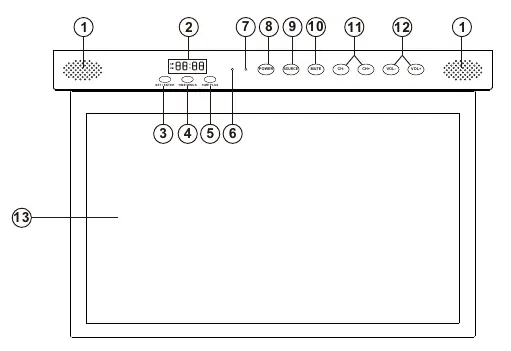
- Ports: Displays locations for HDMI, USB, Antenna, and Audio connections.
Model compatibility
- Supports NTSC and ATSC systems.
- USB disks must be formatted in FAT32.
- Supports Bluetooth devices like headphones and game controllers.

Manual page author
Michael Turner
Technical manual editor
Reviews PDF manuals for structure, safety notes, and practical product details so readers can find the right information quickly.