Electronics / Headphones Earbuds
Trevi 12E90 ANC Bluetooth Headphones User Guide
Quick start guide for Trevi 12E90 ANC Bluetooth headphones. Learn how to pair via Bluetooth, use ANC, manage music playback, handle calls, and charge the battery.
Table of contents
Quick guide from the manual
This document provides essential instructions for operating the Trevi 12E90 ANC Bluetooth headphones. Key operations include pairing with external devices, managing music and calls via onboard buttons, and using the Active Noise Control (ANC) feature. Please note that the device contains an internal rechargeable battery that requires specific charging conditions.
Description of controls
The headphones feature several controls and indicators:
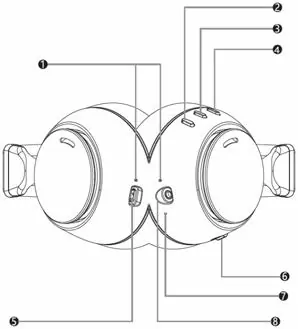
- 1: LED indicators (Bluetooth status, charging status, ANC status)
- 2: "-" key (Previous track, volume down)
- 3: Power button (On/Off, Play/Pause, Call management)
- 4: "+" key (Next track, volume up)
- 5: USB Type-C charging port
- 6: ANC switch
- 7: Microphone
- 8: 3.5mm audio jack
Battery charging
To charge the headphones, connect the included USB Type-C cable to the charging port (5) and an external 5V power source. The red LED (1) will light up during charging and turn off when complete. If the battery is low, you will hear a "LOW BATTERY" voice prompt before the device automatically shuts down.
ANC (Active Noise Control)
The ANC function reduces low-frequency ambient noise. To activate, move the ANC switch (6) to the ON position; the LED (1) will turn green. To deactivate, move the switch to the OFF position; the LED will turn off. Note that ANC may be less effective in very quiet environments and should be toggled before connecting a wired audio cable.
Bluetooth pairing
- Turn on the headphones; the LED (1) will flash red/blue.
- Enable Bluetooth on your external device.
- Search for and select "DJ12E90ANC" from the list of available devices.
- A voice prompt will confirm: "Your Bluetooth device is connected".
Music and call management
Use the buttons on the headphones to control playback and calls:
- Play/Pause: Press the Power button (3).
- Next/Previous track: Long press the "+" (2) or "-" (4) keys.
- Volume: Press the "+" (2) or "-" (4) keys.
- Answer/End call: Press the Power button (3) once.
- Reject call: Long press the Power button (3).
- Redial last number: Quickly press the Power button (3) twice.
Wired connection
The headphones can be used in passive mode by connecting them to an audio device using a 3.5mm stereo jack cable (not supplied). Music playback is controlled by the connected device.
Technical specifications
- Bluetooth version: V5.3
- Working distance: 10m
- Driver size: 40mm
- Frequency response: 20Hz - 20KHz
- Battery: 3.7V, 400mAh
- Charging voltage: 5V
- Weight: 240g
Manufacturer information
TREVI S.p.A.
Practical help
Common problems
ANC function not working or buzzing sound
Ensure the microphone is not covered by your hand and that the device is kept away from mobile phones to avoid interference.
Bluetooth connection drops
Ensure devices are within 10 meters of each other. If the connection is lost, it should restore automatically; otherwise, repeat the pairing procedure.
Headphones turn off automatically
This occurs after a period of inactivity when Bluetooth is not paired. Switch the headphones back on to resume use.
Before use
- Charge the battery fully before first use.
- Ensure the charging environment is between 5°C and 35°C.
- Keep the device away from heat sources, dust, and strong vibrations.
- Ensure the ANC switch is set correctly before connecting a wired cable.
Specs in practice
- Bluetooth V5.3
- The version of wireless technology used for stable connection and power efficiency.
- 400mAh Battery
- Capacity of the internal rechargeable battery.
Images and diagrams
- The diagram shows the right and left earcups with numbered controls.
- Buttons 2, 3, and 4 are located on the earcup for easy access.
- The ANC switch (6) and charging port (5) are positioned on the side of the earcup.
Model compatibility
- Compatible with devices supporting A2DP, AVRCP, HSP, and HFP profiles.
- Some devices may not be fully compatible due to the evolution of Bluetooth technology.

Manual page author
Emily Carter
User documentation editor
Prepares concise manual descriptions and highlights the most useful setup, operation, and maintenance information for readers.