Power / Power Distribution Units
User Manual for PowerAlert Manager URCap
A comprehensive guide for installing and configuring the PowerAlert Manager URCap software for Tripp Lite UPS systems. Includes hardware setup, network configuration, PolyScope integration, and troubleshooting steps.
Table of contents
Manual images
Click an image to enlargeQuick Guide from the Manual
This document provides instructions for setting up the PowerAlert Manager URCap software, which allows monitoring of a Tripp Lite UPS directly from a Universal Robots (UR) system's PolyScope pendant. Ensure you have a Tripp Lite LX Platform UPS with WEBCARDLX installed and running PowerAlert Device Manager (PADM) version 20.0.0 or greater.
Hardware Installation
Before installing the software, ensure your UPS is properly connected to your electrical outlet and your equipment. The UPS must be connected to a dedicated circuit. Connect your equipment to the UPS outlets, avoiding motors and heating devices to prevent overloading. Turn on the UPS by pressing the ON/MUTE button until you hear a beep.
Network Card Installation
If your UPS does not have a pre-installed network card, install it according to the card's specific instructions. Ensure the firmware version is 20.0.0 or later. You can verify this by accessing the UPS setup screens on the LCD interface by pressing the SCROLL and SELECT buttons simultaneously for 3 seconds.
Network Configuration
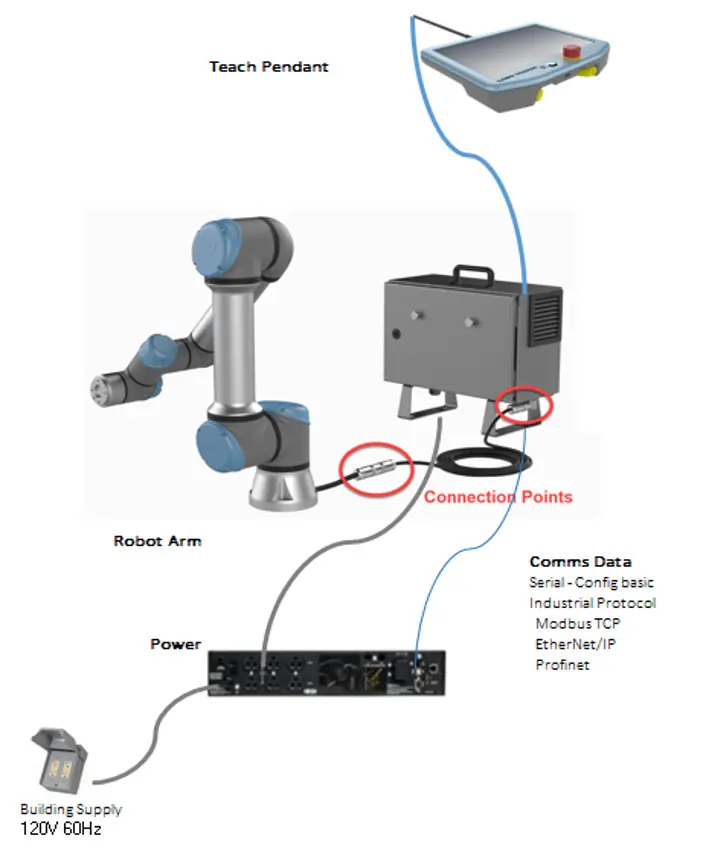
The UPS can be connected to the UR controller via a network switch (recommended) or a direct connection. For a network switch connection, use a Cat 6 or higher Ethernet cable to connect the UPS and the UR controller to the same network. For a direct connection, connect the UPS directly to the UR controller's RJ45 port.
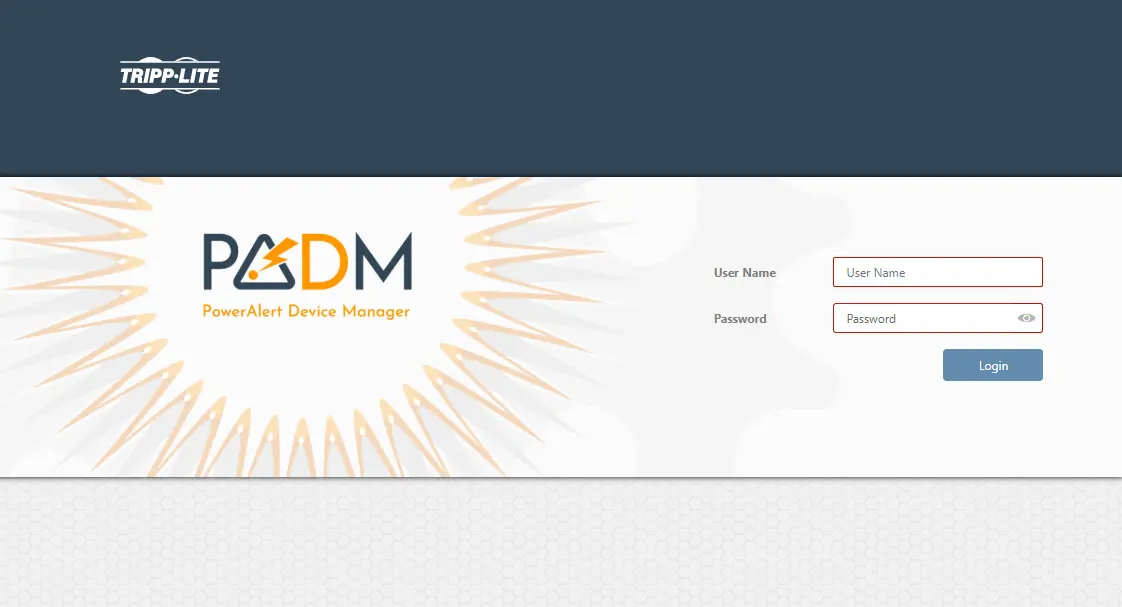
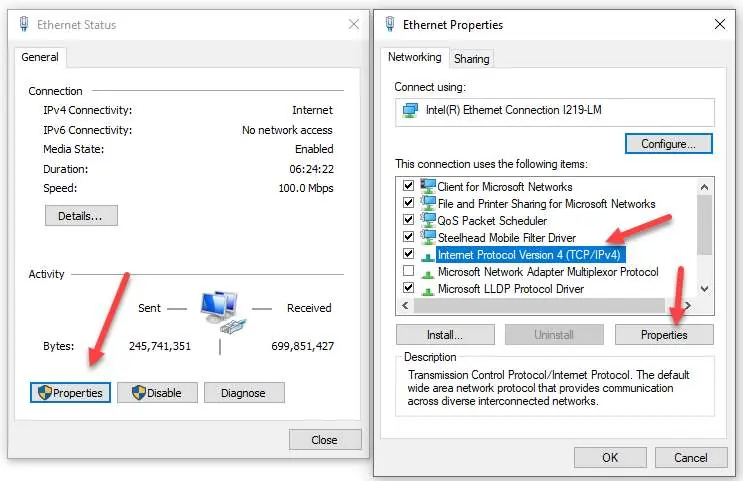
To configure the IP address, you can use either Static or Dynamic (DHCP) assignment. For static assignment, connect the WEBCARDLX to the network, access the PADM login screen via a web browser using the default IP (169.254.0.1), and log in with the default credentials (localadmin/localadmin). Navigate to the Network > Internet menu to set the desired IPv4 information.
Installing PowerAlert URCap
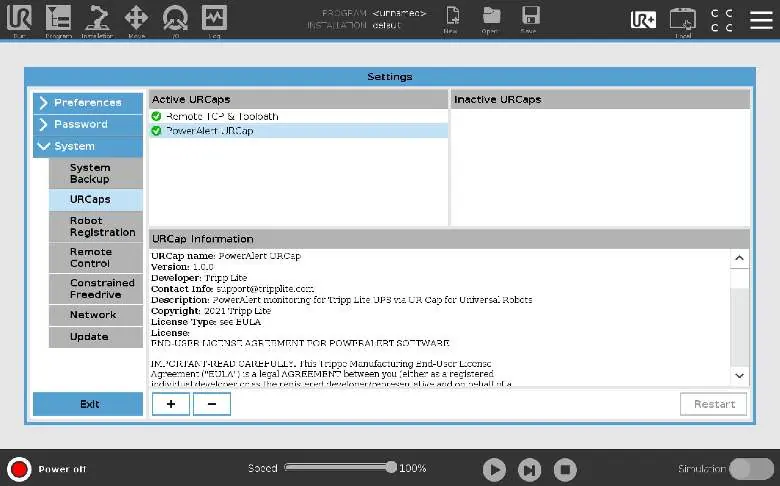
Download the latest PowerAlert UR CAP installer from the Tripp Lite website. Load the software files onto a USB thumb drive. Insert the drive into the UR Pendant or controller. In the PolyScope header, navigate to Settings > URCaps and press the (+) sign to select the installer. Restart the system once installation is complete.
Configuration
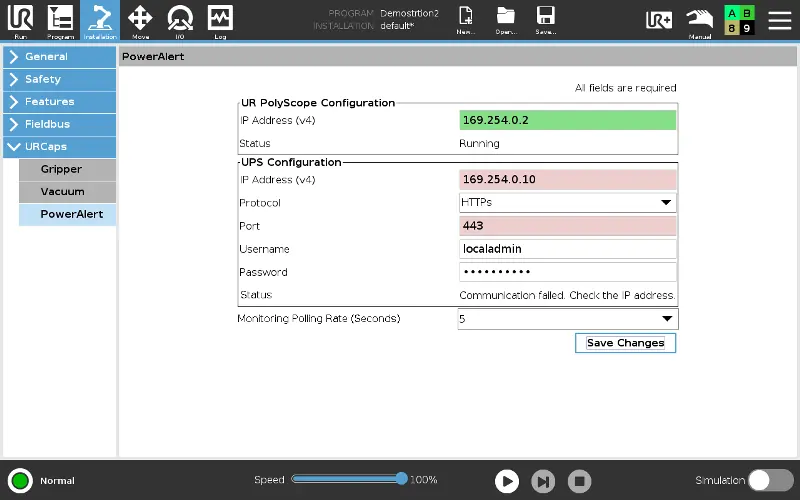
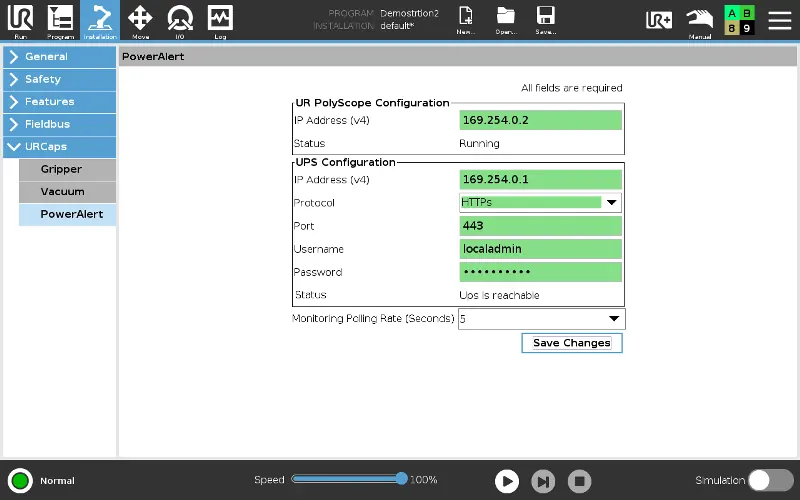
After installation, go to Installation > URCaps > PowerAlert. Enter the IP address of the UR Controller in the PolyScope Configuration field. Then, enter the UPS IP address, protocol, port, and credentials in the UPS Configuration section. Save changes. A successful setup will show 'Running' for PolyScope and 'UPS is reachable' for the UPS status.
Operation and Monitoring
The PowerAlert URCap dashboard provides real-time data on battery age, capacity, status, and runtime. You can use the 'Filter View' tab to select specific variables to monitor. The 'Alerts' tab displays critical events, warnings, and status updates. Logs can be accessed via the 'Logs' menu to view historical event data.
Troubleshooting
If the UPS is unreachable, verify the IP address and ensure the UPS is correctly connected to the UR controller. If you cannot access PADM, confirm that Ethernet cables are connected and that the device is running firmware version 20.0.0 or later. For further assistance, contact Tripp Lite Technical Support at 773.869.1234 or email [email protected].
Practical help
Common problems
UPS is unreachable
Check if the IP address is correct and if the UPS is connected to the UR controller (directly or via switch). Ensure you have the correct username and password.
Unable to access PADM on connected computer
Confirm Ethernet cables are properly connected, port LEDs show activity, and the LX Device is running firmware version 20.0.0 or later.
IP address of the WEBCARDLX is unknown
Contact your network administrator to learn the assigned IP address or view it during the terminal session at boot-up. You will need the device's MAC address.
Before use
- Ensure you have a Tripp Lite LX Platform UPS with WEBCARDLX.
- Verify PADM version 20.0.0 or greater is running.
- Have a USB thumb drive (at least 70MB) ready for software installation.
- Ensure your Ethernet network supports the TCP/IP protocol.
- Have a computer with a web browser (Chrome, Firefox, Internet Explorer, or Safari) for initial configuration.
Images and diagrams
- Wiring diagrams illustrate the connection between the UPS, UR controller, and network switch.
- Configuration screenshots show the required fields for IP address and credential entry in the PolyScope interface.
Model compatibility
- Requires Tripp Lite LX Platform UPS.
- Not compatible with PoE (Power Over Ethernet) applications.
- Requires Cat 6 or higher Ethernet cable.

Manual page author
Emily Carter
User documentation editor
Prepares concise manual descriptions and highlights the most useful setup, operation, and maintenance information for readers.