Home / Security
User Guide for Urmet 1099-211B Wi-Fi Camera
Quick setup guide for the Urmet 1099-211B Wi-Fi camera. Learn how to install the V-Stream app, create an account, and connect your camera to your home network.
Table of contents
Manual images
Click an image to enlargeQuick guide from the manual
This document provides the necessary steps to connect your Urmet Wi-Fi camera to your home network using the V-Stream application. Follow these procedures to ensure a successful setup.
Account setup

- Download the V-Stream app from your smartphone's app store.
- Open the app and select Sign up to create a new Urmet Cloud account.
- Check your email inbox for a confirmation message to activate your account.
- Return to the app, enter your credentials, and select Login.
Connecting the camera
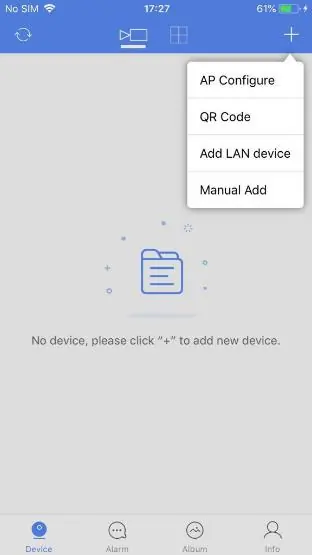
- In the app, tap the + icon to add a new device.
- Select AP Configure from the menu.
- If your smartphone is not automatically connected to the camera's Wi-Fi, tap the button to open your smartphone's Wi-Fi settings.
- Select the camera's network (SSID starting with URM_). If prompted for a password, enter 01234567.
- Return to the V-Stream app and select Next.
- Wait for the app to detect available networks. Scroll to the bottom of the list, select your home router's Wi-Fi network, and enter your router's Wi-Fi password.
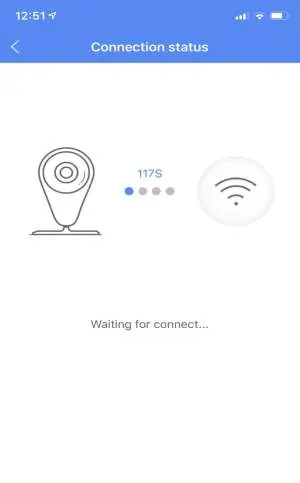
- The camera will now connect to your router.
Troubleshooting and status
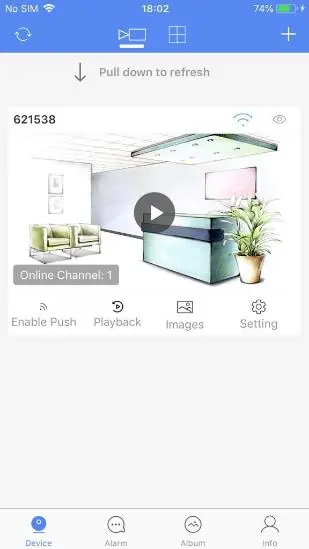
Once the setup is complete, the camera will appear in your device list. If the camera status is not Online, pull down on the device list to refresh the status. Tap the device icon to start the live video feed.
Customer support
For further assistance, you can contact Urmet Customer Care:
- Italy: 011 23 39 810
- Export Dept.: +39 011 24 00 250/256
Manufacturer information
Urmet S.p.A.
Practical help
Common problems
Camera status is not 'Online'
Pull down the device list in the V-Stream app to refresh the connection status.
Smartphone not connected to camera Wi-Fi
Manually open your smartphone's Wi-Fi settings and select the network named URM_XXXXXXX.
Before use
- Download the V-Stream app
- Create and activate a Urmet Cloud account
- Have your home router's Wi-Fi password ready
- Ensure the camera is powered on
Images and diagrams
- The app interface uses the 'AP Configure' option to initiate the direct connection between the phone and the camera.
- The connection status screen displays the progress of the camera linking to the local network.
Model compatibility
- Requires a smartphone with Wi-Fi capability
- Compatible with the V-Stream application

Manual page author
David Miller
Documentation analyst
Organizes user manual content into clear summaries, with attention to model details, product context, and everyday usability.