Electronics / Monitors
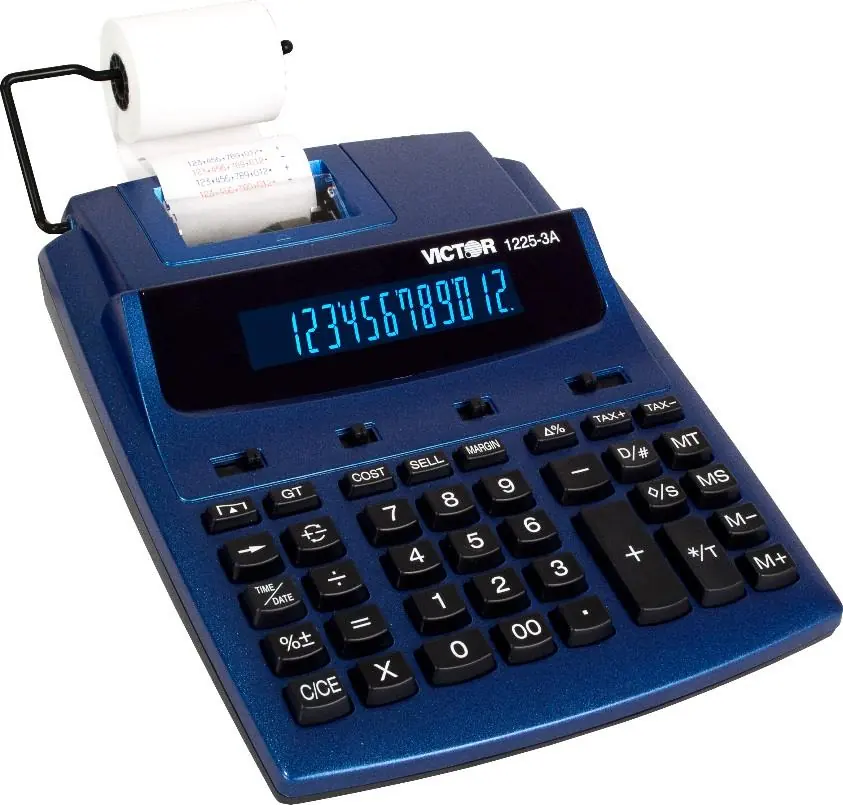
User Manual for Victor 1225-3A Commercial Calculator
Quick guide for the Victor 1225-3A commercial calculator. Learn how to load paper, replace the ink roller, set date/time, perform tax and business calculations, and use memory functions.
Table of contents
Manual images
Click an image to enlargeQuick guide from the manual
This document provides instructions for the Victor 1225-3A commercial calculator. It covers basic setup, maintenance, and advanced calculation features including tax, cost/sell/margin, and date/time functions.
Getting started
The calculator operates on AC power. Ensure the unit is connected to a power source. When the power is in the ON position, the [D/#] key prints the digits displayed on the front panel.
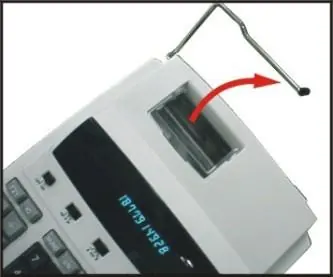
Loading paper
- Place the paper holders into position (Fig. I).
- Install the paper roll on the holders.
- Insert the paper end into the printer slot (Fig. II).
- Press the paper feed key to advance the paper to an adequate length.
Maintenance
Replacing the ink roller
If printing becomes faint, replace the ink roller (MS37901):
- Turn the power off.
- Open the printer cover (Fig. III).
- Remove the old ink roller by pulling it up (Fig. IV).
- Insert the new ink roller into the compartment and gently press it down until it snaps into place.
Replacing the backup battery
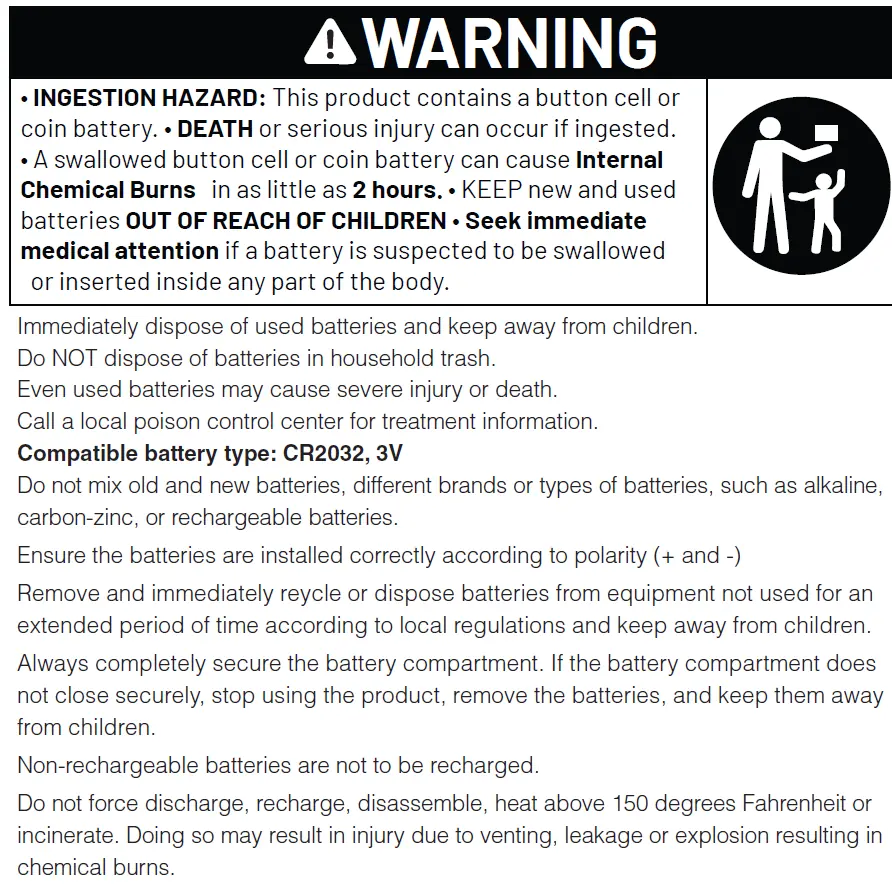
The memory backup battery (CR2032) retains tax rates, calendar, and clock settings when the power is off or the AC cord is disconnected.
- Remove the three screws on the back cover.
- Separate the front and back cover halves using a flat-blade screwdriver.
- Pry out the old battery and insert a new CR2032 battery with the positive (+) side facing up.
- Snap the cover halves back together and tighten the screws.
Key functions
- Tax calculation: Use [TAX+] to add tax and [TAX-] to deduct tax based on a stored rate.
- Business calculations: Use [COST], [SELL], and [MARGIN] keys to calculate profit margins or cost/selling prices.
- Memory: Use [M+], [M-], [MS], and [MT] for memory operations.
- Sleep mode: The calculator powers down after 5 minutes of inactivity. Press [C/CE] for 5 seconds to wake it.
Date and time settings
The [TIME/DATE] key displays the date or time. To set the date and time:
- Press [TIME/DATE] and then [SET].
- Enter the month, date, and year using the number keys.
- Press [SET] to confirm.
- Press [TIME/DATE] and then [SET] again to enter the time.
- Use [12/24] to switch between 12-hour and 24-hour formats.
- Use [AM/PM] to toggle morning/afternoon settings and press [SET] to confirm.
Troubleshooting
If the display malfunctions or memory contents are lost due to electromagnetic interference, use a sharp object to press the [RESET] button on the bottom of the calculator. Note that you will need to re-set the tax rate, time, and date after a reset.
Manufacturer information
Victor Technology, LLC
Practical help
Common problems
Printing becomes faint
Replace the ink roller (MS37901).
Display malfunction or memory loss
Press the [RESET] button on the bottom of the calculator using a sharp object.
Calculator does not turn on
Ensure the AC power source is connected and the switch is in the ON position.
Before use
- Ensure the calculator is connected to an AC power source.
- Install the paper roll correctly.
- Set the current date and time.
- Check the ink roller status.
Specs in practice
- Printing Speed
- 2.03 lines per second.
- Printing Paper
- Standard 58mm (2.25 inch) width.
- Power Consumption
- 4.5W.
Images and diagrams
- Fig I & II: Paper loading procedure.
- Fig III & IV: Ink roller replacement steps.
Model compatibility
- Compatible battery type: CR2032, 3V.
- Compatible ink roller: MS37901.

Manual page author
David Miller
Documentation analyst
Organizes user manual content into clear summaries, with attention to model details, product context, and everyday usability.