Computers / Laptops
AbleNet BIG Candy Corn Accessibility Switch User Guide
Quick start guide for the BIG Candy Corn accessibility switch, covering setup, device overview, and support resources.
Table of contents
Product Overview
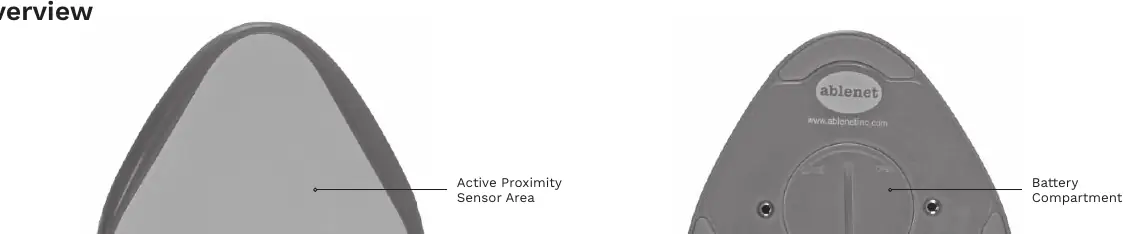
The BIG Candy Corn is an accessibility switch designed to provide an easy-to-activate interface for users. It features an active proximity sensor area that triggers the switch when a user is within 10 mm (0.4 in) or touches the surface. This makes it an ideal solution for individuals who require minimal physical effort to activate a device.
Getting Started
To begin using your BIG Candy Corn switch, follow these simple steps:
- Ensure the device is powered on using the On/Off switch located on the bottom of the unit.
- Connect the switch plug to your target device using a standard 3.5-mm (1/8-in) TS (mono) jack.
- Once connected and powered on, the switch will activate whenever the proximity sensor detects movement or touch within the specified range.
Support and Resources
AbleNet provides extensive support for the BIG Candy Corn switch through the ableCARE ecosystem. Users are encouraged to register their product to receive updates and access specialized resources. The ableCARE app offers:
- Live support from the Product Success team.
- An online knowledge base filled with instructional videos.
- Getting started guides and troubleshooting tips.
You can download the free ableCARE app on your smartphone or tablet to access these resources at any time. For more advanced configurations and full instructions, please visit the official AbleNet website.
Maintenance and Warranty
The BIG Candy Corn is built with quality materials to ensure durability. AbleNet products include a 2-year limited warranty covering defects in materials and manufacturing from the date of purchase. For detailed warranty information or to report an issue, please visit the AbleNet website. Always ensure the battery compartment is properly maintained and the device is kept clean to ensure optimal performance of the proximity sensor.
Manufacturer information
AbleNet, Inc.
Practical help
Common problems
Switch does not activate
Ensure the device is turned on, the plug is securely connected to the 3.5-mm jack, and the user is within 10 mm of the sensor area.
Before use
- Register your product for ableCARE access
- Check that the battery is installed correctly
- Ensure the device is switched to the ON position
- Verify the 3.5-mm mono jack connection
Specs in practice
- Proximity Range
- The switch activates when a user is within 10 mm (0.4 in) or touches the sensor area.
- Connector Type
- Standard 3.5-mm (1/8-in) TS (mono) jack.
Images and diagrams
- The device features a large, touch-sensitive top surface (Active Proximity Sensor Area).
- The bottom of the device houses the On/Off switch and the battery compartment.
- The switch connects to external devices via a 3.5-mm plug.
Model compatibility
- Compatible with any device requiring a 3.5-mm (1/8-in) TS (mono) switch input.

Manual page author
David Miller
Documentation analyst
Organizes user manual content into clear summaries, with attention to model details, product context, and everyday usability.