Industrial / Electrical
AbleNet 12000071-DUO Duo Wireless Computer Mouse User Guide
Quick start guide for the AbleNet Duo wireless computer mouse, covering battery installation, Bluetooth pairing, and USB receiver setup.
Table of contents
Manual images
Jump to the sectionQuick guide from the manual
This document provides essential instructions for setting up the AbleNet Duo wireless computer mouse. It covers two connection methods: Bluetooth and USB wireless receiver. Ensure you have two AAA alkaline batteries ready before starting.
Device Overview
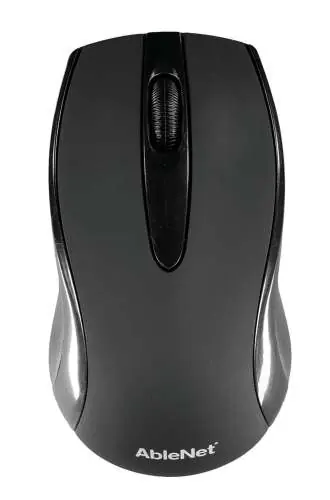
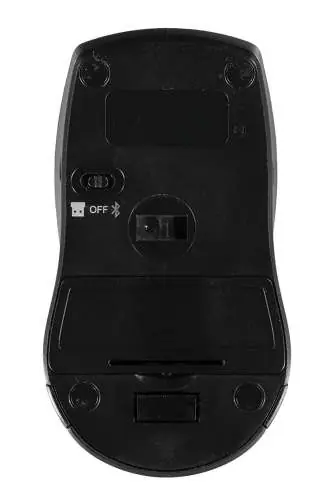
The mouse features a mode switch on the bottom to toggle between Bluetooth, OFF, and USB modes. It also includes a dedicated Bluetooth pairing button, a battery compartment, and a storage slot for the USB wireless receiver.
Getting Started - Bluetooth
- Insert two AAA alkaline batteries into the mouse.
- Open the Bluetooth settings on your target device.
- Move the mode switch on the bottom of the mouse to the Bluetooth icon.
- Press and hold the Bluetooth pairing button for 5 seconds, then release.
- Select ANDUO from the list of available Bluetooth devices on your computer or tablet.
Getting Started - USB Wireless Receiver
- Insert two AAA alkaline batteries into the mouse.
- Remove the USB wireless receiver from the bottom of the mouse.
- Insert the receiver into an available USB-A port on your device.
- Move the mode switch on the bottom of the mouse to the USB receiver icon.
Product Registration and Support
Register your product to access ableCARE resources and updates. You can also download the free ableCARE app for your phone or tablet to access additional support and full instructions.
Manufacturer information
AbleNet, Inc.
Practical help
Common problems
Mouse not connecting via Bluetooth
Ensure the mode switch is set to the Bluetooth icon and that you have held the pairing button for a full 5 seconds before attempting to pair.
USB receiver not working
Ensure the mode switch is set to the USB receiver icon and that the receiver is fully inserted into a functional USB-A port.
Before use
- Two AAA alkaline batteries
- Device with Bluetooth capability or an available USB-A port
- Ensure the mode switch is set to the correct position (Bluetooth or USB)
Images and diagrams
- The mode switch is located on the bottom of the mouse and allows selection between Bluetooth, OFF, and USB modes.
- The Bluetooth pairing button is located on the bottom of the mouse near the mode switch.
- The USB wireless receiver is stored in a dedicated slot on the bottom of the mouse.
Model compatibility
- The USB receiver is intended for devices without Bluetooth or as an alternative connection method.
- The mouse requires two AAA alkaline batteries for operation.

Manual page author
Michael Turner
Technical manual editor
Reviews PDF manuals for structure, safety notes, and practical product details so readers can find the right information quickly.