Computers / Tablets
Amazon Fire HD 8 (12th Gen) Tablet User Guide
Quick start guide for the Amazon Fire HD 8 (12th Gen) tablet. Learn how to power on, set up, navigate the interface, charge the device, and expand storage with a microSD card.
Table of contents
Quick guide from the manual
This guide provides essential steps for setting up and using your Amazon Fire HD 8 (12th Gen) tablet. It covers hardware identification, initial activation, navigation gestures, charging, and storage expansion.
Device layout
The Fire HD 8 features the following components:
- Front and rear cameras
- Speakers
- Power button
- Volume up and down buttons
- Microphone
- USB-C port for charging
- Headphone jack
- microSD card slot
Activation and setup
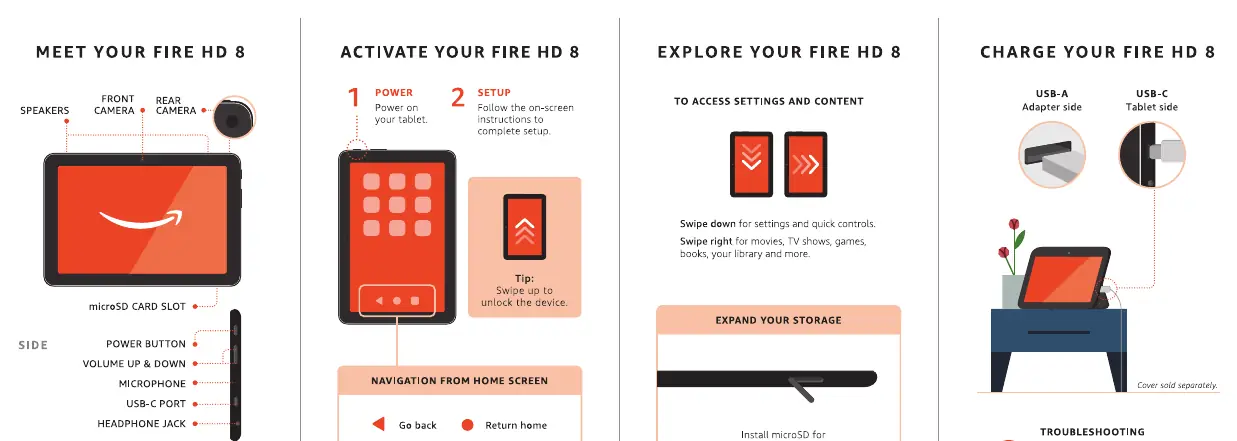
- Power on: Press and hold the power button to turn on your tablet.
- Setup: Follow the on-screen instructions to complete the initial configuration.
- Unlock: Swipe up on the screen to unlock the device.
Navigation
Use the following gestures and icons on the home screen:
- Go back: Use the triangle icon.
- Return home: Use the circle icon.
- Switch between apps: Use the square icon.
- Access settings and quick controls: Swipe down from the top of the screen.
- Access content: Swipe right to view movies, TV shows, games, and your library.
Charging
Use the included USB-C cable and power adapter to charge your device. Connect the USB-A end to the adapter and the USB-C end to the tablet's charging port.
Storage expansion
You can expand your tablet's storage by inserting a microSD card (sold separately) into the dedicated slot on the side of the device.
Troubleshooting
For additional support and troubleshooting tips, visit the official Amazon customer service website at www.amazon.com/devicesupport.
Official resources from the manual
Practical help
Common problems
Device not charging
Ensure the USB-C cable is securely connected to both the power adapter and the tablet's charging port.
Need more storage space
Insert a microSD card into the side slot to add up to 1TB of additional storage.
Before use
- Ensure you have the included USB-C cable and power adapter.
- Locate the power button on the side of the tablet.
- Identify the microSD card slot if you plan to expand storage.
Specs in practice
- microSD Slot
- Supports cards up to 1TB for external storage expansion.
Images and diagrams
- The device layout diagram identifies the location of cameras, buttons, ports, and the microSD slot.
- The navigation diagram explains the function of the back, home, and app-switching icons.
- The charging diagram illustrates the correct orientation of the USB-C cable connection.
Model compatibility
- microSD cards are sold separately.
- Covers are sold separately.

Manual page author
Emily Carter
User documentation editor
Prepares concise manual descriptions and highlights the most useful setup, operation, and maintenance information for readers.