Power / Wireless Chargers
User Guide for Alogic 100W Rapid Power GaN Charger
Quick guide for the Alogic 100W Rapid Power GaN Charger. Learn how to use your charger, troubleshoot charging issues, and view technical specifications.
Quick answers from the manual
Quick answer
- The Alogic 100W Rapid Power GaN Charger uses USB-C Power Delivery to charge laptops, tablets, and phones. Plug into a wall outlet and connect your device using a 5A rated USB-C cable. p. 1, 2
Key actions
- Plug the charger into a wall outlet. p. 2
- Connect device using a 5A rated USB-C cable. p. 2
Problems and fixes
Laptop not charging
Check if the laptop USB-C port supports USB-C Power Delivery.
p. 2
Laptop charging slowly
Use the supplied 5A cable and check if the laptop limits charging speed.
p. 2Technical specifications
| Parameter | Value | Meaning | Pages |
|---|---|---|---|
| Output | 100W (20V 5A) Max | Maximum power delivery | p. 1 |
| Input | 100-240VAC ~50/60Hz 1.5A Max | Power input requirements | p. 1 |
Where to find it in the PDF
- Product Diagram and Specifications p. 1
- Usage Instructions and Troubleshooting p. 2
Table of contents
Manual images
Click an image to enlargeQuick guide from the manual
The Alogic 100W Rapid Power GaN Charger is designed to charge high-power devices like laptops, tablets, and smartphones using the USB-C Power Delivery (PD) standard. To use, simply plug the charger into a wall outlet and connect your device using a compatible USB-C cable.
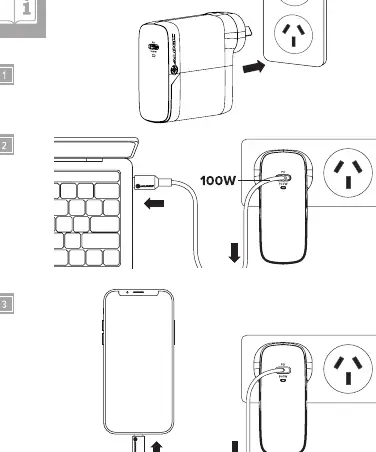
Using the Charger
- Plug the wall charger into a power outlet.
- Connect a laptop, phone, tablet, or other device with a USB-C charging port to the output of the charger. Use the cable supplied with the charger or another USB-C 5A rated cable to ensure the fastest charging speed.
- If your device requires a different port (e.g., Lightning or Micro USB), use a specific adapter cable (sold separately).
Note: Unplugging devices after charging is recommended to prolong battery life.
Troubleshooting
- Laptop not charging: Ensure the laptop's USB-C port supports USB-C Power Delivery. Connect only to ports that support this protocol.
- Laptop charging slowly: High-performance laptops may require more power during CPU-intensive tasks. Ensure you are using the supplied 5A (100W) USB-C cable. Some laptops limit charging to 60W or less, which may affect charging speed.
Specifications
- Model: WCG1X100-ANZ, WCG1X100SGR-ANZ
- Input: 100-240VAC ~50/60Hz 1.5A Max
- Output: USB-C Port - 100W (20V 5A) Max
- Weight: 220g
- Warranty: 2 Years
Manufacturer information
ALOGIC
Practical help
Common problems
Laptop not charging
Ensure the laptop's USB-C port supports USB-C Power Delivery and that you are connecting to a port that supports this protocol.
Laptop charging slowly
Ensure you are using the supplied 5A (100W) USB-C cable. Some laptops limit charging to 60W or less, which may affect charging speed.
Before use
- Verify the wall outlet is functional.
- Use the provided 5A rated USB-C cable for optimal performance.
- Ensure your device supports USB-C Power Delivery.
Images and diagrams
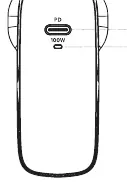
- The charger features a single USB-C port and a power indicator light.
- The connection diagram illustrates plugging the charger into the wall and connecting the device via USB-C cable.
Model compatibility
- Requires USB-C Power Delivery support on the host device for full 100W charging.
- Compatible with devices requiring other ports if using a specific adapter cable (sold separately).

Manual page author
David Miller
Documentation analyst
Organizes user manual content into clear summaries, with attention to model details, product context, and everyday usability.