Power / Batteries Chargers
ALOGIC USB-C 3-in-1 HDMI Mini Hub with 100W Charging Passthrough
A comprehensive guide for the ALOGIC USB-C 3-in-1 HDMI Mini Hub, covering setup, technical specifications, troubleshooting, and safety instructions for optimal performance.
Table of contents
Product Overview
The ALOGIC USB-C 3-in-1 HDMI Mini Hub is a versatile connectivity solution designed to expand the capabilities of your USB-C enabled laptop. This compact hub features an HDMI port for high-resolution video output, a USB-A port for peripheral connectivity, and a USB-C port that supports up to 100W Power Delivery (PD) pass-through charging. It is a plug-and-play device, meaning no additional drivers are required for most modern operating systems.
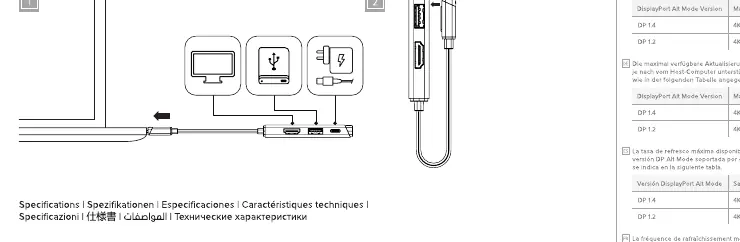
Setup and Connectivity
To begin using the hub, simply connect the integrated USB-C cable to your computer's USB-C port. The device will be automatically detected by your operating system. For power delivery, connect your laptop's original USB-C power adapter to the USB-C PD port on the hub. This allows you to charge your laptop while simultaneously using the hub's other ports. You can connect external displays via the HDMI port and various peripherals such as keyboards, mice, or flash drives to the USB-A port.
Technical Specifications and Performance
The hub supports HDMI 2.0, enabling video resolutions up to 4K UHD at 60Hz, depending on the host computer's DisplayPort Alternate Mode version. It is important to note that the maximum refresh rate is determined by the host device's capabilities. The USB-A port provides data transfer speeds up to 5Gbps, suitable for standard peripherals and data storage devices.
Safety and Maintenance
To ensure the longevity and safe operation of your hub, please adhere to the following guidelines: use the device only indoors, keep it away from moisture, direct sunlight, and extreme temperatures. Do not attempt to disassemble or repair the unit yourself, as this will void the warranty. If the device becomes damaged, discontinue use immediately. Keep the hub clean and free of dust to maintain optimal connection quality.
Troubleshooting
If you encounter issues such as no video output, intermittent signals, or charging failures, start by checking all physical cable connections. Ensure that your computer's USB-C port supports DisplayPort Alternate Mode and Power Delivery. If using an external monitor, verify that the correct input source is selected on the display. For charging issues, confirm that your power adapter is functioning correctly and is capable of providing sufficient power to your laptop through the hub.
Manufacturer information
ALOGIC
Practical help
Common problems
No video output on external monitor
Verify the HDMI cable is securely connected and the monitor is set to the correct input source. Ensure your computer's USB-C port supports DisplayPort Alternate Mode.
Laptop is not charging
Ensure the power adapter is connected to the hub's USB-C PD port and that the adapter is powerful enough for your laptop.
Intermittent video signal
Check all cable connections for damage or loose fit. Use a high-quality HDMI cable.
Before use
- Ensure your laptop has a USB-C port that supports DisplayPort Alternate Mode.
- Verify that your power adapter is compatible with your laptop.
- Check that all cables are firmly seated in their respective ports.
- Ensure the operating system is up to date.
Specs in practice
- USB-A 3.2 Gen 1
- Provides data transfer speeds up to 5Gbps.
Images and diagrams
- The hub features a fixed USB-C cable for host connection.
- The side panel contains the HDMI port, USB-A port, and USB-C PD port.
- LED indicators or system settings confirm successful device recognition.
Model compatibility
- Compatible with Windows, Mac, and Chromebook devices with USB-C ports supporting DisplayPort Alt Mode.
- Requires a host device that supports USB-C Power Delivery for pass-through charging.

Manual page author
David Miller
Documentation analyst
Organizes user manual content into clear summaries, with attention to model details, product context, and everyday usability.