Mobile / Smartphones
User Guide for Apple iPhone 14 Plus
A quick guide for setting up your Apple iPhone 14 Plus, covering iOS updates, network connectivity, and data transfer methods including Quick Start, iCloud, and iTunes/Finder.
Table of contents
Manual images
Click an image to enlargeQuick guide from the manual
This document provides essential steps for setting up a new Apple iPhone 14 Plus. It focuses on ensuring software compatibility, establishing network connections, and transferring data from a previous device. Key prerequisites include having both devices nearby, connected to the same WiFi network, and plugged into power to ensure a stable migration process.
Check for iOS Updates
To ensure a seamless transfer using Quick Start, both devices should be updated to the same iOS version.
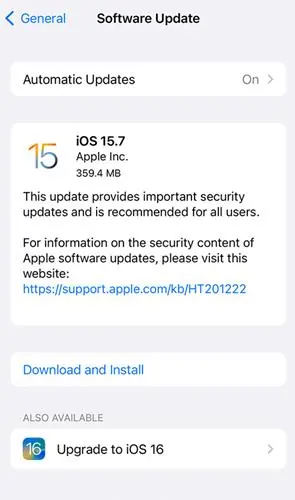
- Head to Settings > General and tap Software Update.
- Check if a new update is available for your iPhone.
- Select the update, tap Download and Install, then tap Install Now.
Connect to the Same WiFi Network
For wireless data transfer, both devices must be on the same WiFi network with Bluetooth enabled.
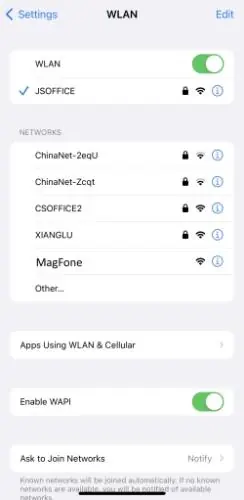
- Open the Settings app on your iPhone and tap WiFi.
- Verify that both devices are connected to the same network.
Reset Network Settings
If you encounter issues with the transfer process, resetting network settings can resolve connectivity problems.
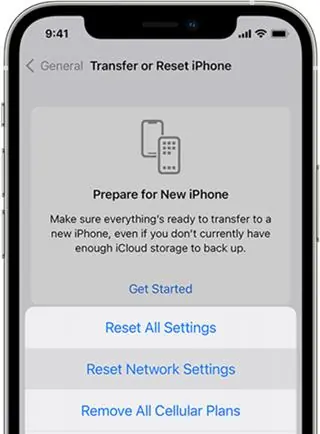
- Locate Settings on your iPhone, then tap General > Reset or Transfer iPhone.
- Tap Reset and select Reset Network Settings.
- Enter your iPhone unlock passcode and tap Reset to confirm.
Keep Devices Near Each Other
To use Quick Start for wireless transferring, keep your two iPhones near each other. If the distance is too great, the transfer may get stuck. Keep the device plugged into power until the migration is complete.
Transfer Data from Old iPhone to New iPhone
There are official methods to transfer data from an old device to your new iPhone.
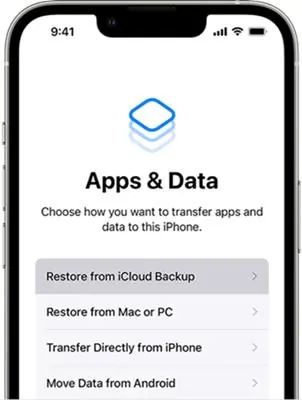
Method 1: Move Data via iTunes/Finder
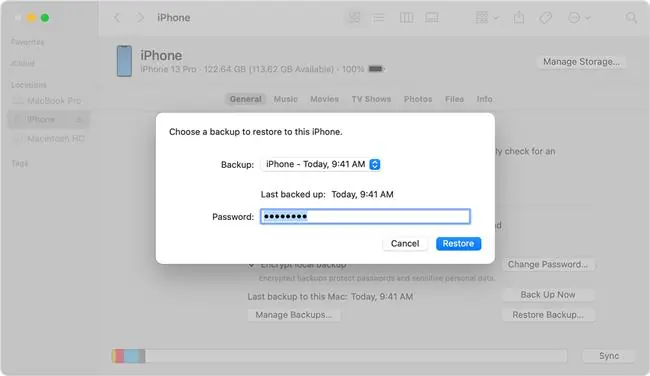
- Turn on your new iPhone and follow the setup steps until you see the Apps & Data screen.
- Tap Restore from Mac or PC.
- Connect your device to the computer used for the backup.
- Launch iTunes or a Finder window on the computer and select your device.
- Select Restore Backup and choose the appropriate backup file. Keep the device connected until the process finishes.
Method 2: Move Data via iCloud
- Power on your new iPhone and follow the setup steps until you see the WiFi screen.
- Select a WiFi network to join.
- On the Apps & Data screen, tap Restore from iCloud Backup.
- Sign in with your Apple ID and password, then choose the desired backup.
- Stay connected and wait for the restore process to complete.
Manufacturer information
Apple Inc.
Practical help
Common problems
iPhone stuck on 'preparing to transfer' during Quick Start
Ensure both devices are near each other, connected to the same WiFi network, and plugged into power.
Network settings cannot be adjusted by reconnecting to WiFi
Perform a network settings reset via Settings > General > Reset or Transfer iPhone > Reset > Reset Network Settings.
Before use
- Ensure both iPhones are updated to the same iOS version.
- Connect both devices to the same WiFi network.
- Ensure Bluetooth is enabled on both devices.
- Keep devices physically near each other.
- Keep devices plugged into power during the migration process.
Images and diagrams
- Software Update screen showing iOS version and download options.
- WLAN settings screen showing connected network and available networks.
- Transfer or Reset iPhone menu options.
- Apps & Data screen for choosing transfer methods (iCloud, Mac/PC, etc.).
Model compatibility
- Requires iOS devices.
- Requires WiFi and Bluetooth connectivity.

Manual page author
Michael Turner
Technical manual editor
Reviews PDF manuals for structure, safety notes, and practical product details so readers can find the right information quickly.