Computers / Laptops
MacBook Air (2020) Quick Start Guide
Quick start guide for the 2020 MacBook Air. Learn about initial setup, using the Force Touch trackpad, Touch ID functionality, and identifying ports and features.
Table of contents
Quick Start Guide
Your MacBook Air is designed to start up automatically when you lift the lid. Once powered on, the Setup Assistant will guide you through the initial configuration process to get you up and running.
Device Overview
The MacBook Air includes several key components and ports:
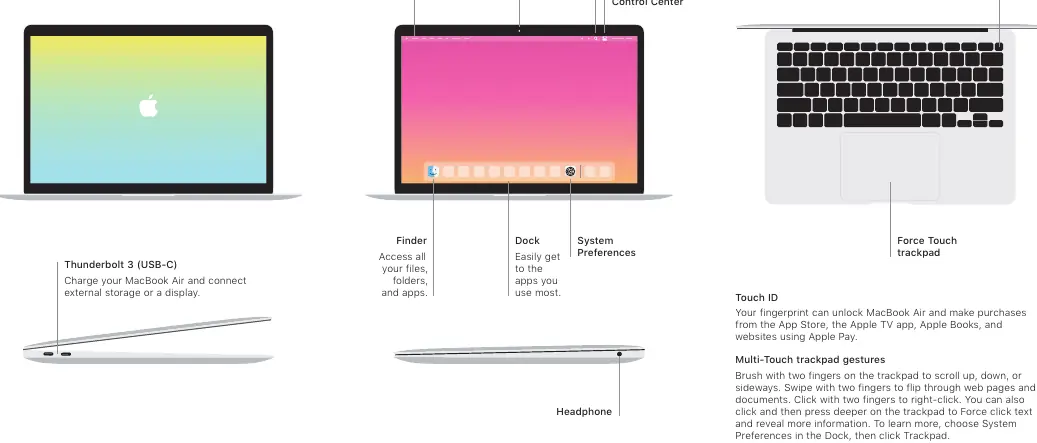
- FaceTime HD Camera: Located at the top of the screen.
- Thunderbolt 3 (USB-C) Ports: Located on the side of the device, used for charging, connecting external storage, and connecting displays.
- Headphone Jack: Located on the side of the device.
- Menu Bar, Spotlight, and Control Center: Accessible via the top of the screen.
- Finder, Dock, and System Preferences: Accessible via the bottom of the screen.
Using Touch ID
The power button on the keyboard doubles as a Touch ID sensor. You can use your fingerprint to:
- Unlock your MacBook Air.
- Make purchases from the App Store, Apple TV app, and Apple Books.
- Authorize websites using Apple Pay.
Trackpad Gestures
The Force Touch trackpad supports various multi-touch gestures to enhance navigation:
- Scroll: Brush with two fingers on the trackpad to scroll up, down, or sideways.
- Flip Pages: Swipe with two fingers to flip through web pages and documents.
- Right-Click: Click with two fingers.
- Force Click: Click and then press deeper on the trackpad to reveal more information about text or items.
To customize these settings, choose System Preferences in the Dock, then click Trackpad.
Support and Resources
For detailed information on setting up and using your device, refer to the MacBook Air Essentials guide at support.apple.com/guide/macbook-air. For additional support, visit support.apple.com/mac/macbook-air or contact Apple at support.apple.com/contact.
Official resources from the manual
Manufacturer information
Apple Inc.
Practical help
Common problems
Device does not turn on
Ensure the lid is fully lifted. The device is designed to start up automatically when the lid is opened.
Cannot find settings
Access System Preferences via the Dock to configure trackpad gestures and other system settings.
Before use
- Lift the lid to initiate startup
- Follow the on-screen Setup Assistant instructions
- Identify the Thunderbolt 3 (USB-C) ports for charging and peripherals
Specs in practice
- Thunderbolt 3 (USB-C)
- Versatile port used for charging the laptop, connecting external storage drives, and connecting external displays.
- Force Touch trackpad
- A trackpad that detects pressure, allowing for standard clicks and deeper 'Force clicks' to reveal extra information.
Images and diagrams
- The device diagram highlights the location of the FaceTime HD camera, Menu bar, Spotlight, Control Center, Finder, Dock, System Preferences, Thunderbolt 3 ports, Headphone jack, Touch ID power button, and Force Touch trackpad.

Manual page author
Michael Turner
Technical manual editor
Reviews PDF manuals for structure, safety notes, and practical product details so readers can find the right information quickly.