Mobile / Smartphones
CELESTRON DX 102AZ StarSense Explorer Reflector Telescope User Guide
A comprehensive guide to setting up and using your Celestron StarSense Explorer 102AZ telescope, including phone alignment and app navigation for stargazing.
Manual images
Jump to the sectionAligning Your Phone to Your Telescope
The StarSense Explorer system allows you to easily locate celestial objects by using your smartphone as a navigation tool. Before your first night of stargazing, it is highly recommended to perform the alignment process during the day to ensure accuracy.
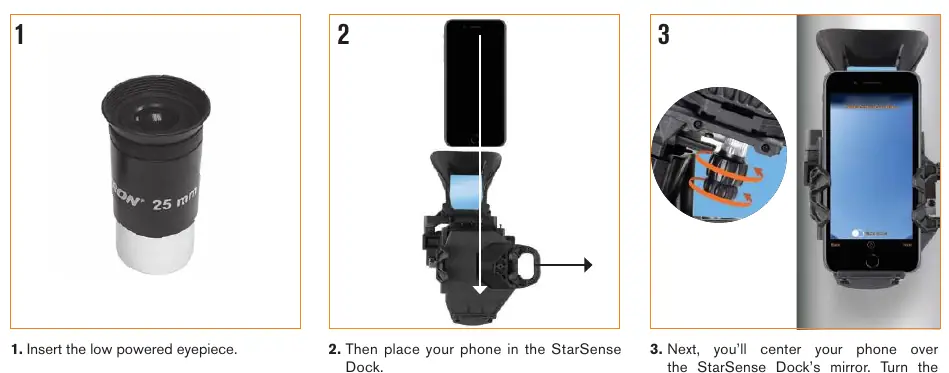
Alignment Steps:
- Insert the low-powered eyepiece into the telescope.
- Place your smartphone securely into the StarSense Dock.
- Center your phone's camera view over the dock's mirror using the adjustment knobs at the bottom of the bracket.
- Point the telescope at a distant, stationary object at least a quarter-mile away, such as a streetlight, stop sign, or tree top.
- Center this object in the telescope's eyepiece.
- Open the app and slide the camera view until the same object is perfectly centered in the on-screen crosshairs.
Using the StarSense Explorer App
Once aligned, the app provides a planetarium view to help you navigate the night sky. To begin, tap the StarSense icon. If you have removed your phone from the dock, you may need to perform the alignment process again.
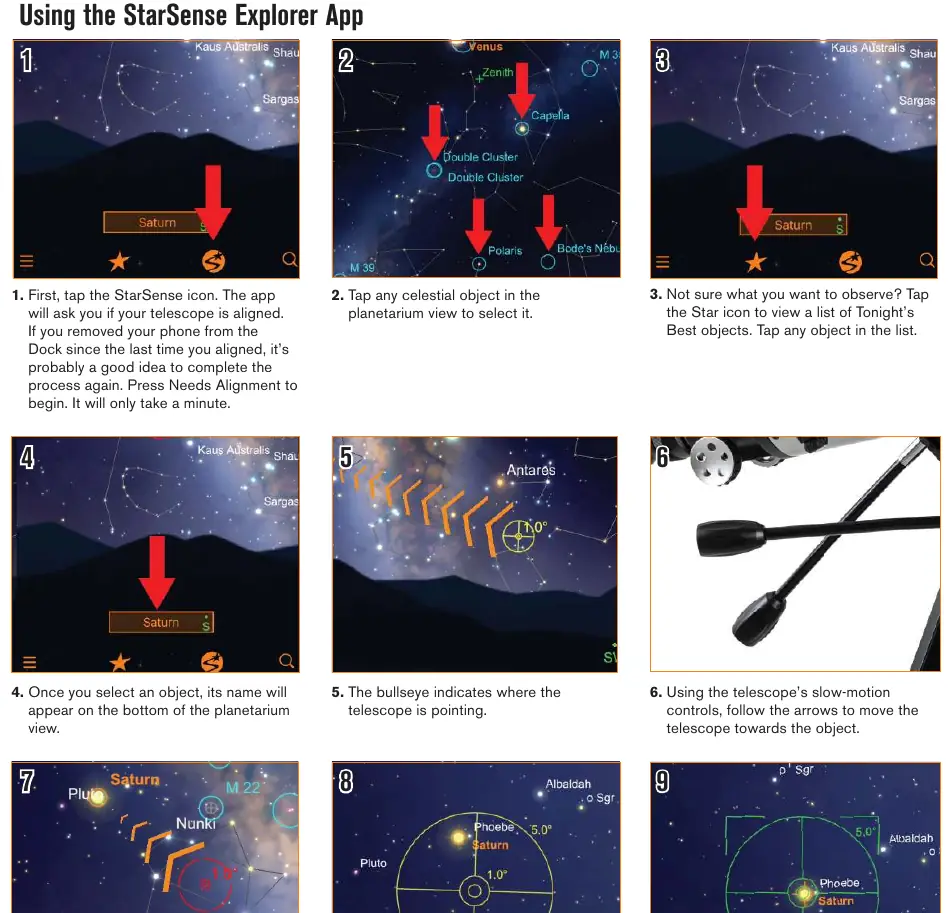
Navigation and Observation:
- Select a celestial object from the planetarium view or tap the star icon to see a list of the best objects currently visible.
- The app will display arrows on the screen; use the telescope's slow-motion controls to move the telescope in the direction indicated.
- As you approach the target, pause for a few seconds to allow the telescope to detect the stars in your new position.
- If the bullseye turns yellow, continue following the arrows.
- When the bullseye turns green, you have successfully located your target. You can now view the object through the telescope's eyepiece.
Always wait for the sky to be sufficiently dark to ensure the best viewing experience. If you encounter issues, ensure your phone is properly centered in the dock and that the alignment process was completed accurately during daylight hours.
Manufacturer information
Celestron
Practical help
Common problems
Target not centered after following arrows
Ensure the phone is properly aligned in the dock and that you are pausing for a few seconds to allow the app to detect stars.
App asks for alignment frequently
If the phone is removed from the dock, the alignment process should be repeated to ensure accuracy.
Before use
- Set up the telescope according to the Quick Setup Guide
- Insert the low-powered eyepiece
- Place phone in the StarSense Dock
- Center phone camera view in the mirror
- Point telescope at a distant object (min 0.25 miles)
- Center object in eyepiece
- Align camera view with crosshairs in the app
Images and diagrams
- 1-3: Phone placement and centering in the StarSense Dock mirror.
- 4-6: Aligning the telescope view with the phone camera view using a distant object.
- 1-3 (App): Selecting objects via the planetarium view or 'Tonight's Best' list.
- 4-9 (App): Using on-screen arrows and bullseye indicators to locate targets.
Model compatibility
- Requires smartphone with camera
- Requires StarSense Explorer app

Manual page author
Emily Carter
User documentation editor
Prepares concise manual descriptions and highlights the most useful setup, operation, and maintenance information for readers.