Mobile / Smartphones
Instruction Manual for Celestron Popular Science 12X42 Binoculars
Quick guide for Celestron Popular Science 12X42 binoculars, including setup, diopter adjustment, smartphone adapter installation, and Bluetooth remote pairing.
Table of contents
Quick guide from the manual
This document provides instructions for the Celestron Popular Science 12X42 binoculars, including the use of the included smartphone adapter and Bluetooth remote. Key procedures include adjusting the interpupillary distance (IPD), calibrating the diopter for individual vision, and mounting the smartphone adapter for photography.
Parts of a binocular
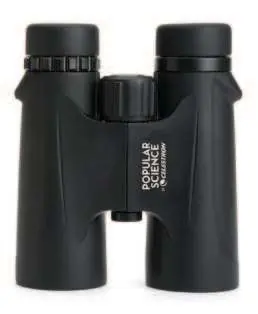
The binoculars consist of eyepieces, eyecups, a diopter compensation dial, a center focusing ring, objective lenses, and a tripod adapter thread located under a cap.
Adjusting the interpupillary distance (IPD)
To align the binoculars with your eyes: hold the binoculars with both hands and move the two halves about the hinge until you see one single, clear circle of image through both eyes.
Setting the diopter compensation
This adjustment ensures both eyes are accurately focused. 1. Pick a subject 50 yards away. 2. Cover the right objective lens. 3. Use the center focus dial to bring the image into focus. 4. Uncover the right lens and cover the left lens. 5. If the image is blurry, use the diopter compensation dial to focus. 6. Uncover both lenses; the image should now be clear for both eyes.
Using the smartphone adapter
1. Twist the binocular eyecups to the lowest position. 2. Pull the spring clamp arms outward to secure your smartphone. 3. Loosen the smartphone clamp position knob to align the adapter aperture with the phone camera lens. 4. Fit the eyecup cuff over the binocular eyepiece and tighten the tension knob. 5. Activate the camera and adjust the position until the image is centered. Use the phone's zoom to remove vignetting.
Using the Bluetooth remote
1. Insert a CR2032 battery with the positive side facing up. 2. Press and hold the button for 5 seconds until the blue light blinks to enter pairing mode. 3. Pair the device named GBshutter in your phone's Bluetooth settings. 4. Use the button to trigger the camera shutter or start/stop video recording.
Care and cleaning
Keep lenses clean to maintain brightness. Use a camel's hair brush or pressurized air to remove dust, then clean with a Celestron Lens Cleaning Kit or LensPen. Avoid touching glass surfaces with fingers, as oils can damage coatings. Never attempt to disassemble the binoculars.
Safety
Do not look at the Sun through the binoculars or with the naked eye, as this can cause permanent damage.
Manufacturer information
Celestron
Practical help
Common problems
Pulling sensation in eyes
The diopter compensation dial may have moved; repeat the diopter setting procedure.
Vignetting (black border) on smartphone screen
This is normal; use the smartphone camera's zoom function to expand the image until the border disappears.
Unsharp images or loss of brightness
Clean the objective lenses and eyepieces using a proper lens cleaning kit.
Before use
- Adjust the interpupillary distance (IPD) for your eye width.
- Set the diopter compensation for your specific visual acuity.
- Twist the rubber eyecups up if not wearing glasses, or down if wearing glasses.
- Ensure the smartphone adapter tension knob is loose before removing it from the eyepiece.
- Check that the Bluetooth remote is paired as 'GBshutter'.
Images and diagrams
- The hinge allows adjustment of the interpupillary distance.
- The diopter compensation dial is located on the right eyepiece.
- The tripod adapter thread is hidden under a cap on the front of the hinge.
Model compatibility
- Designed for users 14 years of age and older.
- Compatible with standard photographic tripods via the built-in adapter thread.

Manual page author
Michael Turner
Technical manual editor
Reviews PDF manuals for structure, safety notes, and practical product details so readers can find the right information quickly.