Optics / Telescope Accessories
User Manual for Celestron StarSense Explorer DX 102AZ Telescope
Quick setup guide for the Celestron StarSense Explorer DX 102AZ telescope. Learn how to assemble the tripod, mount the telescope, align the StarPointer finder, and sync your smartphone with the StarSense Explorer app for guided stargazing.
Table of contents
Manual images
Click an image to enlargeQuick guide from the manual
This guide provides essential instructions for setting up and using the Celestron StarSense Explorer DX 102AZ telescope. Key procedures include assembling the tripod, mounting the telescope tube, installing the StarPointer finder, and syncing your smartphone with the StarSense Explorer app for guided observation.
Assembly
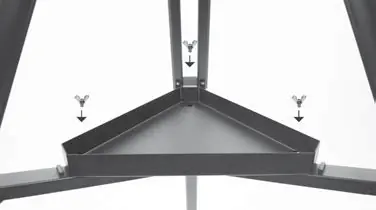
Tripod and Accessory Tray: Spread the tripod legs, push down the center brace to lock it, and place the accessory tray on the brace. Secure the tray using the three wing nuts.
Slow-Motion Handles: Remove the hex key from the front slot of the mount. Attach the slow-motion handles to the D-shaped gear shafts and tighten the set screws using the hex key.
Telescope Tube: Rotate the mount so the telescope mounting screw faces upward. Loosen the screw, slide the telescope's dovetail bar into the mount, and tighten the screw to secure the tube.
StarPointer Finder Setup
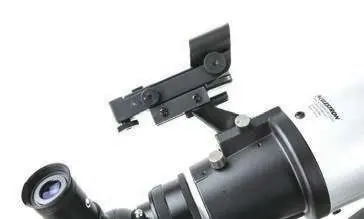
Slide the StarPointer finder bracket into the dovetail slot behind the focuser. Tighten the set screw to secure it. To align the finder, use the 25mm eyepiece to center a distant object (at least 500m away) in the telescope's field of view. Then, use the adjustment knobs on the StarPointer to align the red dot with the object centered in the eyepiece.
Smartphone Dock and App Setup
Dock Installation: Insert the dock's bayonet mount into the port opposite the dovetail plate. Rotate counter-clockwise until the orange release button clicks into place.
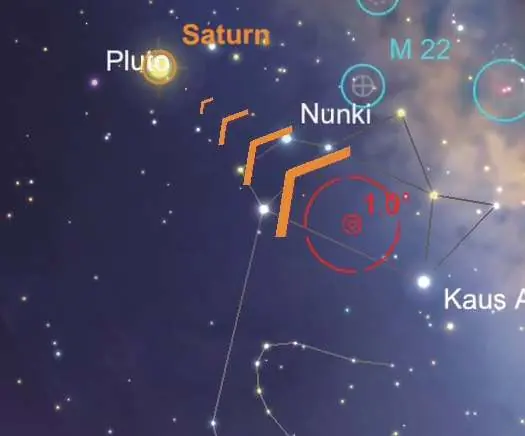
App Activation: Download the StarSense Explorer app from the Apple App Store or Google Play. Use the activation code provided on the included card to unlock the app features.
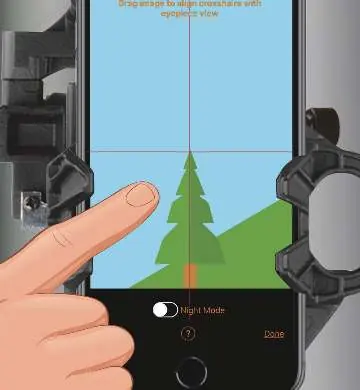
Syncing: Place your smartphone in the dock. Launch the app and follow the on-screen instructions to align the phone's camera with the telescope's view. Use the pinch-to-zoom and drag gestures to match the crosshairs on the screen with the object seen through the eyepiece.
Maintenance and Safety
Cleaning: Use a blower to remove dust from lenses. If necessary, use a camera lens cleaner and cleaning paper to gently wipe the surface. Avoid touching the lens directly.
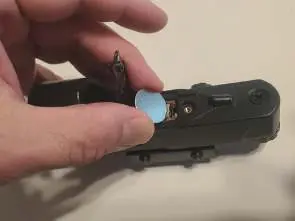
Battery Replacement: If the StarPointer LED fails to light, replace the CR2032 battery by loosening the screw on the battery cover.
Safety Warning: Never look directly at the sun through the telescope, finder, or eyepiece. Doing so can cause permanent eye damage.
Manufacturer information
Celestron
Practical help
Common problems
StarPointer red dot does not align with telescope view
Perform the alignment procedure during the day using a distant object (at least 500m away) and the 25mm eyepiece.
App not syncing correctly
Ensure the smartphone is securely mounted and the camera view is aligned with the eyepiece view using the app's calibration screen.
Image is blurry
Rotate the focus knob located under the focuser until the image is sharp.
Before use
- Verify all parts are present (tube, mount, tripod, accessories).
- Remove all lens caps from the telescope and finder.
- Ensure the smartphone is charged and connected to Wi-Fi for app download.
- Remove any thick smartphone cases before placing the phone in the dock.
- Remove the transparent plastic battery insulator from the StarPointer finder.
Specs in practice
- 25mm Eyepiece
- Low magnification, wider field of view; recommended for initial object location.
- 10mm Eyepiece
- High magnification; used for detailed observation after locating the target.
Model compatibility
- Compatible with Android 7.1.2 or later (some models may not function).
- Compatible with iPhone 6 or later (latest iOS recommended).
- Requires camera, gyroscope, and accelerometer sensors.

Manual page author
David Miller
Documentation analyst
Organizes user manual content into clear summaries, with attention to model details, product context, and everyday usability.