Industrial / Electrical
D-Link DGS-1016D Unmanaged Desktop Switch User Guide
Quick start guide for the D-Link DGS-1016D unmanaged desktop switch, covering installation, connection, and basic operation.
Table of contents
Product Overview
The D-Link DGS-1016D is a high-performance, unmanaged desktop switch designed to provide reliable network connectivity for small offices and home environments. As an unmanaged device, it requires no complex configuration, making it a plug-and-play solution for expanding your wired network infrastructure. The switch features multiple Gigabit Ethernet ports, allowing for high-speed data transfer between connected devices such as computers, printers, and network-attached storage.
Installation and Setup
Setting up the DGS-1016D is straightforward. Begin by placing the switch on a flat, stable surface with adequate ventilation to ensure optimal performance. Connect the provided power cord to the power input on the rear panel of the switch and plug it into a standard electrical outlet. Once powered on, the power LED indicator on the front panel will illuminate, signaling that the device is ready for operation.
Connecting Network Devices
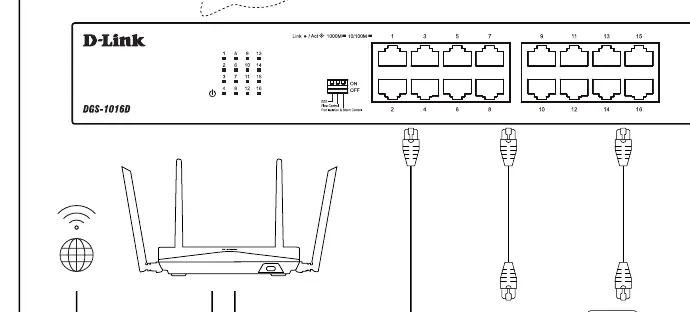
To connect your network devices, use standard Ethernet cables to link your computers, routers, or other network-enabled hardware to the ports on the front of the switch. The switch automatically detects the connection speed and duplex mode of each connected device, ensuring seamless integration. The LED indicators on the front panel provide real-time status updates for each port, showing link activity and connection speed (1000M or 10/100M). Ensure that all cables are securely inserted until you hear a click.
Operation and Features
The DGS-1016D includes advanced features such as EEE (Energy Efficient Ethernet), Flow Control, and Port Isolation/Storm Control, which can be managed via the physical switch located on the front panel. These features help optimize network traffic and reduce power consumption. By toggling these settings, users can tailor the switch's performance to their specific network requirements without needing to access a software interface. Always ensure the switch is kept in a dry, dust-free environment to maintain longevity.
Maintenance and Safety
To maintain the switch, keep the ventilation slots clear of obstructions to prevent overheating. Do not place heavy objects on top of the unit. If the switch needs cleaning, use a soft, dry cloth; avoid using liquid cleaners or aerosols. In case of connectivity issues, verify that all cables are properly connected and that the power source is active. If problems persist, check the status of the LED indicators to diagnose potential port-specific issues.
Manufacturer information
D-Link Corporation
Practical help
Common problems
Power LED is not lit
Check if the power cord is securely connected to both the switch and the wall outlet.
No link activity on a port
Ensure the Ethernet cable is properly seated and the connected device is powered on.
Before use
- Ensure the switch is placed on a flat, stable surface.
- Verify that there is adequate ventilation around the unit.
- Check that the power outlet is functional.
- Ensure you have sufficient Ethernet cables for your devices.
Specs in practice
- Link/Act LED
- Indicates a valid link and data transmission activity.
Images and diagrams
- The rear panel contains the power input and a cord retainer for cable management.
- The front panel houses the LED indicators, the EEE/Flow Control/Port Isolation switch, and the Ethernet ports.
- The connection diagram shows the switch connected to a router and various end devices like PCs.
Model compatibility
- Compatible with standard Ethernet devices (10/100/1000 Mbps).
- Plug-and-play design requires no specific OS compatibility.

Manual page author
Michael Turner
Technical manual editor
Reviews PDF manuals for structure, safety notes, and practical product details so readers can find the right information quickly.