Industrial / Electrical
D-Link DGS-1016S Unmanaged Switch Quick Start Guide
Quick start guide for the D-Link DGS-1016S unmanaged switch, covering setup, connection, and basic operation.
Table of contents
Product Overview
The D-Link DGS-1016S is a high-performance unmanaged switch designed to provide reliable network connectivity for small offices and home environments. As an unmanaged device, it requires no complex configuration, making it a plug-and-play solution for expanding your wired network capacity. It features 16 Gigabit Ethernet ports that automatically negotiate the best speed and duplex mode for connected devices.
Installation and Setup
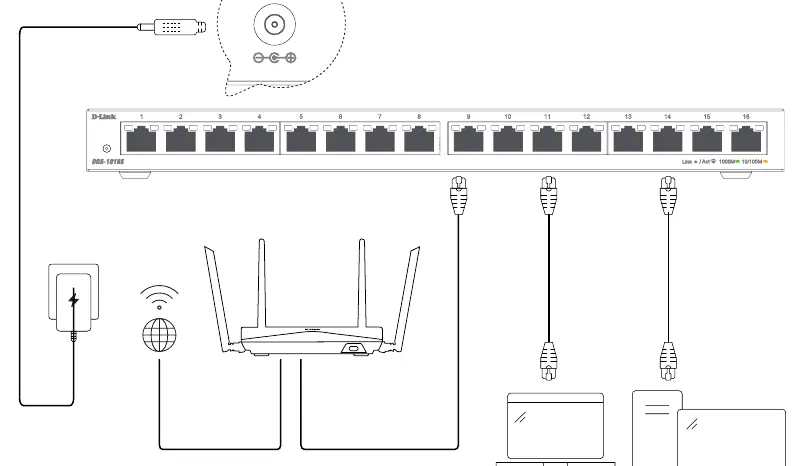
Setting up the DGS-1016S is straightforward. Ensure the device is placed on a flat, stable surface with adequate ventilation to prevent overheating. Connect the provided power adapter to the DC input port on the back of the switch and plug it into a standard electrical outlet. The switch will power on automatically.
Connecting Devices
To connect your network devices, use standard Ethernet cables (Cat5e or better is recommended for Gigabit speeds). Plug one end of the cable into a network port on your computer, router, or other network-enabled device, and the other end into any of the 16 available ports on the front panel of the switch. The switch will automatically detect the connection and establish a link.
Understanding LED Indicators
The front panel includes LED indicators that provide real-time status updates for each port. A solid or blinking light indicates a successful link and active data transmission. The color coding helps distinguish between connection speeds: green typically indicates a 1000 Mbps (Gigabit) connection, while amber indicates a 10/100 Mbps connection. If an LED is off, check the cable connection and the status of the connected device.
Safety and Maintenance
To ensure optimal performance and longevity, keep the switch away from extreme temperatures, moisture, and direct sunlight. Do not block the ventilation holes on the sides of the chassis. If the device needs cleaning, use a dry, soft cloth. Never use liquid cleaners or aerosols. Always use the original power adapter supplied with the unit to avoid electrical damage. If you encounter connectivity issues, verify that all cables are securely seated and that the power source is active.
Manufacturer information
D-Link Corporation
Practical help
Common problems
No LED activity on a port
Check if the Ethernet cable is securely connected at both ends and ensure the connected device is powered on.
Device not reaching Gigabit speeds
Ensure you are using Cat5e or Cat6 Ethernet cables and that the connected device's network interface card supports Gigabit speeds.
Before use
- Ensure the switch is placed on a stable, flat surface.
- Verify that there is adequate space around the device for ventilation.
- Check that you have the correct 12V 1A power adapter.
- Ensure you have sufficient Ethernet cables for your devices.
Specs in practice
- 1000M (Green LED)
- Indicates a Gigabit Ethernet connection speed.
- 10/100M (Amber LED)
- Indicates a 10 or 100 Mbps Ethernet connection speed.
Images and diagrams
- The diagram shows the power adapter connecting to the DC input.
- Ethernet cables connect from the router and end-user devices (PC, laptop) to the switch ports.
- The front panel LEDs provide status feedback for each port.
Model compatibility
- Compatible with all standard Ethernet-enabled devices.
- Supports auto-negotiation for speed and duplex settings.

Manual page author
Emily Carter
User documentation editor
Prepares concise manual descriptions and highlights the most useful setup, operation, and maintenance information for readers.