Industrial / Electrical
D-Link DGS-1008P 8-Port Gigabit PoE Switch User Guide
Comprehensive setup and operation guide for the D-Link DGS-1008P 8-Port Gigabit PoE Switch, covering installation, connectivity, and LED status indicators.
Table of contents
Product Overview
The D-Link DGS-1008P is a high-performance 8-port Gigabit desktop switch designed to provide reliable network connectivity for small office and home environments. This device features Power over Ethernet (PoE) capabilities on its ports, allowing it to supply both data and electrical power to compatible network devices such as IP cameras, wireless access points, and VoIP phones over a single Ethernet cable. This simplifies installation by eliminating the need for separate power supplies for connected devices.
Installation and Setup
Setting up the DGS-1008P is straightforward. Begin by placing the switch on a flat, stable surface with adequate ventilation. Connect the provided power adapter to the power input port on the rear of the switch and plug it into a standard electrical outlet. Once powered, the Power LED on the front panel should illuminate, indicating the device is ready for operation.
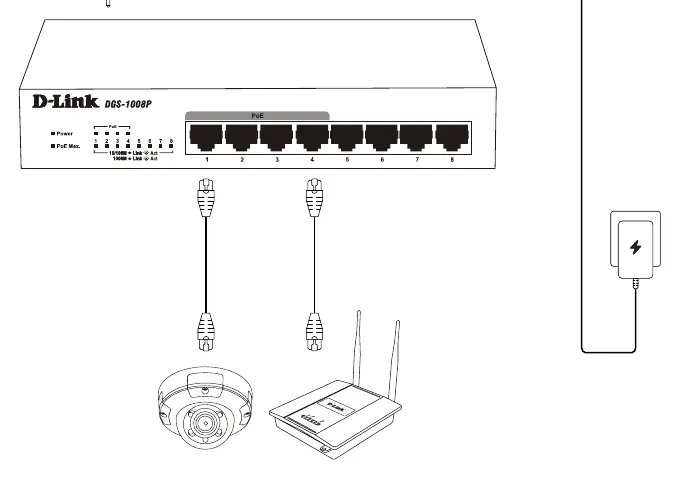
To connect your network devices, use standard Ethernet cables to link your computers, routers, or PoE-enabled devices to any of the eight Gigabit ports on the front of the switch. The switch will automatically detect the connection speed and duplex mode of the connected devices, supporting both 10/100 Mbps and 1000 Mbps (Gigabit) connections.
Understanding LED Indicators
The front panel of the DGS-1008P provides essential status information through a series of LED indicators. The Power LED confirms the device is receiving electricity. Each port is equipped with dedicated LEDs to show link and activity status. A solid light typically indicates a stable connection, while a blinking light signifies data transmission. Additionally, the PoE status indicators allow you to monitor the power delivery to connected devices. If the PoE Max LED is illuminated, it indicates that the total power budget of the switch is nearing its limit, which may prevent additional PoE devices from being powered.
Safety and Maintenance
To ensure optimal performance and longevity, keep the switch in a cool, dry environment away from direct sunlight and heat sources. Do not block the ventilation holes on the sides of the chassis, as proper airflow is critical to prevent overheating. If the device requires cleaning, use a soft, dry cloth. Avoid using liquid cleaners or solvents. Always ensure that the power cable is securely connected and that the electrical outlet is properly grounded to prevent electrical hazards.
Manufacturer information
D-Link Corporation
Practical help
Common problems
Power LED is not lit
Check if the power adapter is securely connected to both the switch and a functional wall outlet.
PoE device not receiving power
Ensure the device is PoE-compatible and that the total power consumption of all connected PoE devices does not exceed the switch's maximum power budget.
No network connection on a port
Verify that the Ethernet cable is securely plugged in at both ends and try using a different cable or port to rule out hardware failure.
Before use
- Ensure the switch is placed on a stable, flat surface.
- Verify that there is adequate space around the device for ventilation.
- Check that the power adapter matches the local voltage requirements.
- Use high-quality Cat5e or Cat6 Ethernet cables for Gigabit performance.
- Confirm that connected devices are compatible with the switch's PoE standards.
Specs in practice
- Gigabit Ports
- High-speed network ports capable of data transfer rates up to 1000 Mbps.
- PoE (Power over Ethernet)
- Technology that allows the switch to deliver power to devices over the same cable used for data.
Images and diagrams
- The front panel features 8 RJ45 ports for network connectivity.
- LED indicators for Power and PoE Max are located on the left side.
- Individual port LEDs indicate 10/100M or 1000M link and activity status.
- The power input is located on the rear panel of the device.
Model compatibility
- Compatible with standard IEEE 802.3 Ethernet devices.
- Supports auto-negotiation for 10/100/1000 Mbps speeds.

Manual page author
Emily Carter
User documentation editor
Prepares concise manual descriptions and highlights the most useful setup, operation, and maintenance information for readers.