Electronics / Audio
User Guide for Darkglass Aggressively Distorting Advanced Machine
Learn how to set up, operate, and customize your Darkglass Aggressively Distorting Advanced Machine. This guide covers connections, signal chain, preset management, tuner, and USB audio interface features.
Table of contents
Manual images
Jump to the sectionQuick Start Guide
To begin using your Aggressively Distorting Advanced Machine, follow these steps:
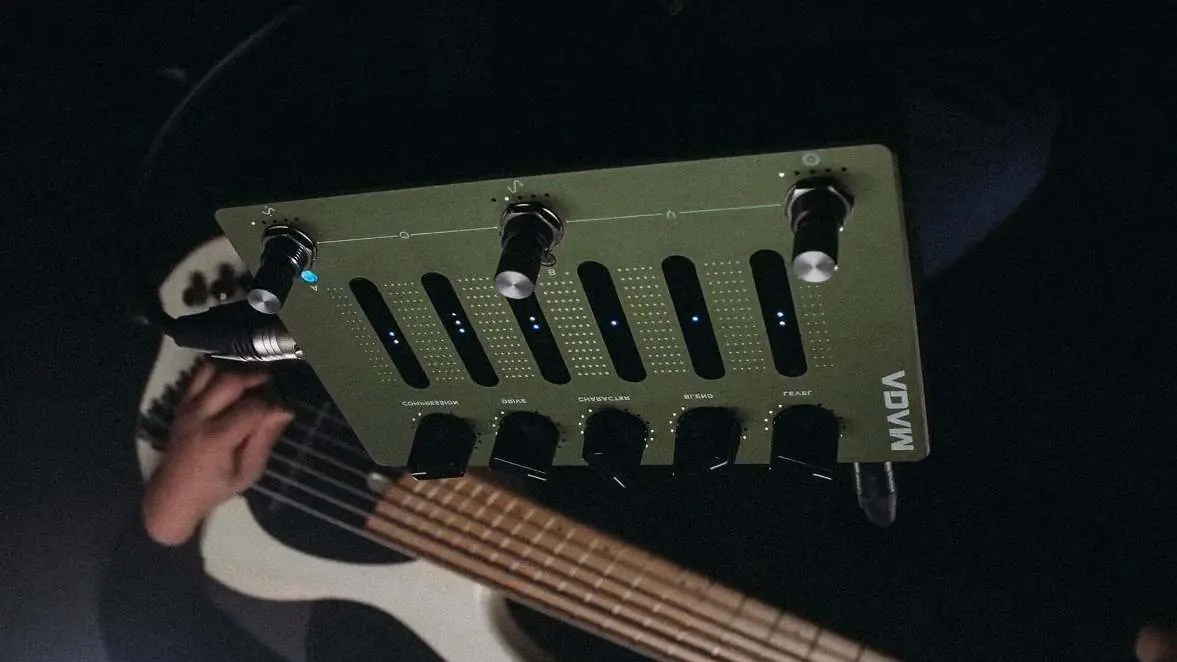
- Connect your instrument to the 1/4 inch INPUT.
- Connect a compatible power supply (9V DC, center negative, min. 500 mA).
- Connect your output device: headphones, USB-C cable to a computer, instrument cable to an amplifier, or XLR cable to a mixing desk.
- The unit comes pre-programmed with three presets (A, B, and C). Select them using the dedicated footswitches.
- To save changes to a preset, press and hold one of the footswitches for two seconds until the LEDs flash.
Connections
The device offers versatile connectivity options:
- Input: Primary instrument input (1/4 inch mono jack).
- Aux In: Stereo input for backing tracks (1/8 inch jack).
- Headphone Output: Supports 16–600 ohms impedance. Use the dedicated potentiometer to set volume.
- Balanced Outputs: Two 1/4 inch jacks for studio monitors or amplifiers. Use TRS connectors for balanced signals.
- Direct Output: XLR output with a ground lift switch for low-noise connection to mixing desks.
- MIDI In: 1/8 inch TRS jack for external MIDI controllers.
- USB: USB-C port for audio interface capabilities, software updates, and Darkglass Suite interaction.
Signal Chain
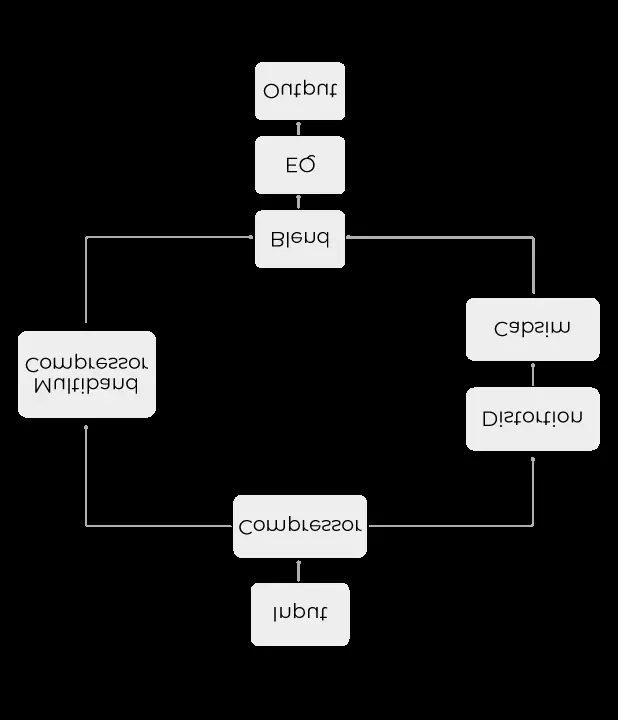
The internal signal processing follows this path: Input > Compressor > (Split: Multiband Compressor / Distortion & Cabsim) > Blend > EQ > Output. The Blend control mixes the distorted/preamp signal with the clean sidechain signal.
Controls
The interface features smart potentiometers, touch sliders, and rotary encoders:
- Smart Potentiometers: Compression, Drive, Character, Blend, and Level. Positions are stored per preset and indicated by LED rings.
- Touch Sensitive Slider: Controls the 6-band graphic EQ. Swipe up to boost, down to cut, or double-tap to reset to 0 dB.
- Rotary Footswitch Encoders (A, B, C): Press to switch presets. Rotate to adjust specific parameters (Compressor ratio, Distortion mode, or Active IR).
Basic Operation
Editing and Saving Presets: When you change a parameter, the preset LED will breathe, indicating audition mode. To save, press and hold a footswitch for two seconds.
Tuner: Press B and C simultaneously to enter. The unit will not output audio while tuning. The sliders display tuning accuracy.
Bypass: Press A and B simultaneously to enter bypass mode, where the input signal passes through unprocessed.
Performance Lock: Press A and C simultaneously to lock the device, preventing accidental parameter changes during live performances.
USB Audio Interface
The device functions as an audio interface. Mac users do not need drivers. Windows users must download the latest USB audio drivers from the Darkglass website. The unit supports 48 kHz and 44.1 kHz sampling rates.
Bluetooth Pairing
Press and hold an encoder while rotating it. The LEDs will illuminate one-by-one. Once all five are lit, look for "Aggressively Distorting Advanced Machine" on your Bluetooth device list.
Practical help
Common problems
No audio output
Check if the unit is in Tuner mode (no audio while tuning) or Bypass mode.
Cannot save presets
Ensure you press and hold the footswitch for at least two seconds until all LEDs flash rapidly.
USB audio not working on Windows
Download and install the latest USB audio drivers from the official Darkglass website.
Before use
- Use a 9V DC center-negative power supply (min. 500 mA).
- Connect your instrument to the 1/4 inch INPUT.
- Ensure headphones (if used) have an impedance between 16 and 600 ohms.
- For USB audio, use a USB-C cable to connect to your computer.
Specs in practice
- Input impedance
- 1 MΩ (standard for instrument pickups).
- Output impedance
- 220 Ω.
- Current consumption
- ~500mA (ensure power supply meets this requirement).
Images and diagrams
- The signal chain flows from Input to Compressor, then splits into a clean sidechain and a distortion/cabinet simulation path, merging at the Blend control, followed by EQ and Output.
Model compatibility
- Mac: No additional drivers required.
- Windows: Requires USB audio drivers from the Darkglass website.
- DAW: Compatible with any standard DAW.

Manual page author
Emily Carter
User documentation editor
Prepares concise manual descriptions and highlights the most useful setup, operation, and maintenance information for readers.